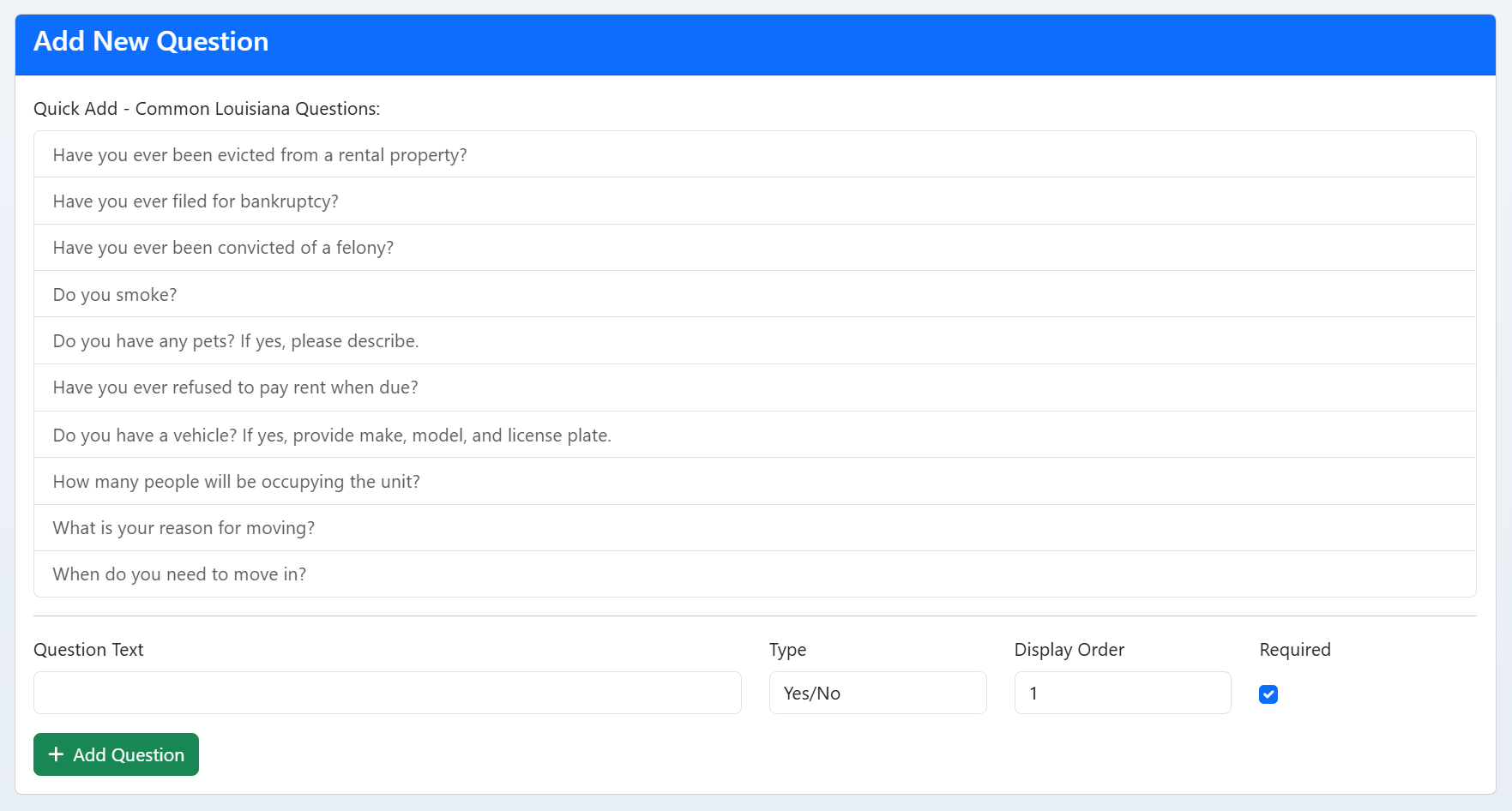
Tenants → Applications
Review and manage tenant applications from the Manager area.
Showing Web screenshots
Switch between web app and mobile app screenshots. Step text is the same; mobile images can be uploaded separately.
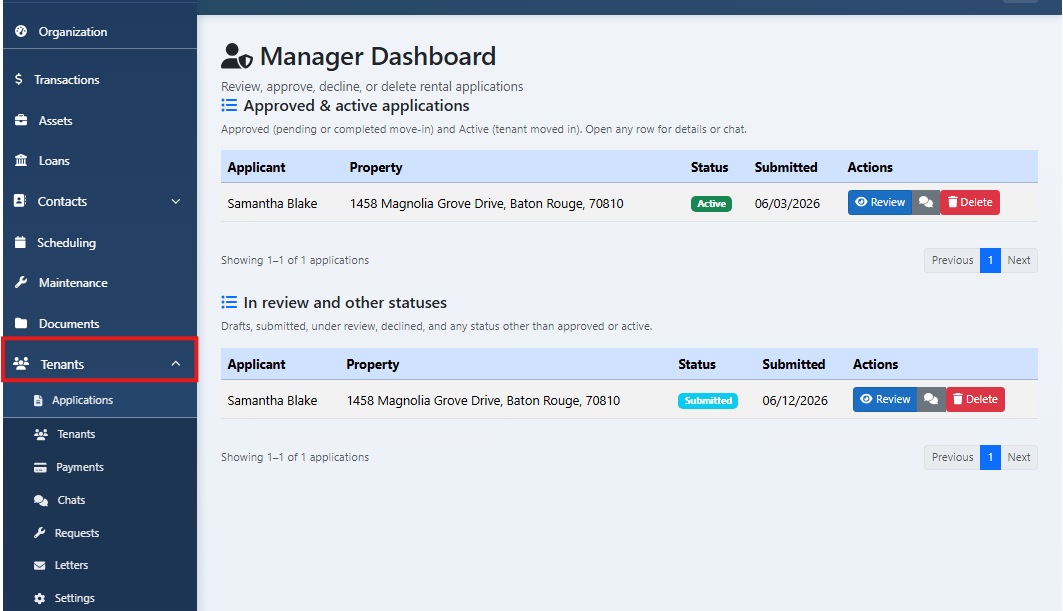
Opening the Applications list (pending, approved, declined)
Go to /Manager/Index to see applications. Filter or view by status: pending, approved, declined.

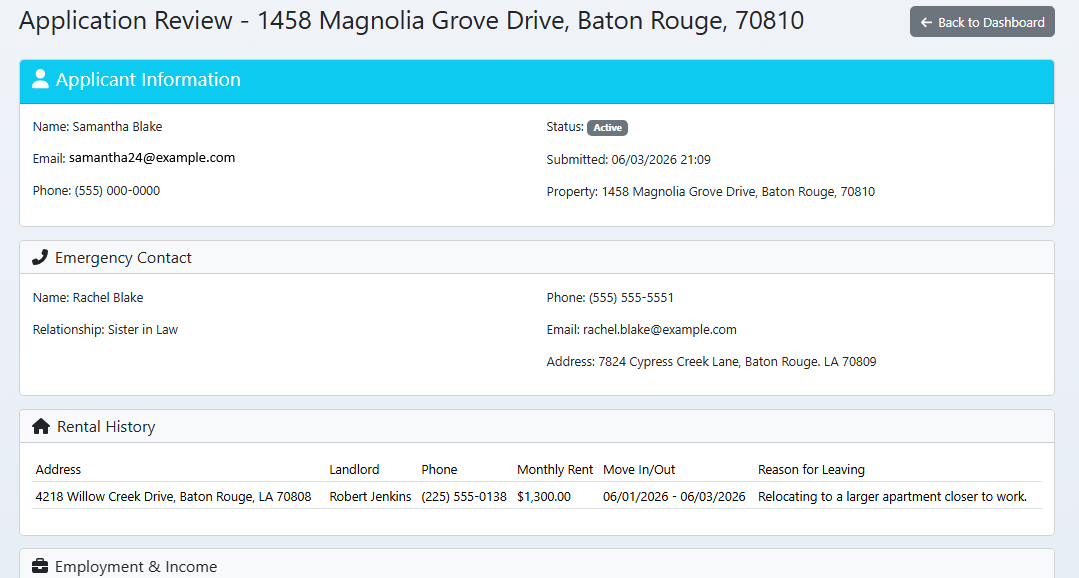
Viewing application detail (all sections, documents, screening status)
Open an application to see all sections, uploaded documents, and screening status. Review before approving or declining.

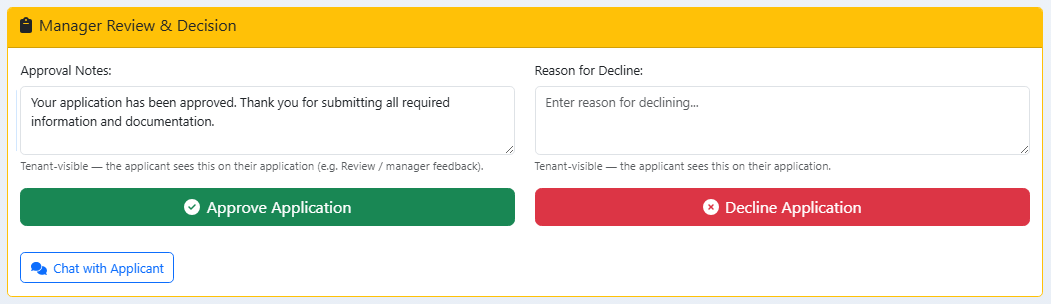
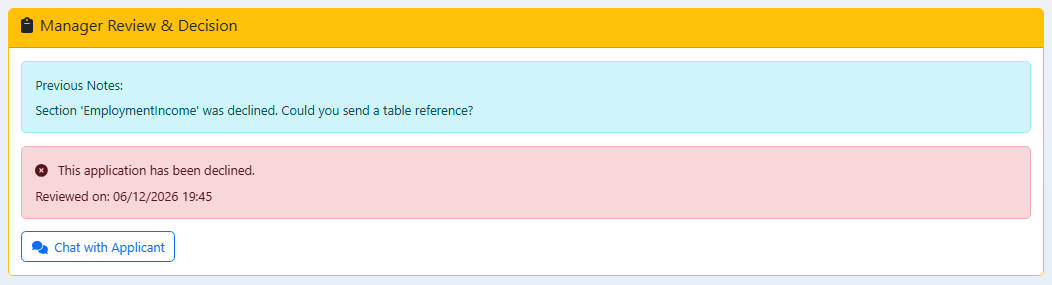
Approving or declining an application (with manager notes)
Approve or decline from the application detail. Add manager notes for your records or for the applicant. Submit to update status.

Section-level approve/decline (Part 1, Part 2, Part 3 if applicable)
If you use multi-part applications, approve or decline by section (Part 1, Part 2, Part 3). Applicant may need to complete more before full approval.

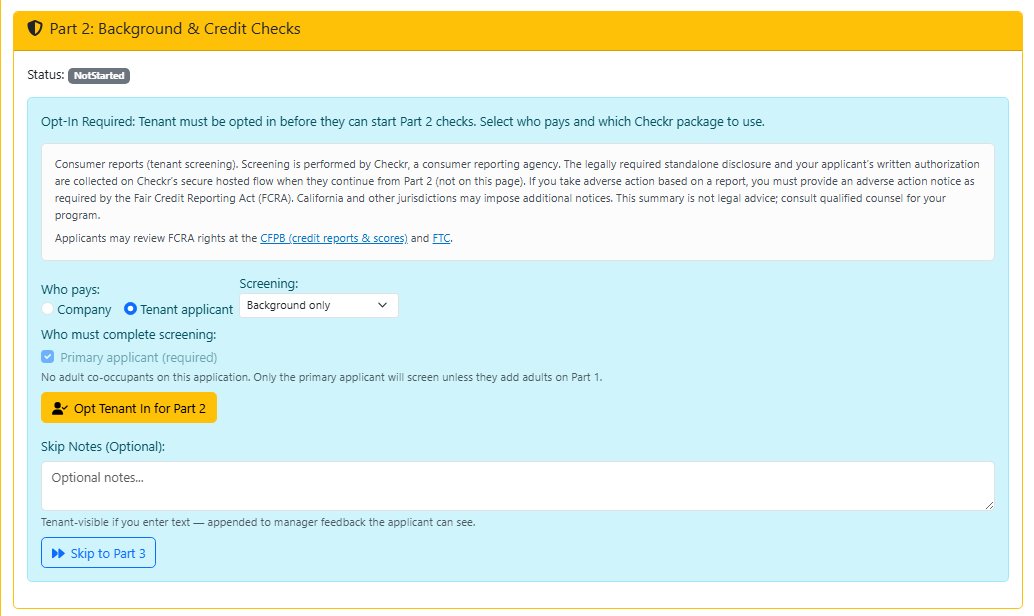
Screening: starting or viewing Checkr status, opting in Part 2, package selection
Start or view Checkr screening from the application. Opt the applicant into Part 2 if needed. Select the screening package and run the check.

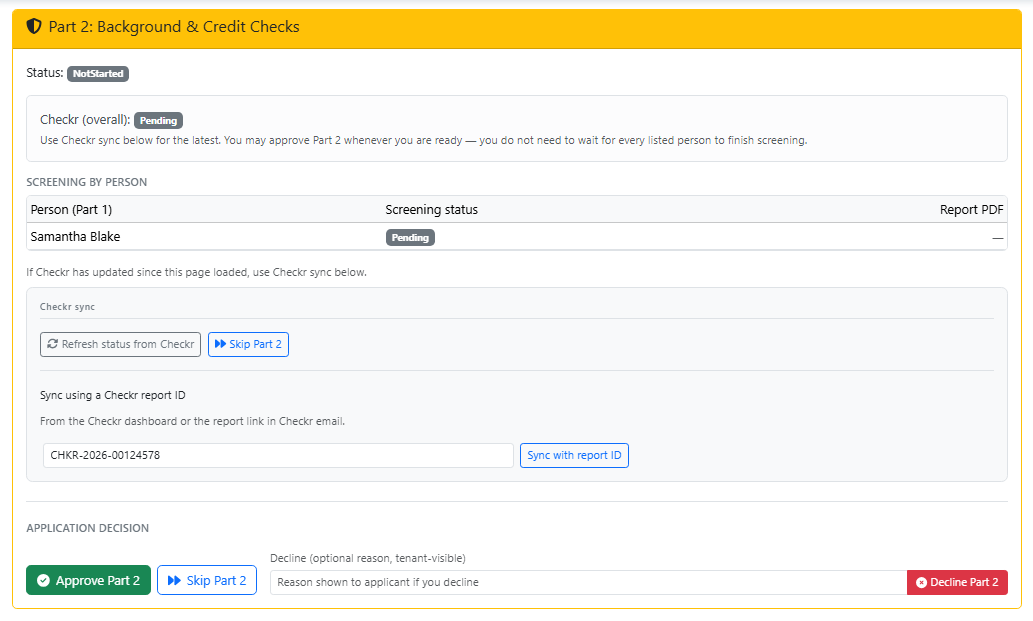
Refreshing screening status and syncing report
Refresh to get the latest Checkr status. Sync or import the report when complete so it's attached to the application.

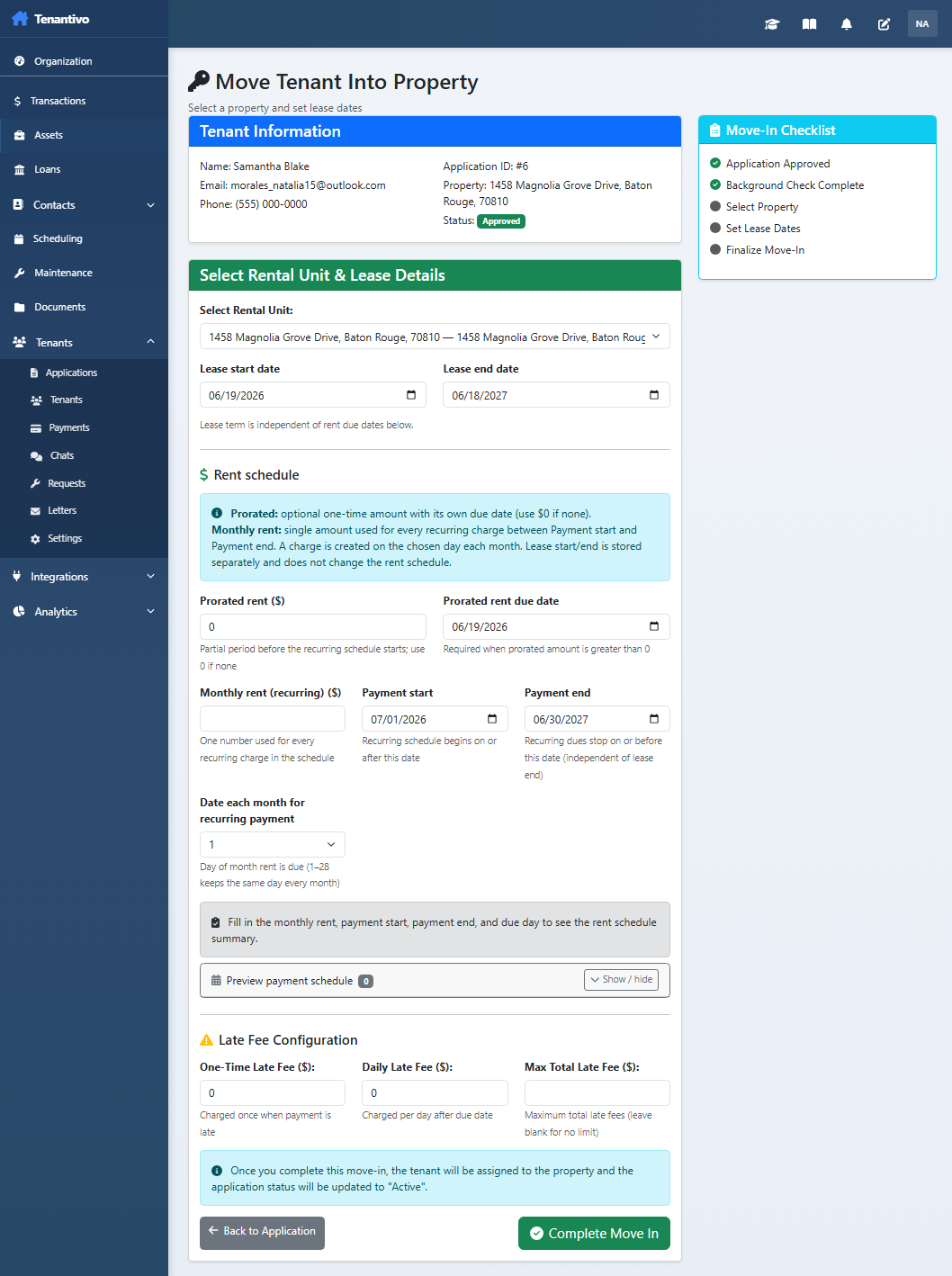
Move-in: starting Move In from an approved application (lease dates, rent, fees)
From an approved application, start Move In. Set lease dates, rent, and fees. Complete the move-in flow to create the tenant/rental record.

Move-in unpaid flow (if applicable)
If you support move-in without full payment (e.g. deposit later), use the unpaid flow and track balance or follow up.
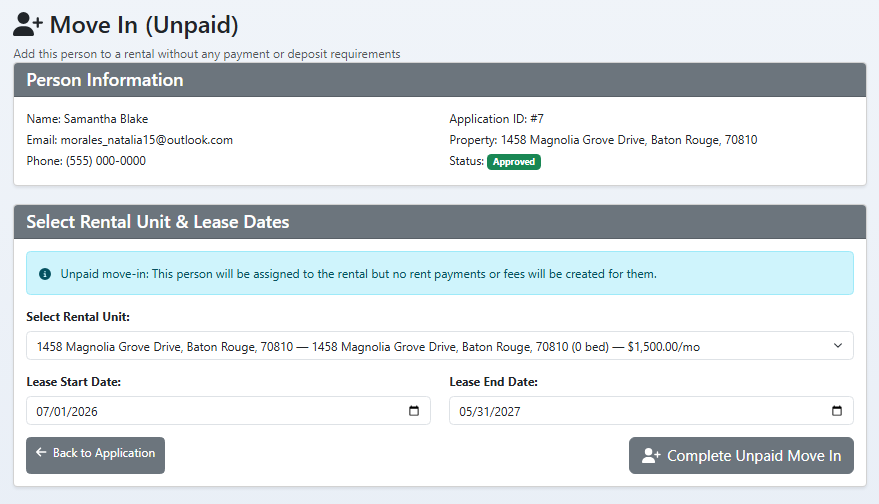

Sending the lease for signature (Firma)
From an approved application, send the lease for e-signature via Firma: select the template, confirm merge fields (tenant name, property, dates), and send. The applicant receives an email with a secure signing link. Track status on the application or in the Firma integration area. See Integrations → Firma training for template sync and webhook setup.
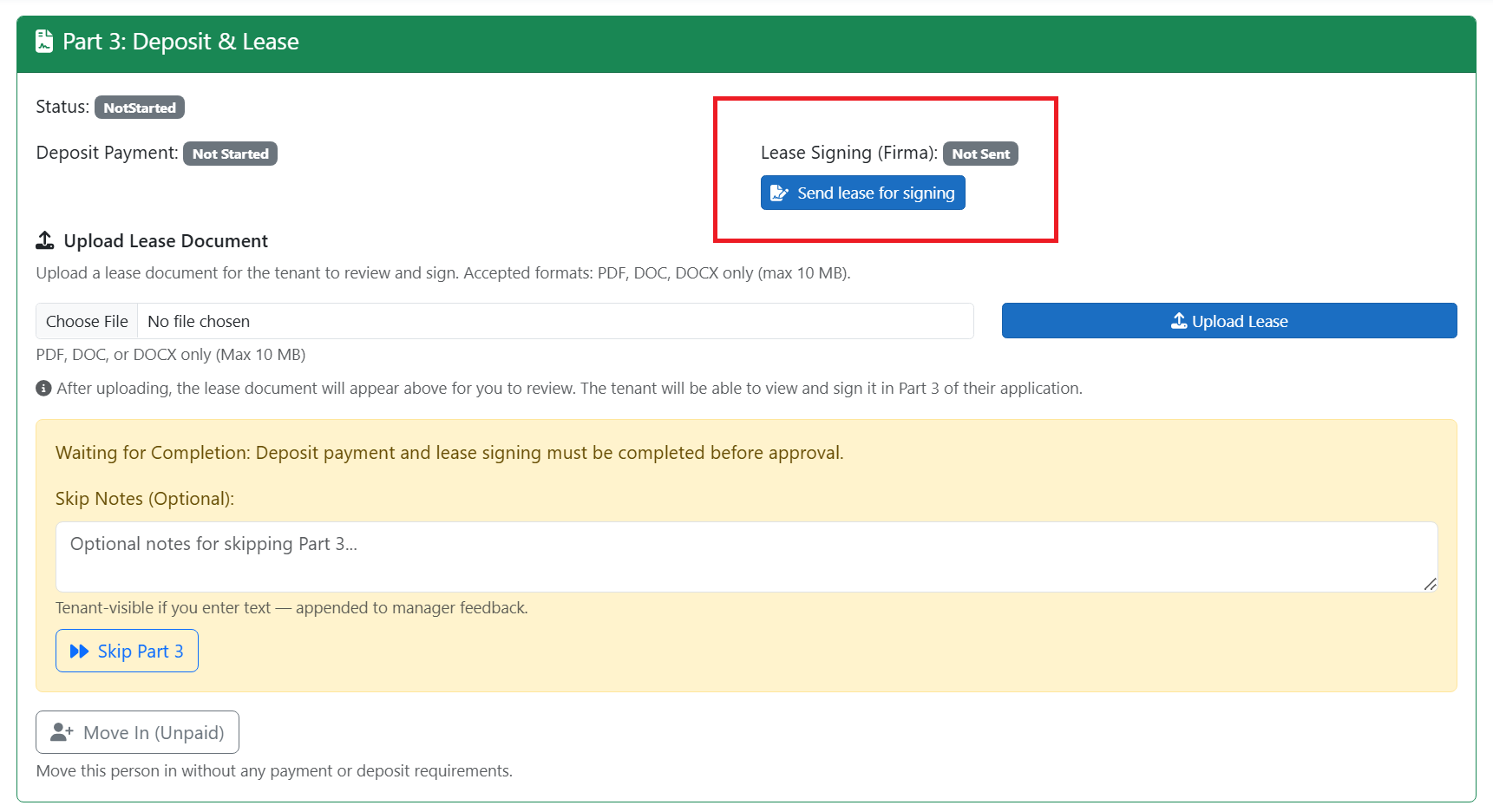

Uploading lease document
After Firma signing completes, the signed PDF may attach automatically. You can also upload a lease manually to the application or tenant record when needed (e.g. wet-signed copy). Link it to the correct entity for easy access.
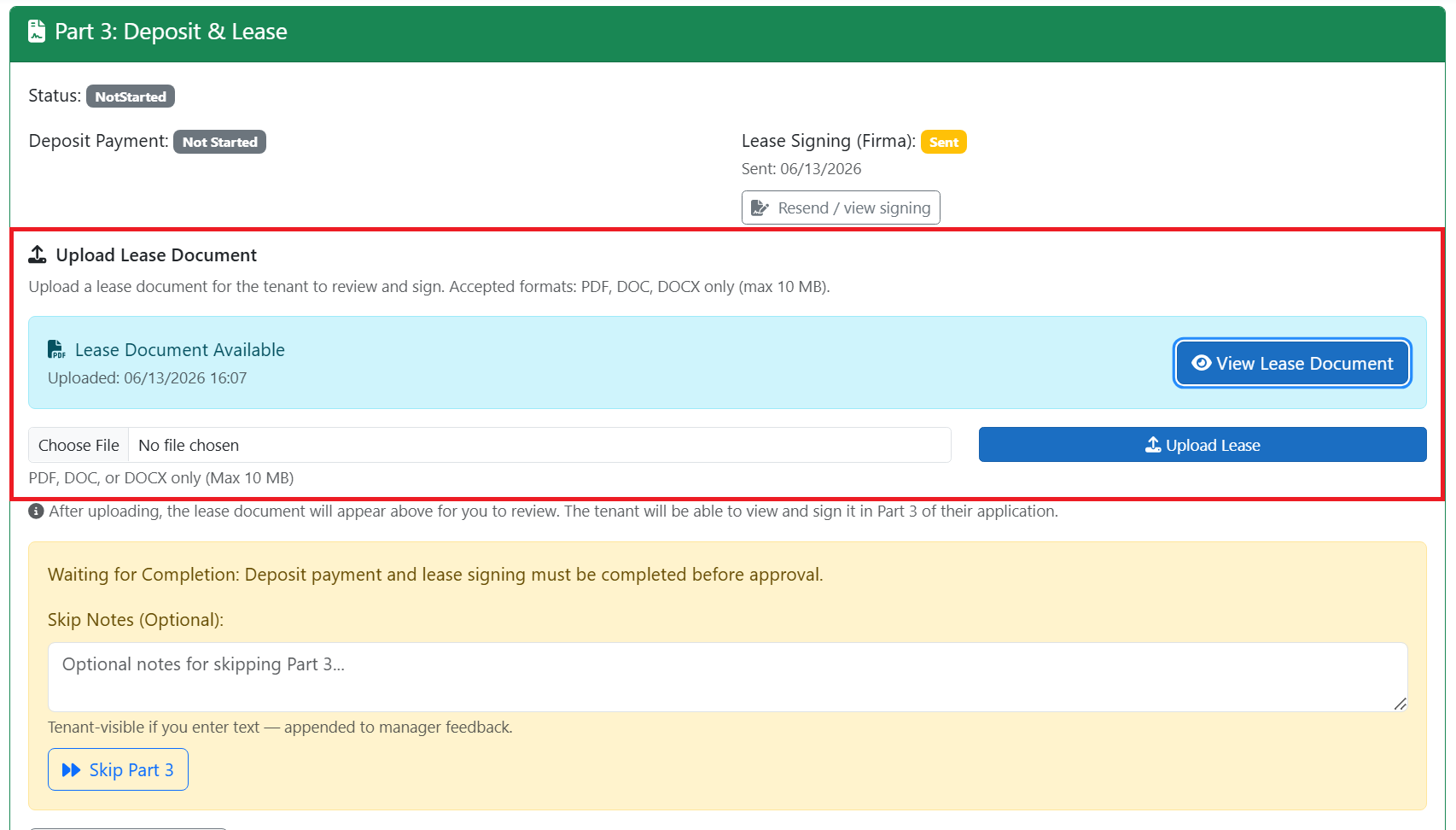

Deleting an application
Delete an application only when appropriate (e.g. duplicate, test). Confirm; deletion may be permanent and remove documents.


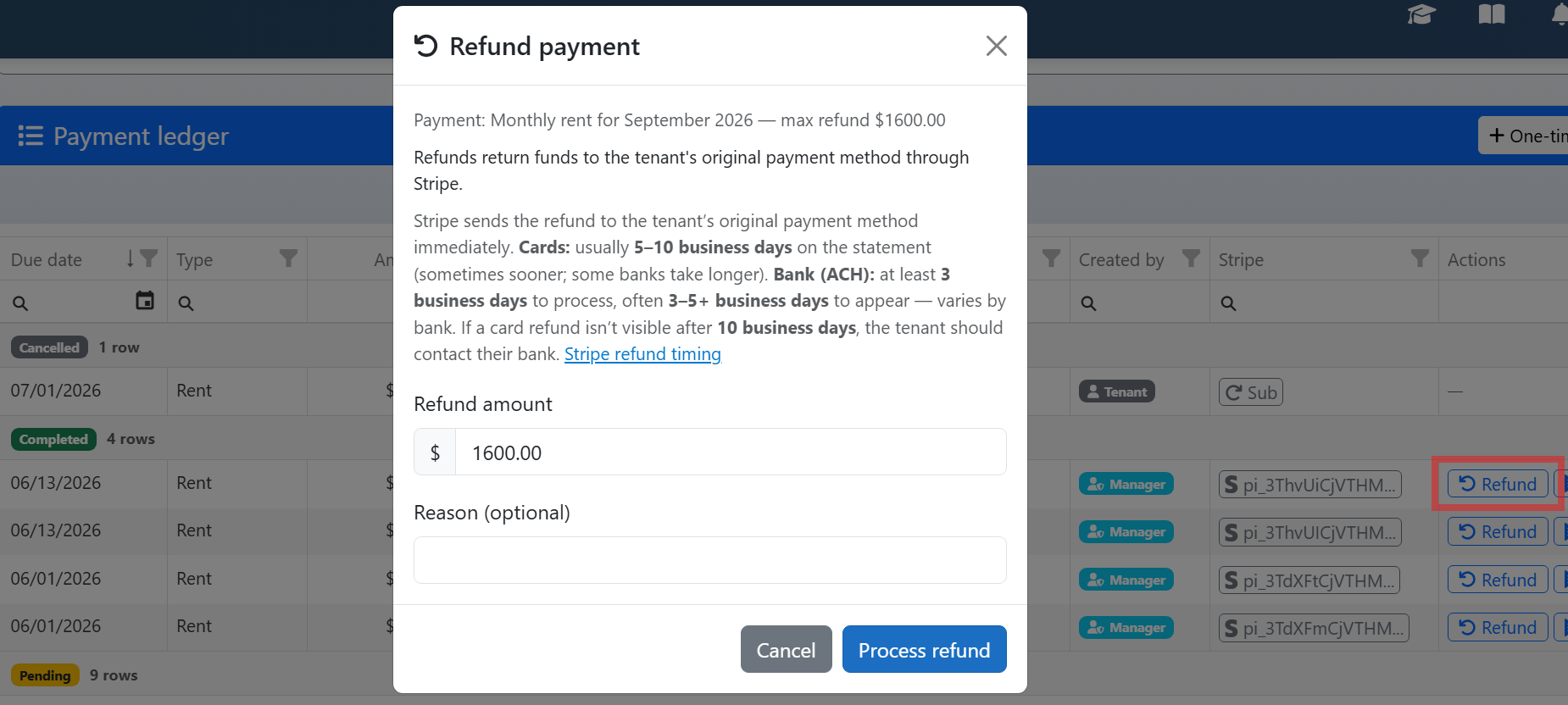
Application payments and refunding deposit (if applicable)
View application payments (fees, deposits). Refund deposit from the application or Payments area if the applicant is declined or withdraws.

Application questions (Manager → Questions): viewing, adding, deleting custom questions
In Manager → Questions (or Settings), view, add, or delete custom application questions. These appear in the application wizard for applicants.