Integrations → Firma
Send and manage Firma e-signatures for leases and documents.
Showing Web screenshots
Switch between web app and mobile app screenshots. Step text is the same; mobile images can be uploaded separately.
What Firma does in Tenantivo
Firma powers electronic signatures on leases during the rental application flow: provisioning a workspace for your organization, syncing templates, creating signing requests, optional webhooks for status updates, and storing completed PDFs when cloud storage is configured.

Configuration
Company-level Firma credentials (API base URL, company API key, webhook signing secret) are loaded from deployment configuration and Azure Key Vault. Account Managers can enable the module and optionally record workspace identifiers per environment under Account portal → Configuration → Organization keys when your rollout requires it.
Templates and sending
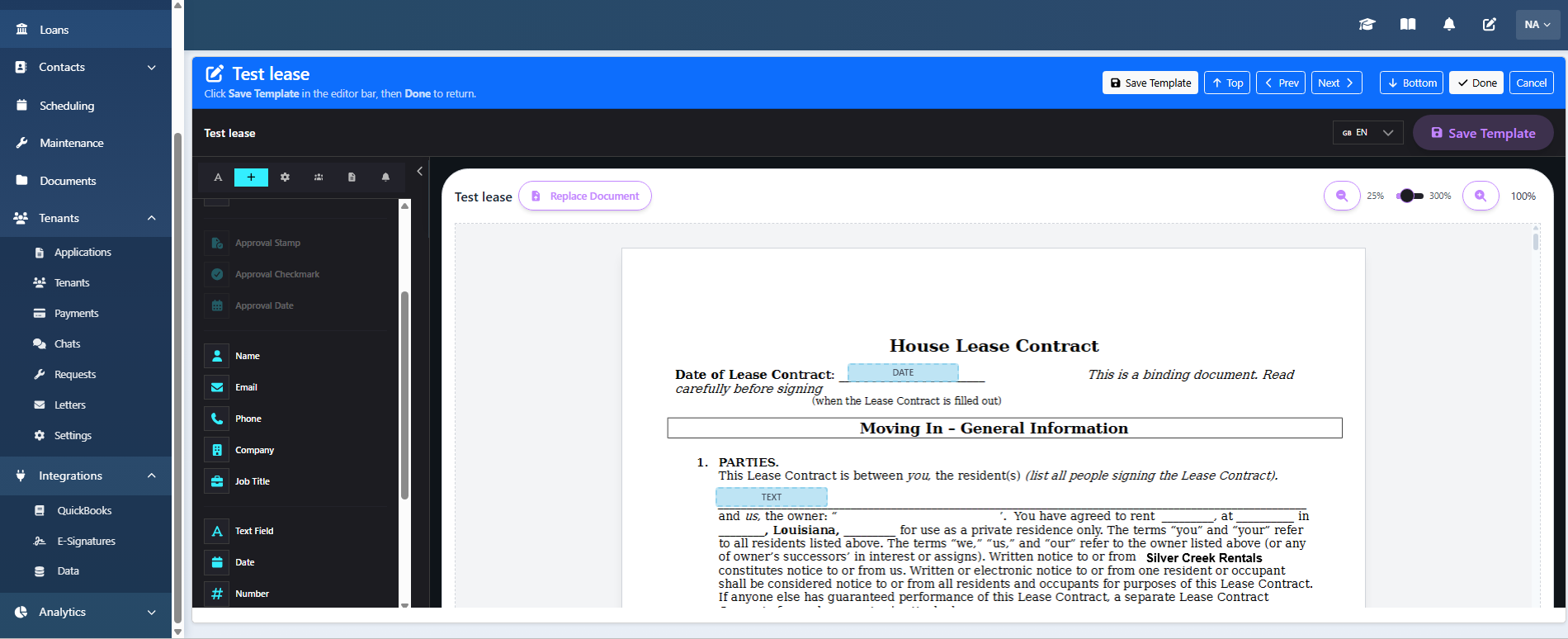
Build templates in Firma with variables that match application merge fields (tenant name, email, property address, lease dates). Sync templates into Tenantivo so managers can send signing requests from application workflows and the mobile app.

Template editor
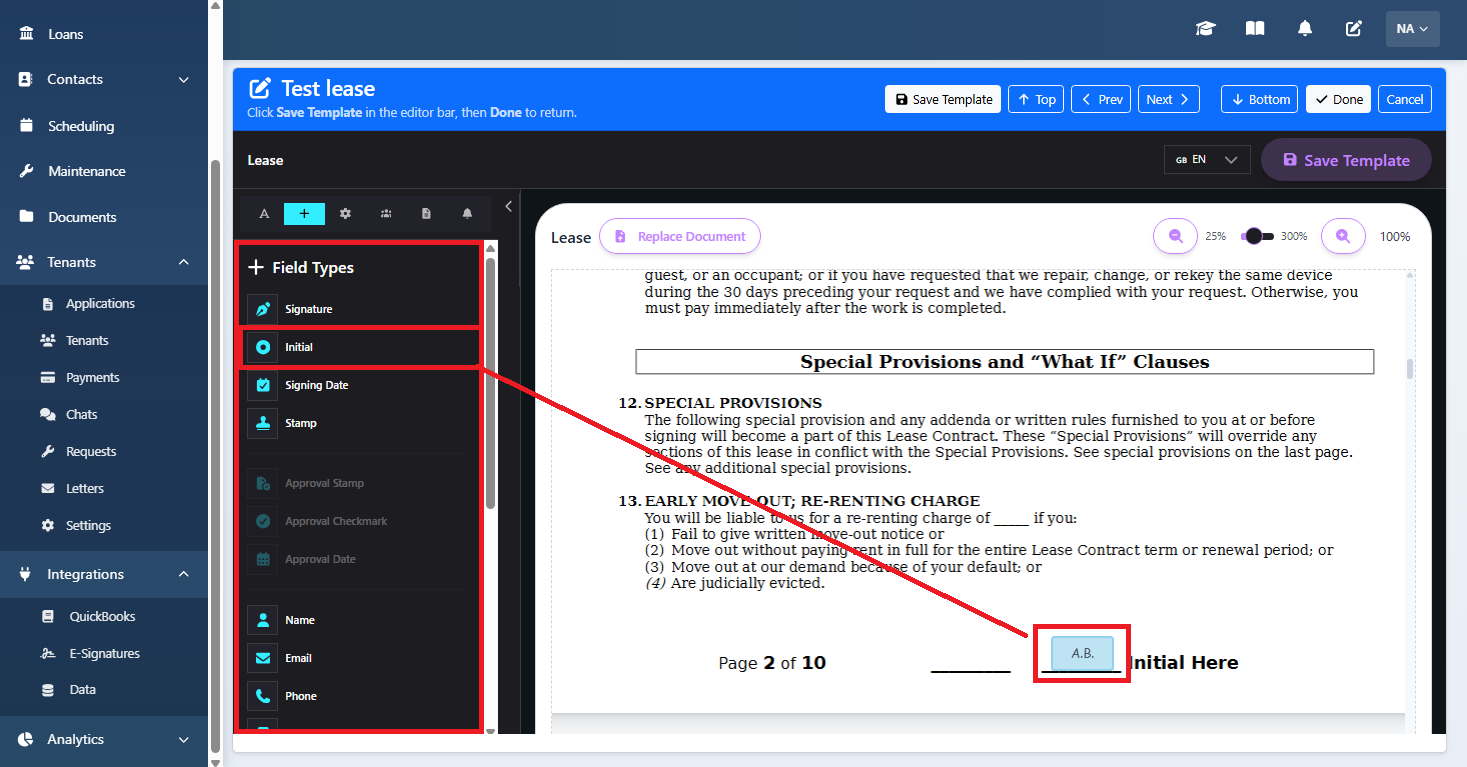
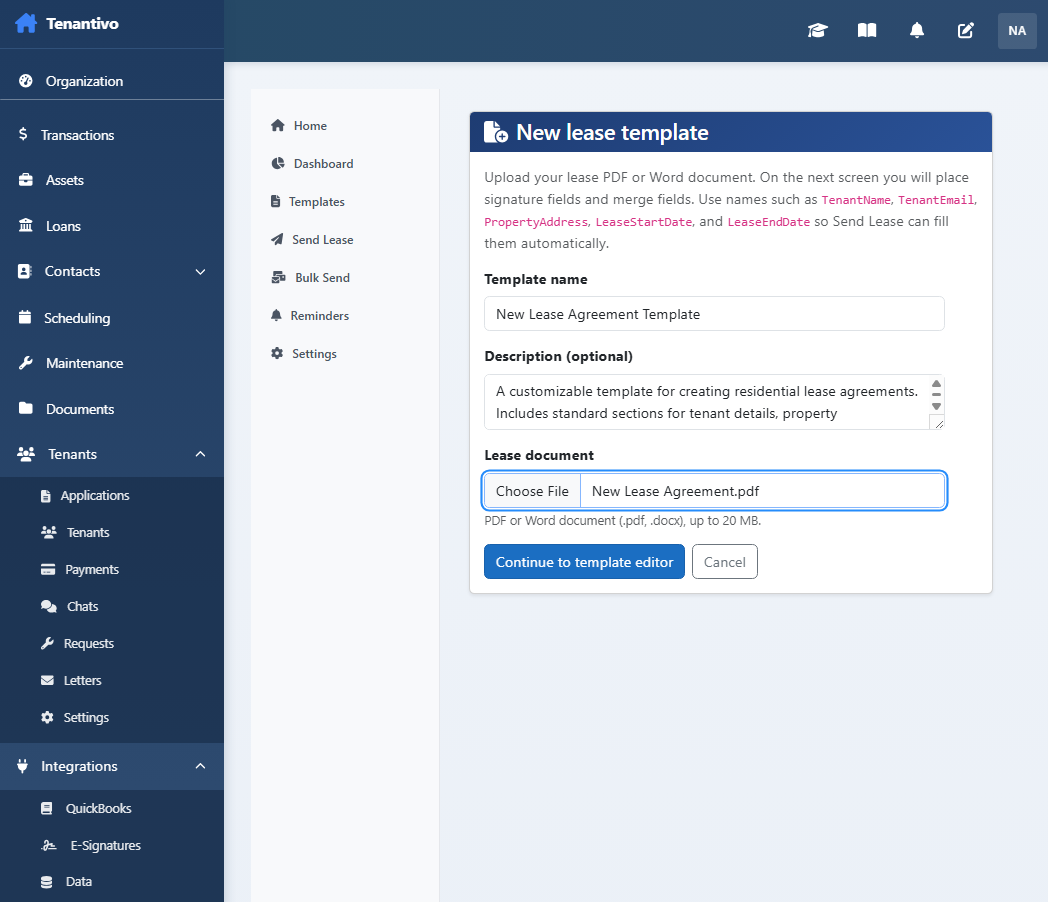
After you upload a lease PDF or Word document (E-Signatures → Templates → New template), or when you click Edit on an existing template, Tenantivo opens Firma’s embedded template editor inside the page. You do not leave Tenantivo to design the document.
In the editor you can:
- Review each page of the lease and scroll through multi-page documents using the page controls in the header.
- Place signature and initial fields for each signer. Name signers User 1, User 2, User 3 (and so on) in signing order—User 1 is typically the primary tenant, additional users are co-tenants, and the last user is often the landlord or manager.
- Add merge fields (text variables) that Send Lease fills from the application, such as
TenantName,TenantEmail,PropertyAddress,LeaseStartDate,LeaseEndDate,SecurityDeposit,ManagerName, andCompanyName. - Drag fields onto the PDF where tenants and managers should sign or where filled-in lease details should appear.
When you are finished, click Save Template in the editor toolbar (or the Save button in the Tenantivo header), then click Done to return to the template list. Use Sync list on the Templates page if you need to refresh templates after changes. Set a Default template so Send Lease can pre-select it for new leases.

Tenant experience
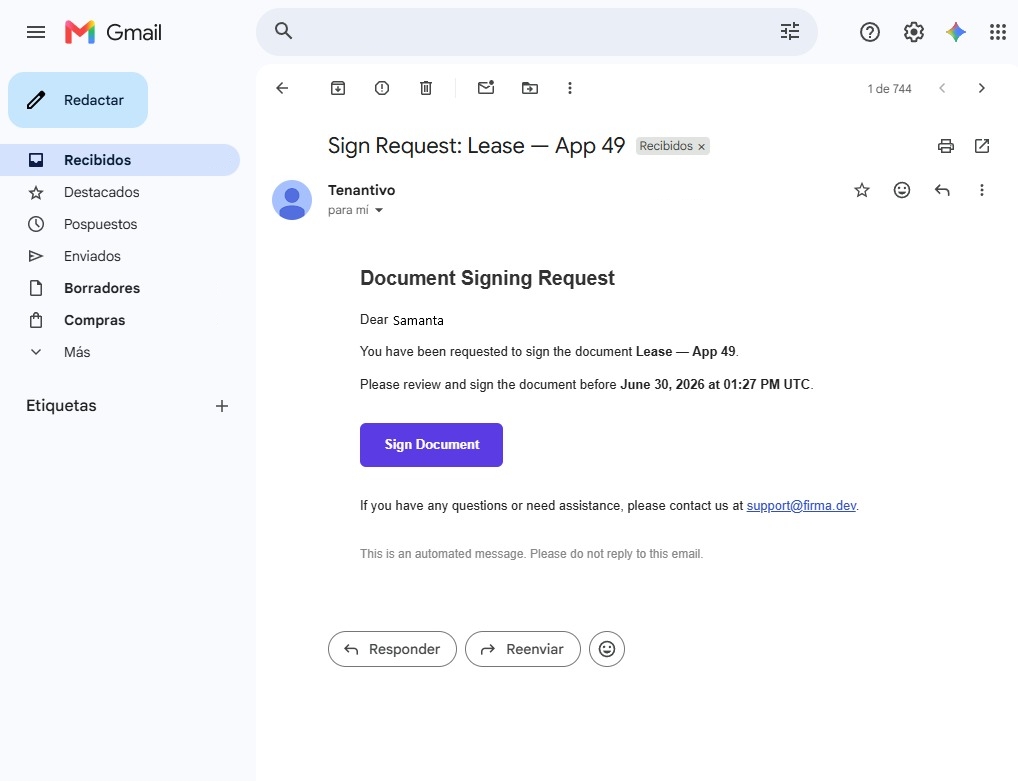
Applicants receive email from Firma with a secure link to review and sign. Mobile users can open the embedded signing URL in a WebView when the lease has been sent.