Account & Security
Manage your profile, password, and security settings in the Management app.
Platform
Showing Web screenshots
Switch between web app and mobile app screenshots. Step text is the same; mobile images can be uploaded separately.
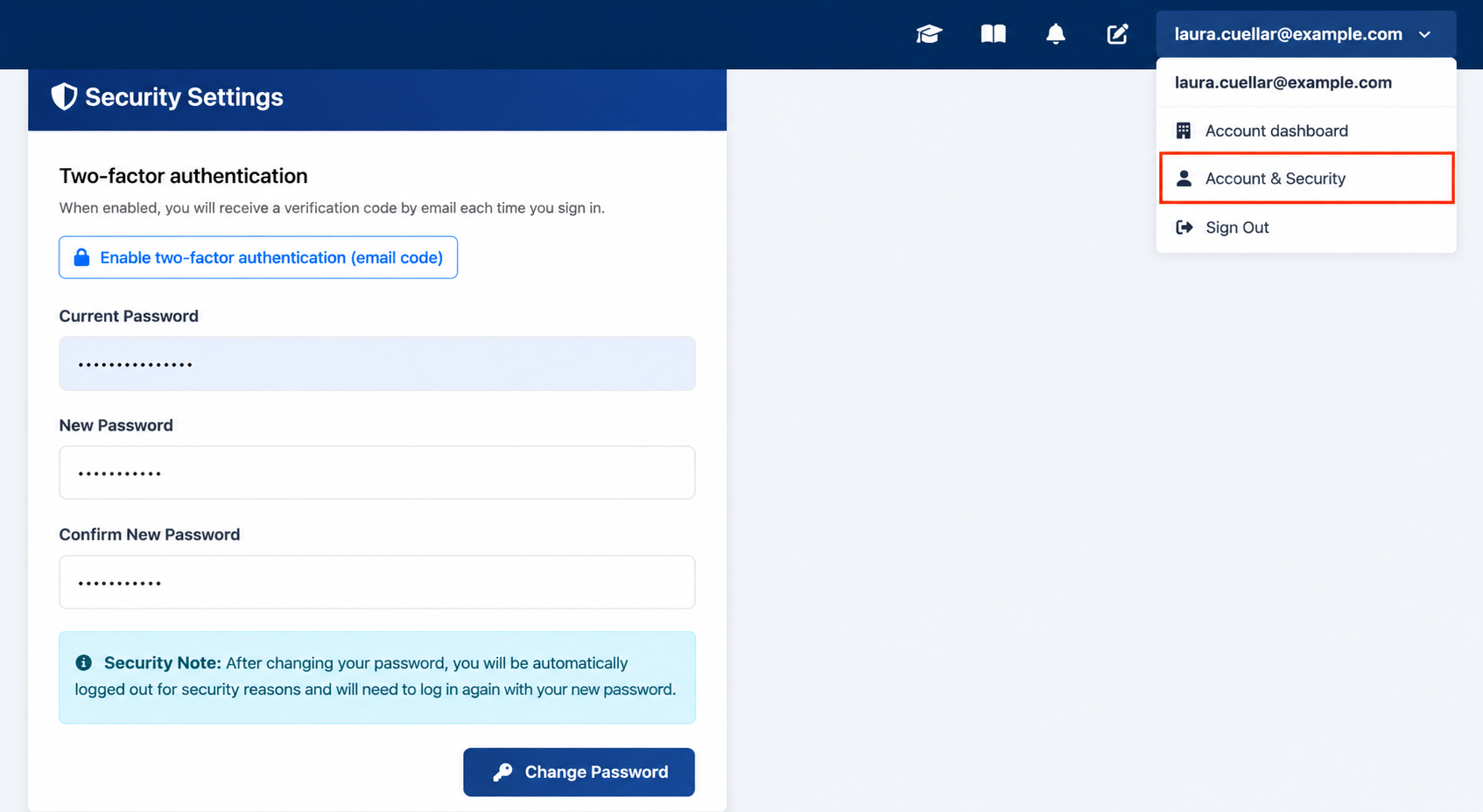
Opening Account & Security from the user menu
- Click your name or avatar in the top-right corner of the Management app.
- From the dropdown menu, select Account Dashboard or Account & Security.
- The Account & Security page opens.

Updating profile and changing password
The same Account & Security page is available from the Account Portal and the Management app. You can update your display name and email, change your password, and review security settings using the same steps described in Organization → Account & Security training.
Tip: Always sign out on shared devices. Use Sign out other sessions if you forget to log out remotely.