Account & Security
Manage your profile, password, and security settings.
Showing Web screenshots
Switch between web app and mobile app screenshots. Step text is the same; mobile images can be uploaded separately.
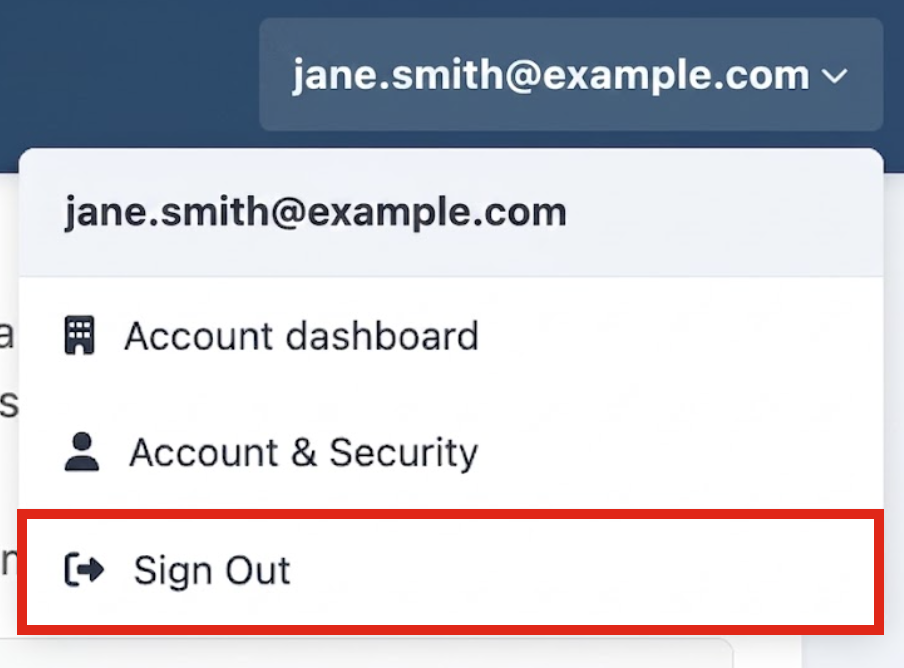
Opening Account & Security from the user menu
- Click your name or avatar in the top-right corner.
- From the dropdown menu, select Account Dashboard or Account & Security.
- The Account & Security page will open.

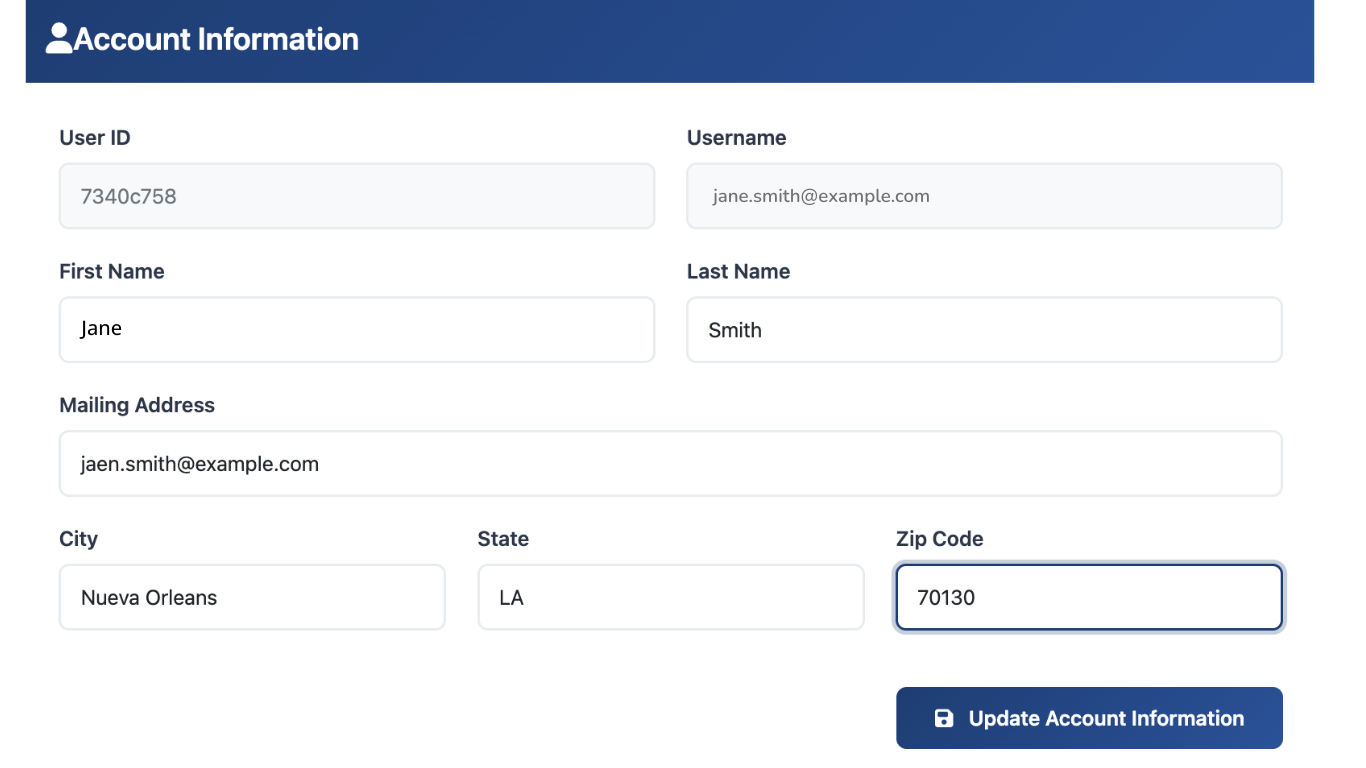
Updating profile (name, email)
- Go to Account & Security.
- Open the Account information section.
- Edit display name and email address.
- If you change your email, a verification email will be sent.
- Click Update Account Information.

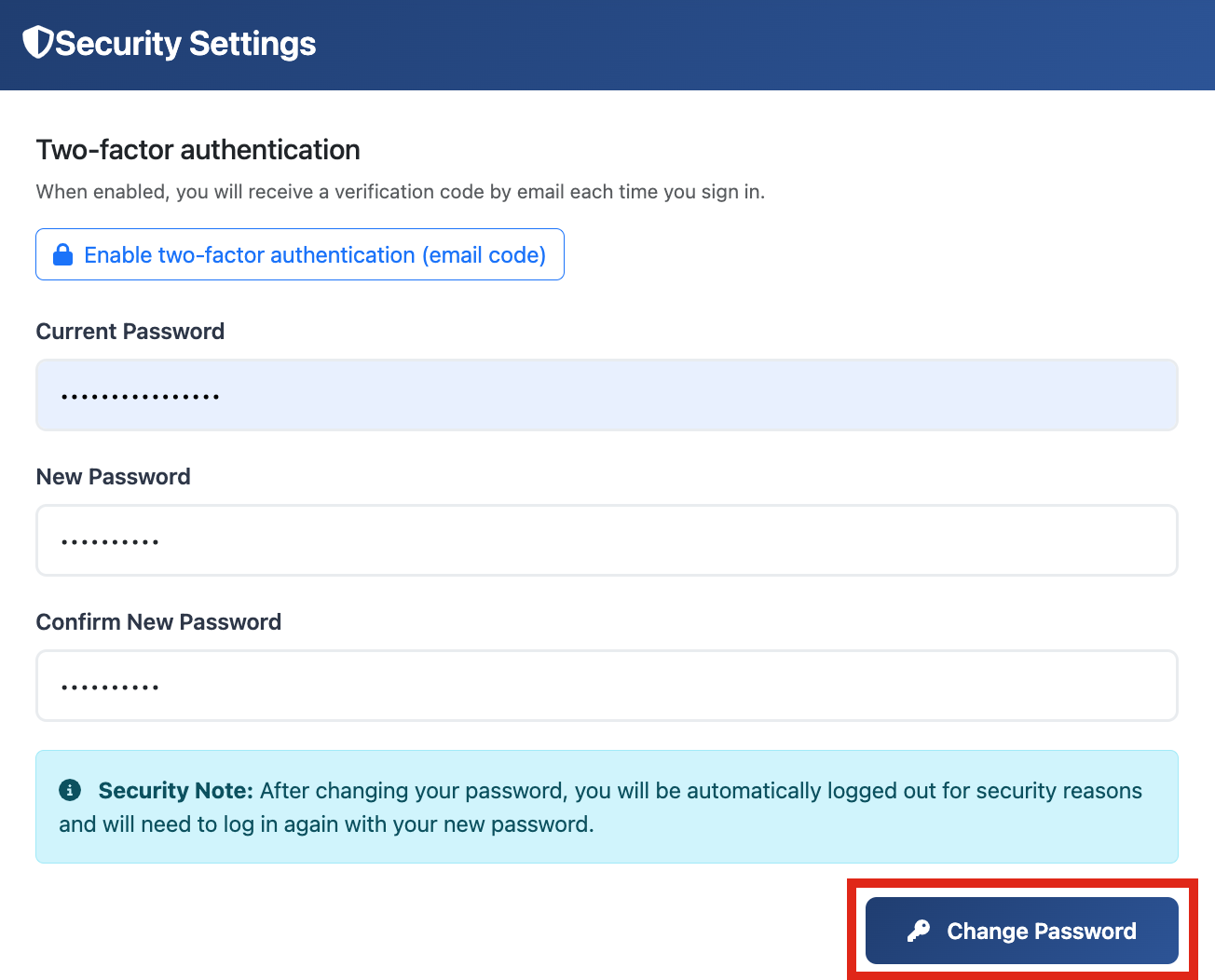
Changing password
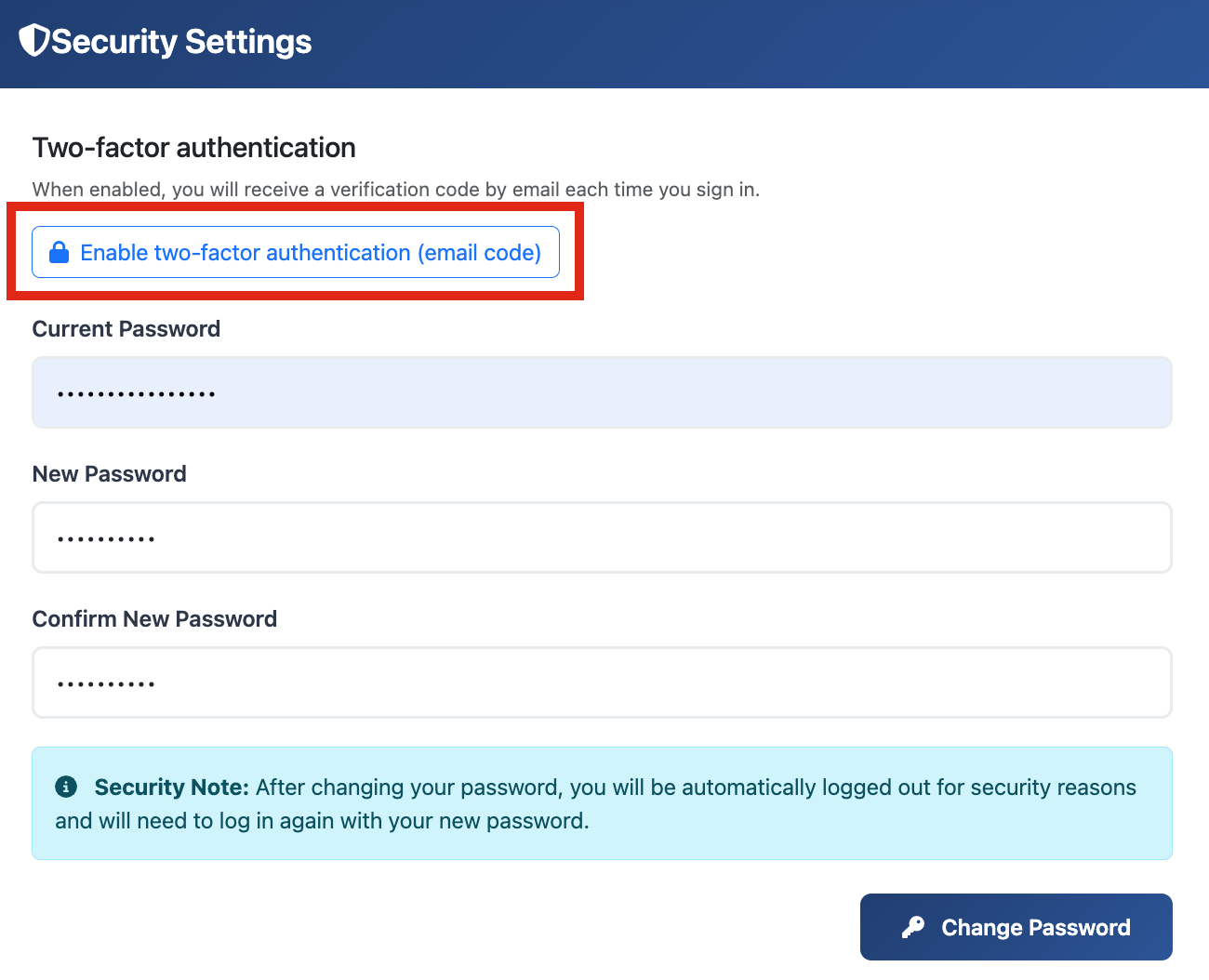
- In Account & Security, click Change password.
- Enter your current password, new password, and confirm new password.
- Save changes.
Tip: Use a strong, unique password and consider a password manager.

Security and session settings (if any)
Look for these options (if available):
- Two-Factor Authentication (2FA) — add extra login security
- Active sessions / Logged-in devices — see where your account is logged in
Recommended actions: Enable 2FA if available. Trusted devices are not used with local accounts.

Signing out
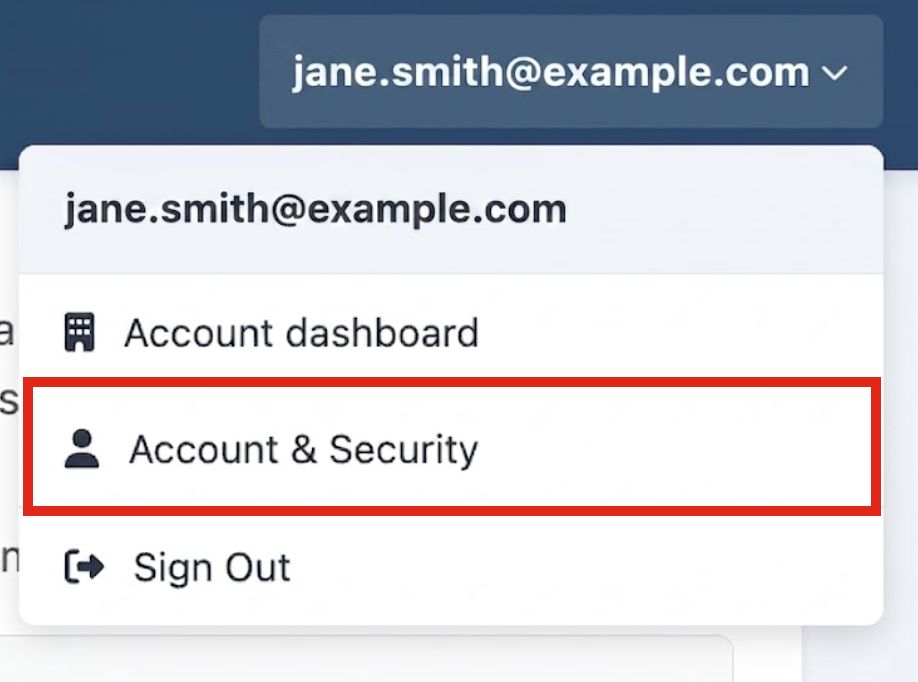
- Click your avatar in the top-right corner.
- Select Sign out / Log out.
- Always sign out on shared or public devices.
Best practice: Always sign out on shared or public devices.