Tenants → Requests
View and manage maintenance requests submitted by tenants.
Showing Web screenshots
Switch between web app and mobile app screenshots. Step text is the same; mobile images can be uploaded separately.
Opening the Maintenance requests list (from tenants)
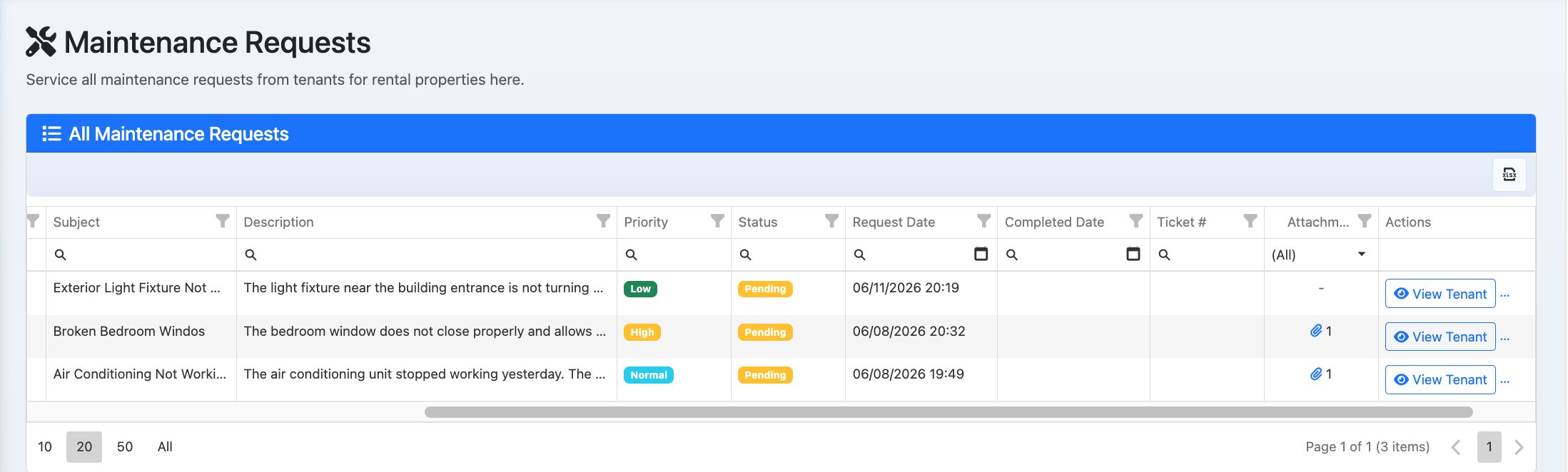
Go to /Manager/MaintenanceRequests to see all maintenance requests submitted by tenants. View by status or tenant.

Viewing request detail and tenant-submitted notes/photos
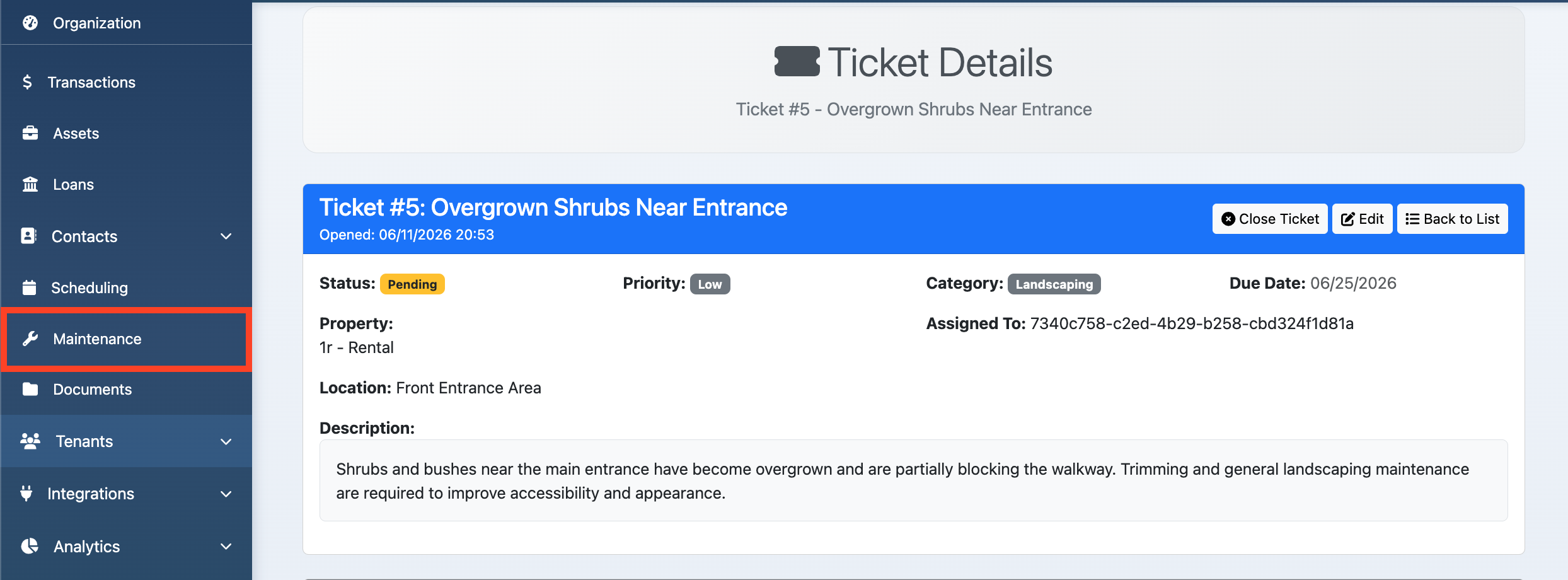
Open a request to see description, category, urgency, and any notes or photos the tenant added. Use this to triage and create a maintenance ticket.

Adding a manager note (visible to tenant or internal)
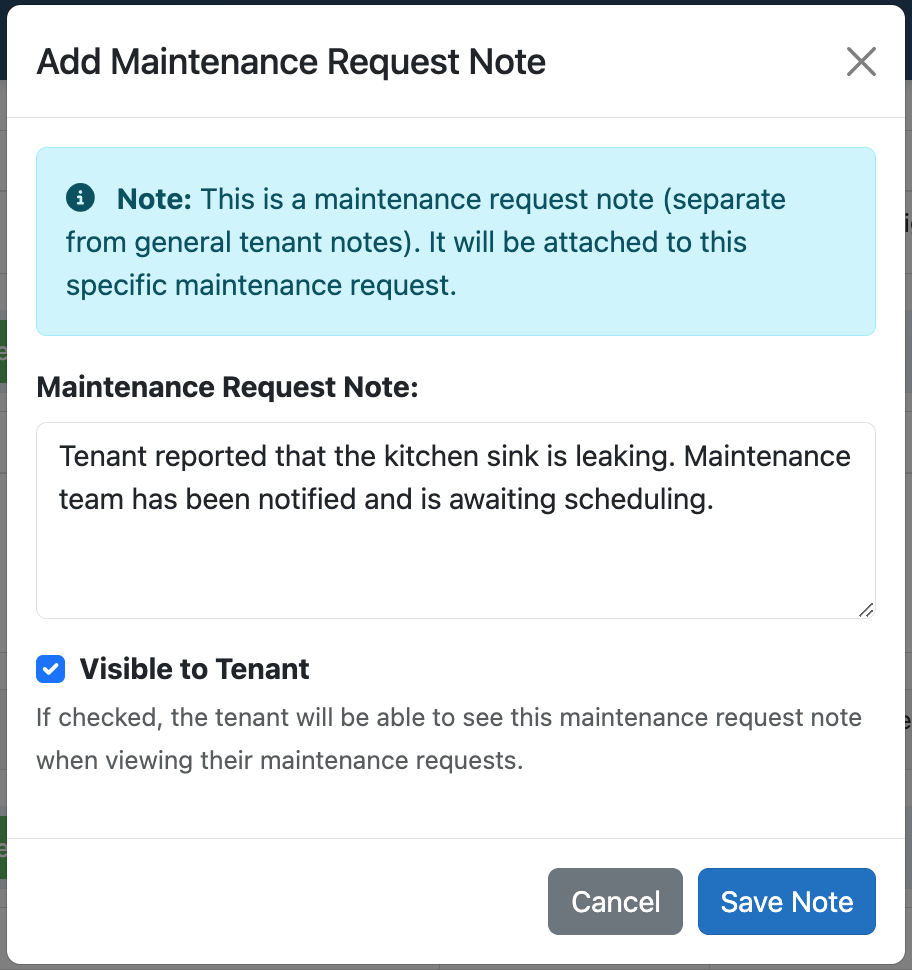
Add a note to the request. Choose whether it's visible to the tenant (e.g. "Scheduled for Tuesday") or internal only.

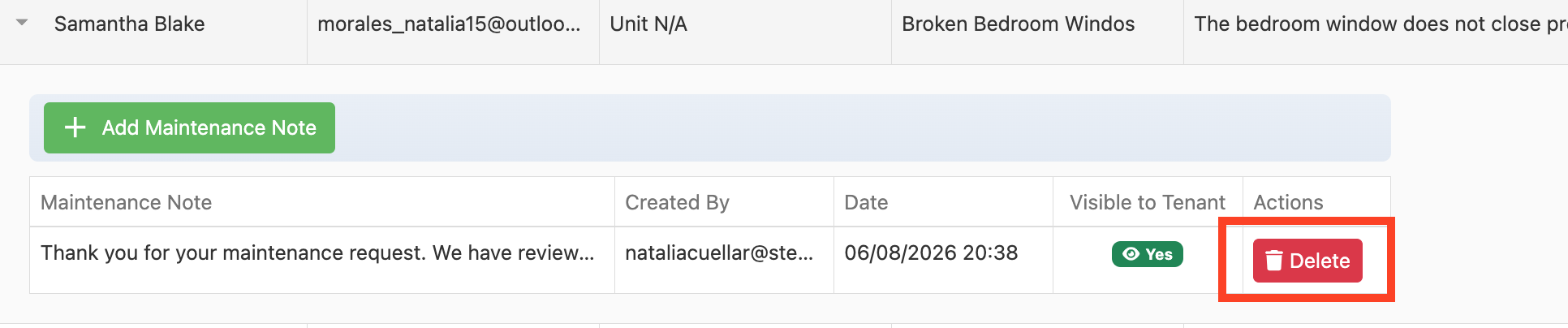
Deleting a note
Remove a note if it was added by mistake. Only delete when appropriate; some systems may audit note changes.