Integrations → Plaid
Connect bank accounts and import transactions. Manual bookkeeping does not require Plaid.
Showing Web screenshots
Switch between web app and mobile app screenshots. Step text is the same; mobile images can be uploaded separately.
1. Plan, Financials, and environment
Bank linking and import use the Financials area (typically Landlord tier and above). Your organization also needs Plaid-related keys in Owner Configuration where applicable. The web app must have valid server-side Plaid credentials (appsettings / Azure Key Vault) — that is separate from per-org keys. Your deployment’s DataEnvironment (Local, Test, Demo, Prod) determines which connection strings and key sets apply.

2. Connect a bank (Transaction Import)
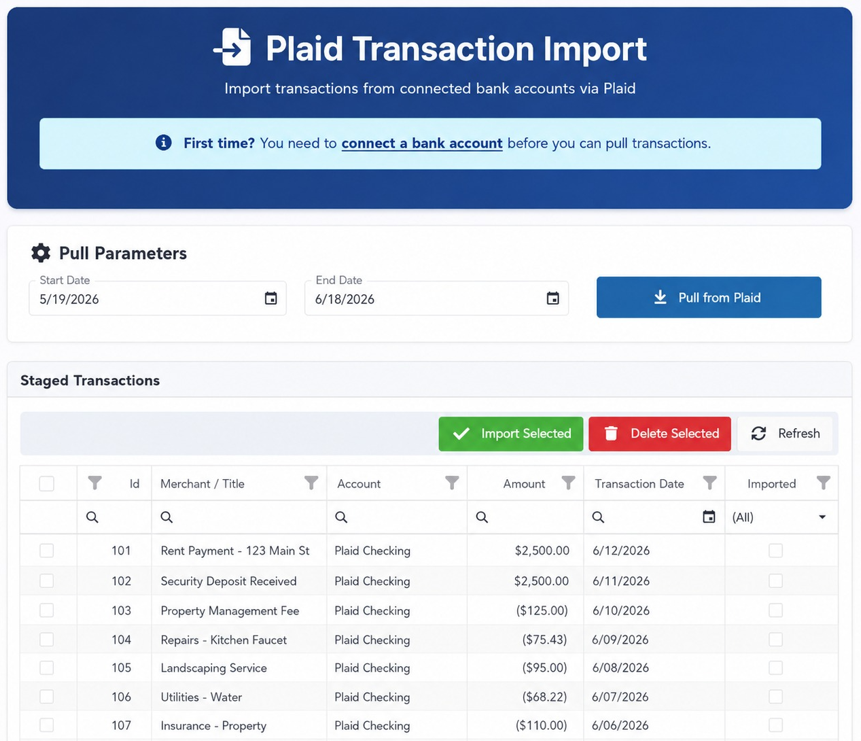
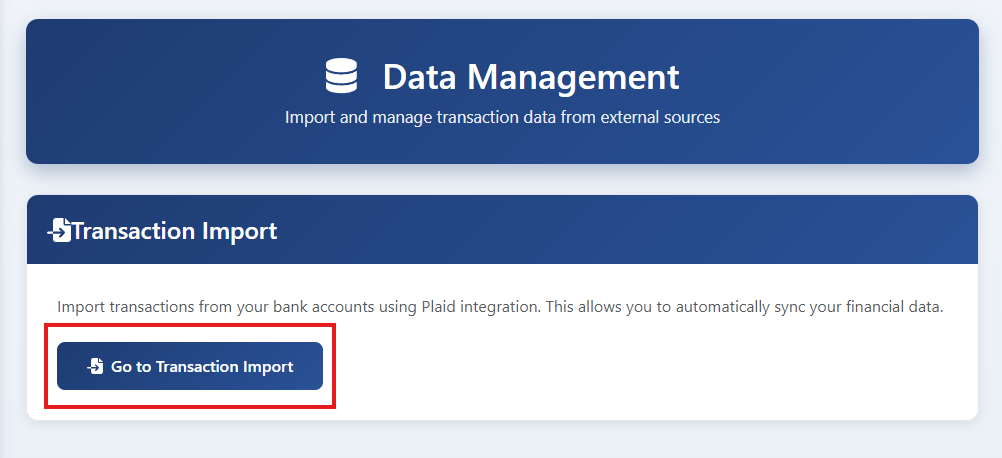
Managers open Plaid Transaction Import at /TransactionImport. Use Connect (or the flow that starts Plaid Link) to add an institution before pulling transactions.

3. Connected Bank Accounts (/Plaid)
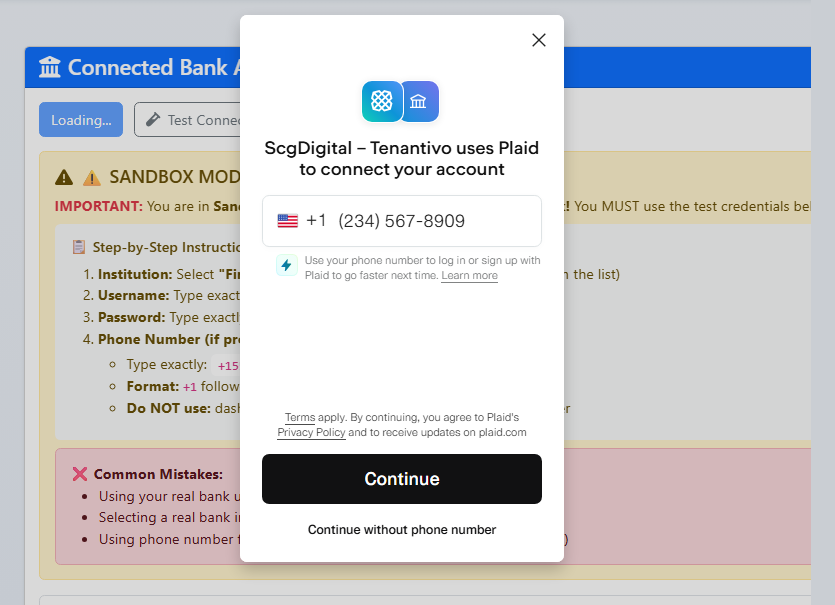
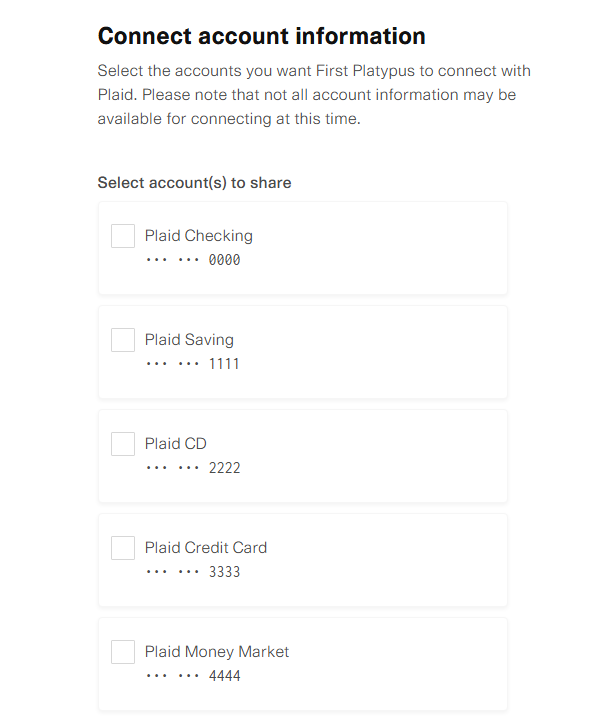
Use Connected Bank Accounts at /Plaid to see linked items, test the connection, and troubleshoot. You need manager access and the Financials area enabled.

4. Pull and commit imports
From Transaction Import, run Pull from Plaid to stage transactions, review the grid, then import what is desired into the transaction report.