Tenants → Payments
Manage tenant payments, application payments, and manual entries.
Showing Web screenshots
Switch between web app and mobile app screenshots. Step text is the same; mobile images can be uploaded separately.
Stripe and payment processing
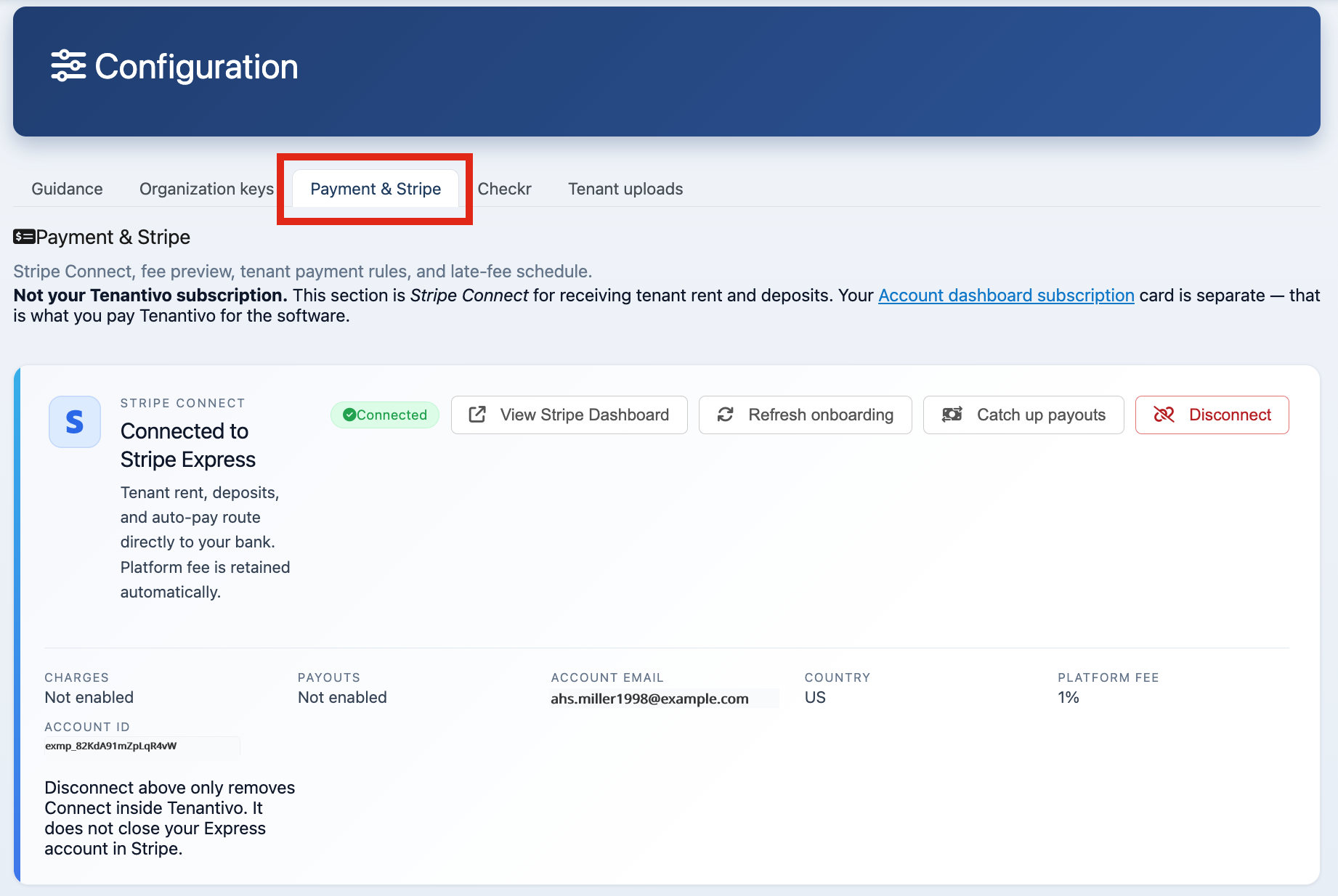
Tenant-facing and application payments use the platform’s Stripe integration. Stripe API keys are not entered by property managers or account holders on Account portal → Configuration; they are maintained by a platform administrator in the Managers app. Use test/sandbox keys respective environment. To receive payouts as a landlord and control how payments behave for your tenants, open Account portal → Payments & Stripe and configure Connect onboarding, accept payments toggle, fee absorption, late fees, auto-pay, credits and refunds.
Payment & Stripe (owner settings)
Open Account portal → Payments & Stripe (/Owner/Payments). From there you can:
- Connect with Stripe — complete Stripe Express onboarding so rent, deposits, and auto-pay all route to your bank account.
- Get paid — after Connect, finish Stripe Identity, company documents, and per-rental property authority at /Owner/Onboarding/Checklist. On a new landlord account, Tenantivo reviews each payment and releases the funds when it checks out. We do not keep the money. Agent accounts are not placed in that review. Bank payments wait for review before they charge; cards follow the elevated-amount rules. See Managing Rental Income and Payouts.
- Accept payments (master switch) — turn this off to temporarily pause all tenant charges (e.g. during a dispute). Tenants see a friendly "payments are temporarily disabled" message and no Stripe charge is attempted.
- Allow partial payments — when on, a tenant can pay less than a scheduled rent line; the remainder becomes a new pending row. When off, they must pay the full amount.
- Tenant pays processing fee / Tenantivo service fee — choose who absorbs each fee. Processing is Stripe’s card/ACH cost line; the Tenantivo service fee is method-based on Landlord+ ($1.50 ACH / 0.6% card) and percent-based on Starter. If you absorb a fee, the tenant is charged only the base amount for that line and it is netted from your payout.
- Allow auto-pay — master switch for tenant self-service recurring rent.
- Payment failure notification email — optional address (or comma-separated list) that’s pinged when a tenant charge fails.
The top of the page shows a live fee preview against a sample $1,000 rent charge (separate card and ACH service-fee amounts on Landlord+) so you can see what the tenant is billed vs. what lands in your bank before you save.

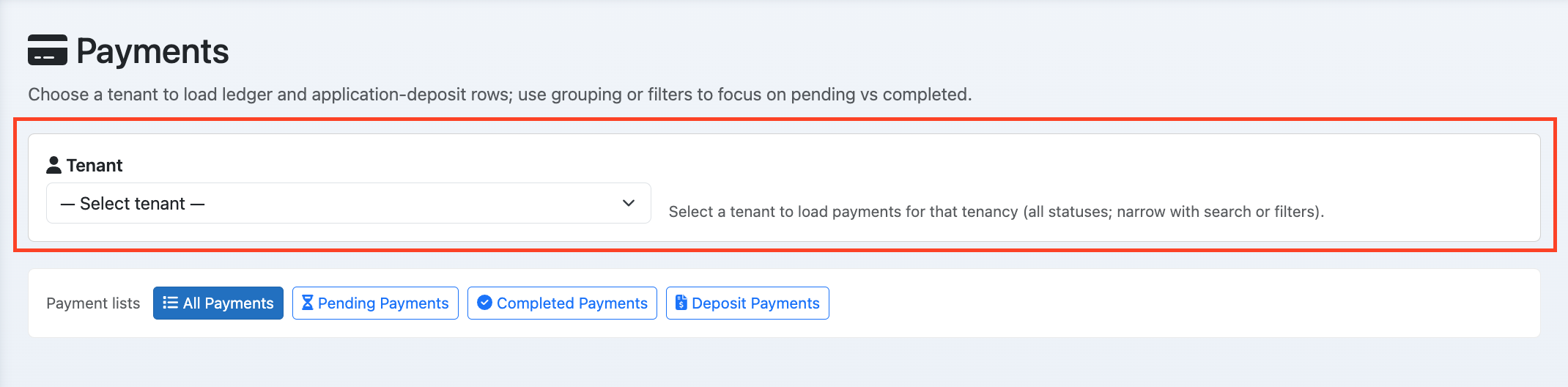
Opening the Payments list (all payments, filters)
Go to /Manager/Payments to see all payments. Use filters to narrow by tenant, date, type, or status.

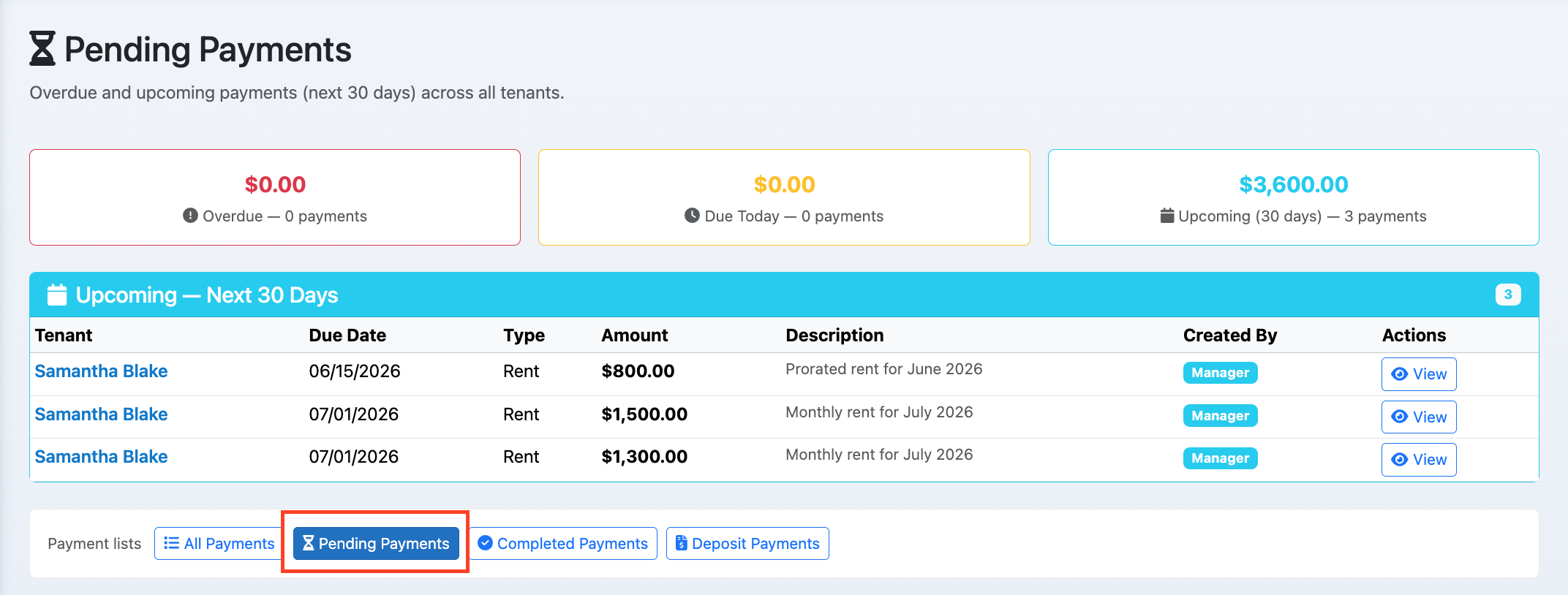
Pending payments view
View pending payments (e.g. not yet confirmed, in progress). Follow up or confirm as needed.

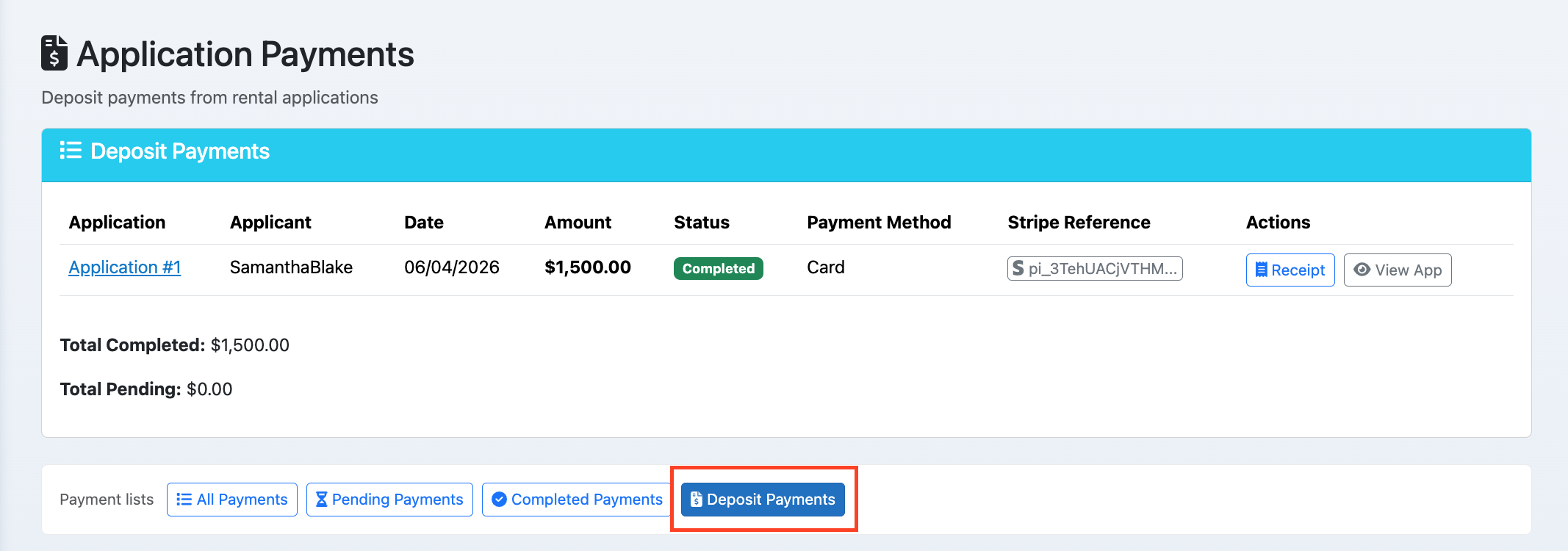
Application payments view (fees, deposits by application)
View application fees and deposits by application. Use this to track what was paid for each application and refund if needed.

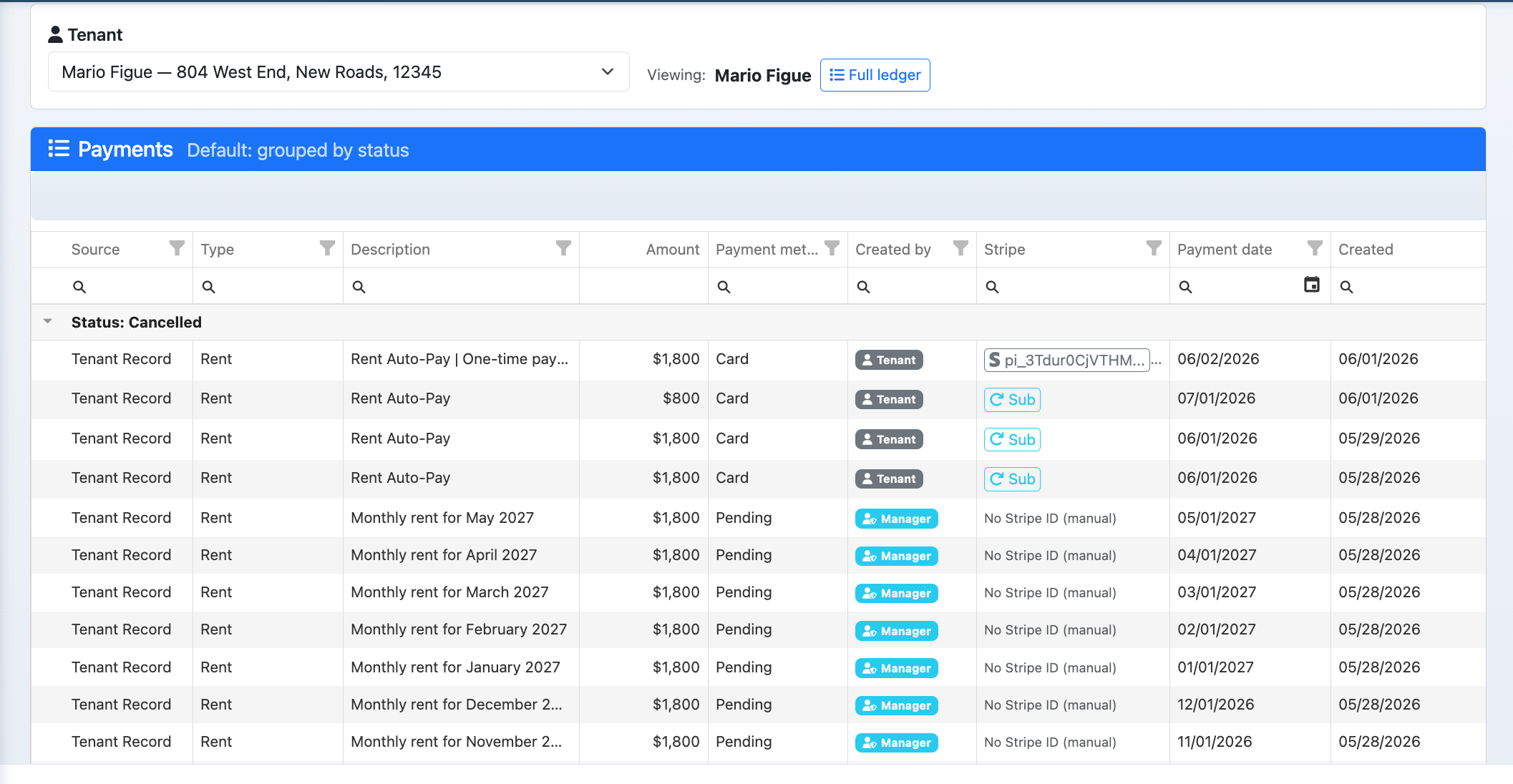
Tenant payments: viewing payments for a specific tenant
Filter by tenant or open a tenant record to see their payment history and balance. Use for rent tracking and delinquency follow-up.

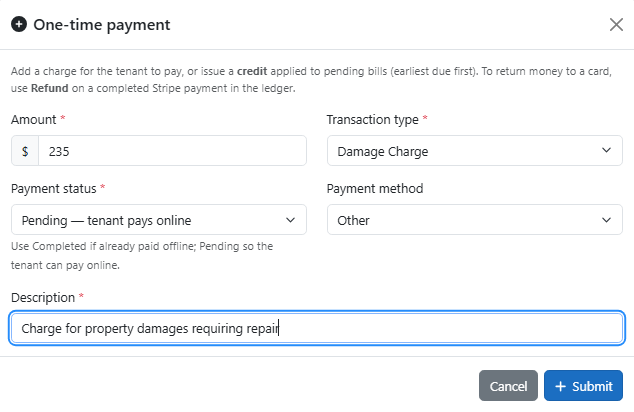
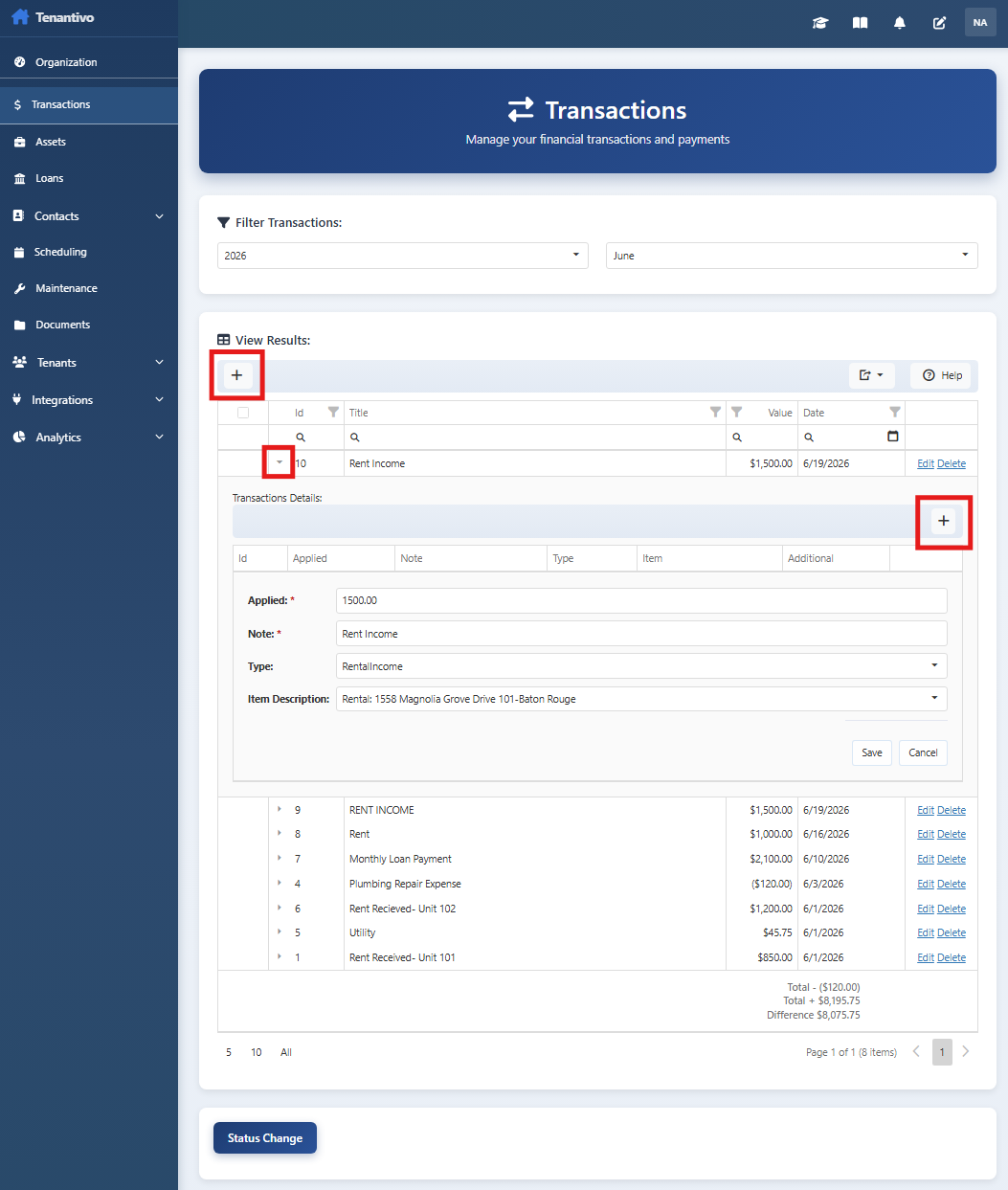
Adding a payment (manual entry: amount, type, description, charge tenant, status, method)
Add a manual payment: enter amount, type (rent, fee, etc.), description, whether to charge tenant, status, and method. Use for checks, money orders, or corrections.
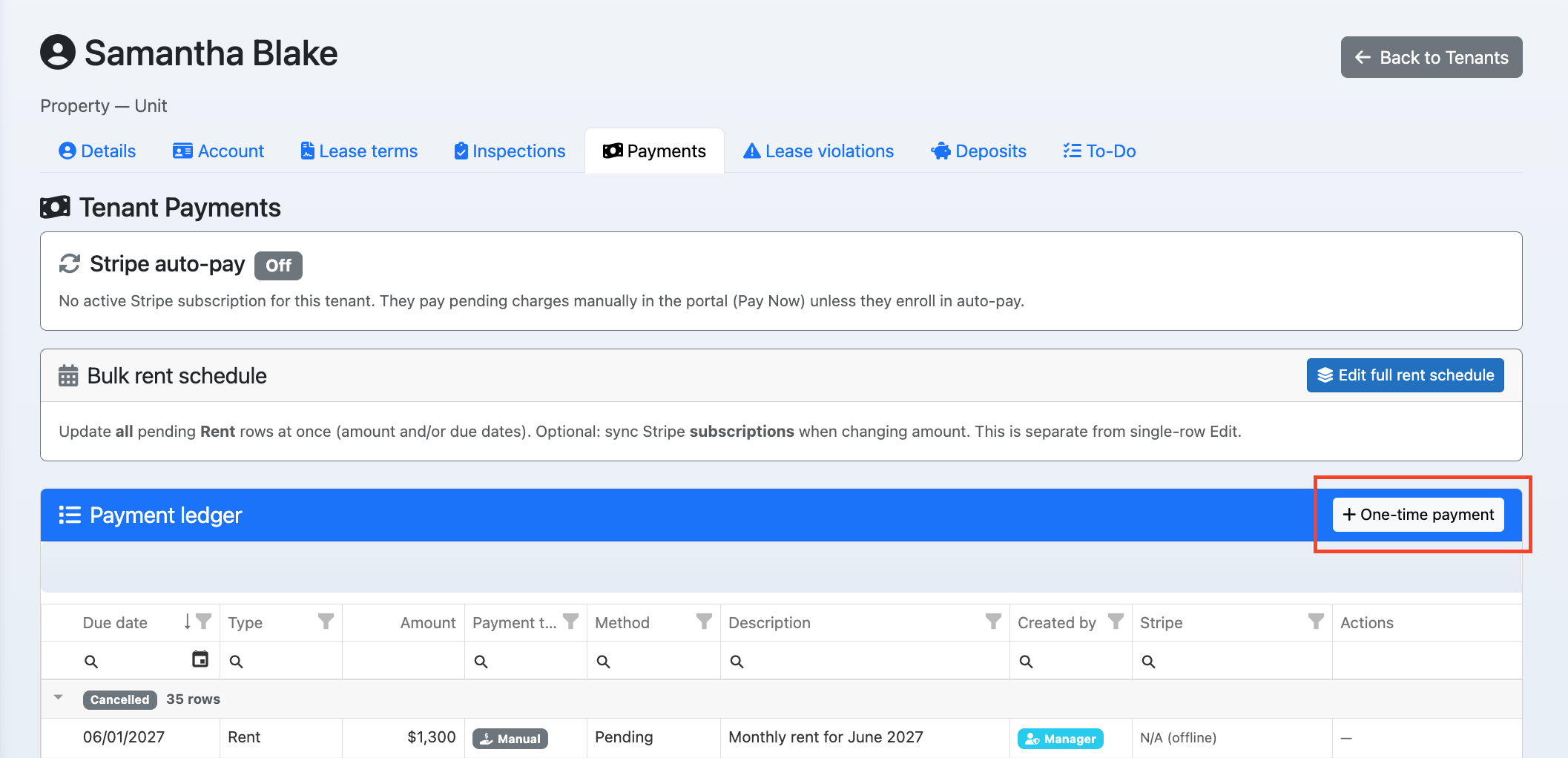

Adding payment from Payments page for a tenant
From the Payments list, add a payment and select the tenant. Enter details and save. The payment posts to the tenant's ledger.

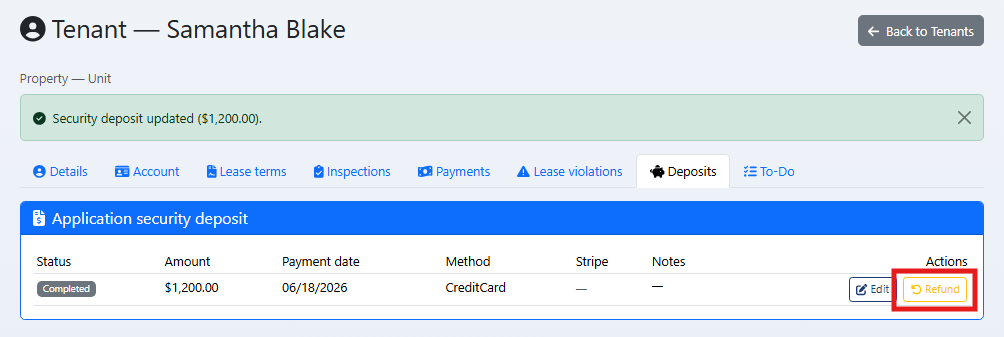
Refund deposit (application, amount, reason)
Refund an application or tenant deposit: select application or tenant, amount, and reason. Process refund to record and (if integrated) send funds.

Creating a custom transaction for a tenant
Create a custom charge or credit for a tenant (e.g. late fee, concession). Post to their ledger so balance and history stay correct.

Understanding payment status and method (tenant vs manager-recorded)
Payments can be tenant-paid (portal) or manager-recorded (manual). Status (pending, completed, failed) and method help you reconcile and report. Statuses you’ll see: Pending, Processing (ACH or 3DS in-flight), RequiresAction (tenant needs to complete bank authentication), Completed, Failed, Refunded, and Cancelled.

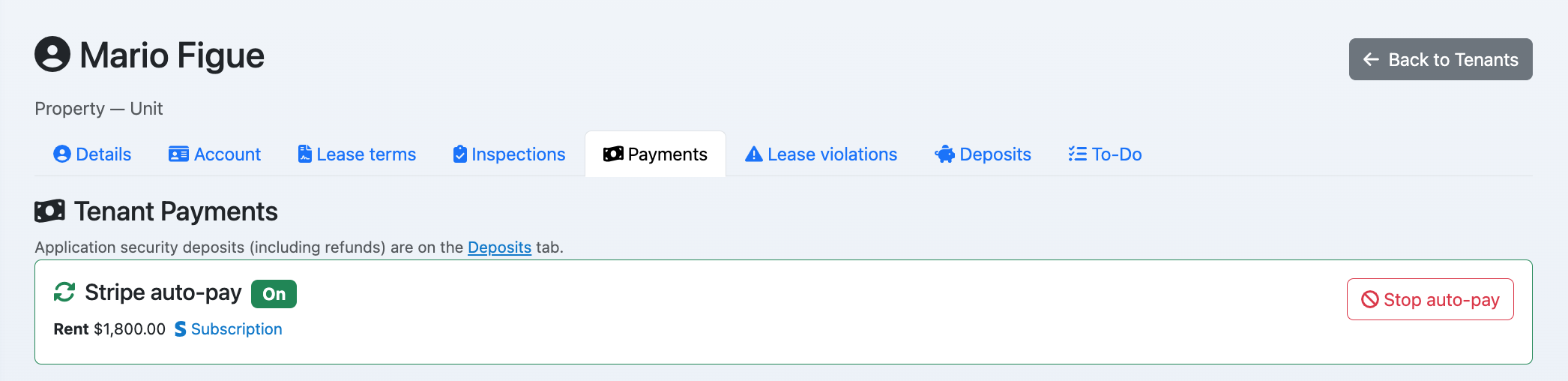
Auto-pay (recurring rent)
Tenants who have saved a card or bank account can enroll in auto-pay from their Payments page. You gate this with Allow auto-pay on Payment Management. When Stripe Connect is active, each recurring charge is split so your share transfers directly to your bank account and the Tenantivo service fee is retained — no manual payout routing needed. While the account is in payment review, bank auto-pay cannot enroll even if Allow auto-pay is on (the charge would need Tenantivo review first). The bank holder name must match the tenant name on file.

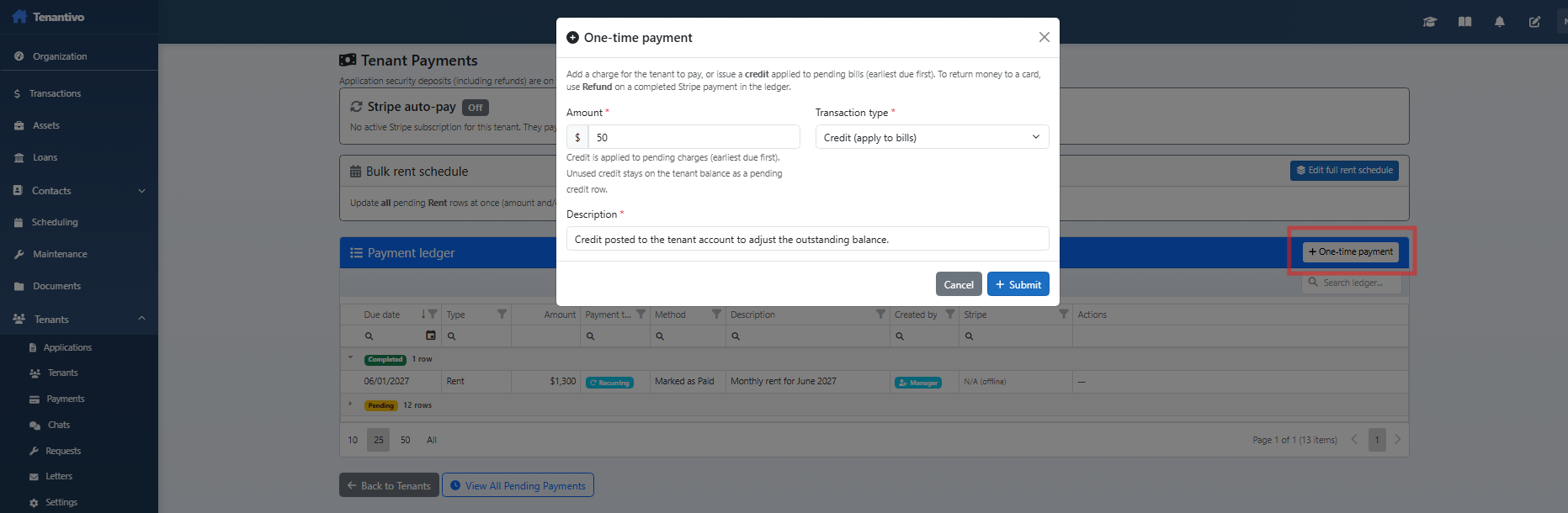
Issuing a tenant credit
From the tenant’s Payments page, use Issue credit to post a negative-amount Credit transaction to their ledger. This reduces their outstanding balance — useful for goodwill adjustments, concessions, or applying a refund offset. Enter an amount and a reason; the credit shows up in Payment History with status Completed and automatically applies against pending charges before reducing the next Stripe rent draft.

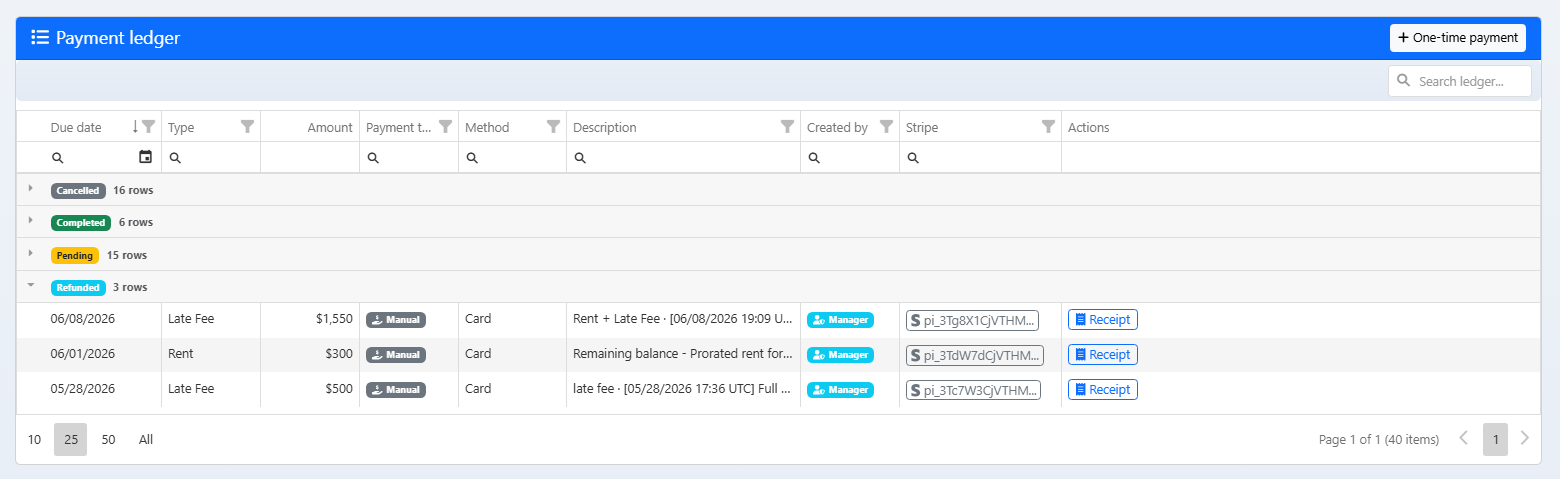
Refunding a tenant payment (full or partial, via Stripe)
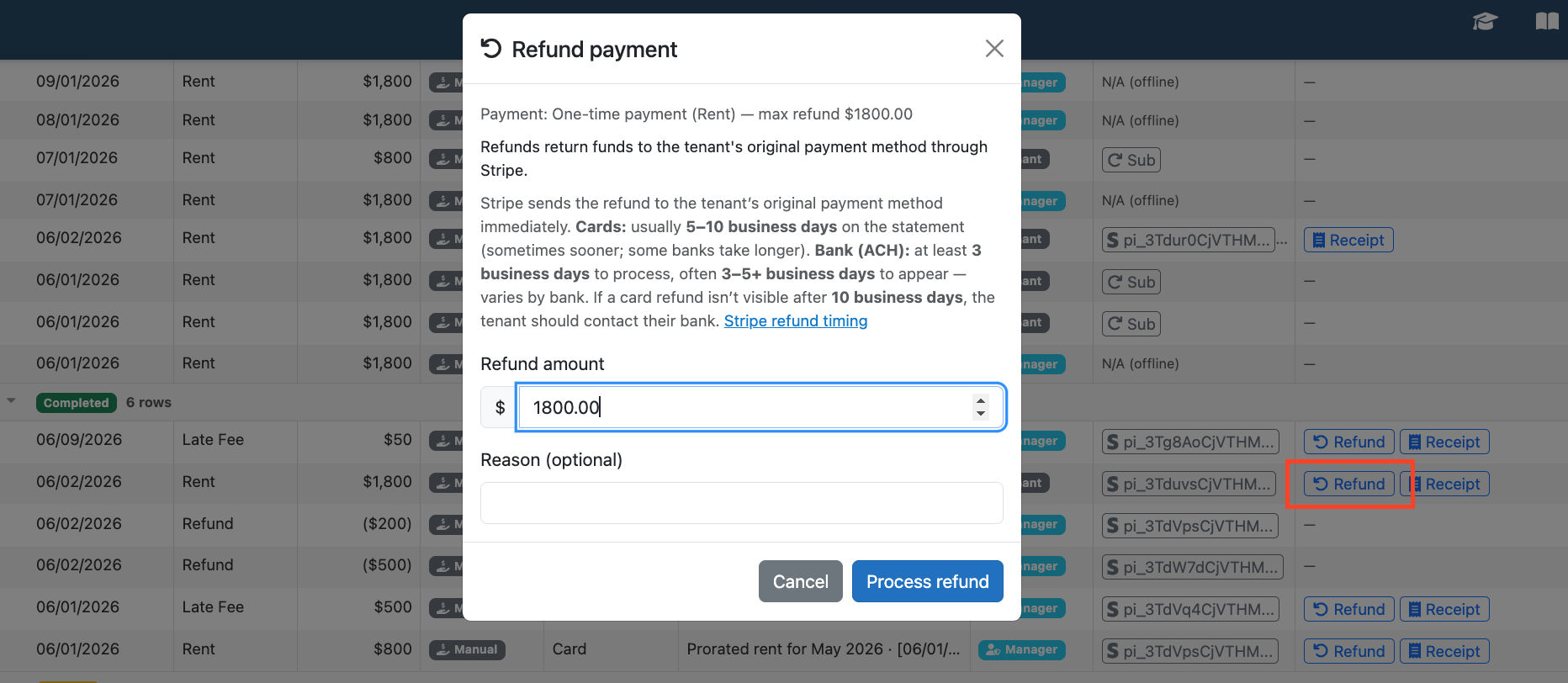
For any payment with status Completed, use Refund on the row. Leave the amount blank for a full refund or enter a lesser amount for a partial refund. The refund is issued through Stripe and the payment row flips to Refunded (full) or stays Completed with a note (partial). You’ll see the matching refund record on the Stripe dashboard.
When you issue a refund, Stripe submits it to the tenant’s bank or card issuer right away. Tenants see funds on the original payment method only — not a different card or account.
- Credit / debit card: typically 5–10 business days as a statement credit. Some banks post in 2–3 business days; others can take longer (up to ~14). Refunds issued soon after the charge may show as a reversal (the original charge disappears) instead of a separate credit.
- Bank account (ACH): Stripe requires at least 3 business days to process; many banks show the credit in roughly 3–5+ business days. Timing varies by bank.
- If they ask: after 10 business days with no card refund, they should contact their bank. Processing fees from the original charge are not returned (per Stripe).
While settling, tenants may see Pending refund in the portal — no payment action is required. Stripe: Refund and cancel payments

3D Secure / bank authentication prompts
Some cards require the bank to confirm the charge (Strong Customer Authentication, a.k.a. 3D Secure). When that happens, the tenant sees a pop-up from their bank asking them to approve. After approving, the page refreshes and the payment completes automatically. If they cancel the prompt, the payment stays Pending and they can retry. You don’t configure this — it is handled automatically by Stripe and our client-side code. If a tenant asks, tell them it’s their bank’s fraud check and is normal for cards enrolled in Verified by Visa / Mastercard SecureCode.
Failed payments — what the tenant sees
Declined cards show a plain-English message to the tenant (e.g. “Your card was declined for insufficient funds. Please use a different payment method” or “Your card has expired. Please update your payment method”), not a raw Stripe code. The original pending row is unchanged so the tenant can retry with a different method. If you’ve set a Payment failure notification email in Payment Management, you’ll receive an email when a charge fails.