Maintenance
Manage maintenance tickets and work orders.
Showing Web screenshots
Switch between web app and mobile app screenshots. Step text is the same; mobile images can be uploaded separately.
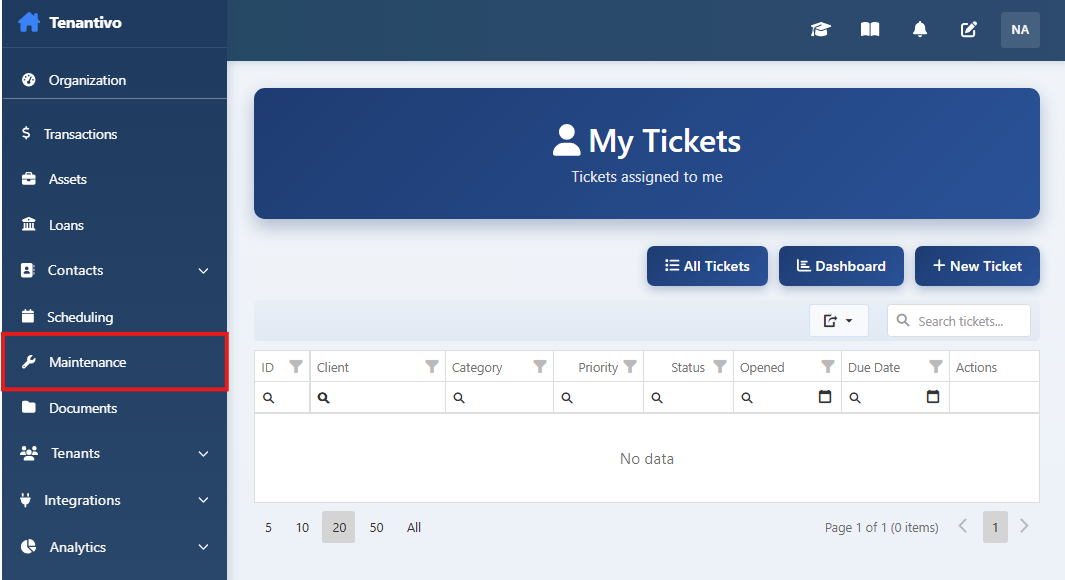
Opening the Maintenance dashboard/list (tickets)
How to get there: In the Management app, open Maintenance from the menu (or go to /Maintenance/Index). (1) The maintenance dashboard or ticket list opens. (2) You see open and closed tickets; use tabs or filters to switch between them. (3) The list shows key fields (e.g. property, description, status, priority, date).
What you see: A central place to manage all maintenance work from tenant requests and internal tickets.

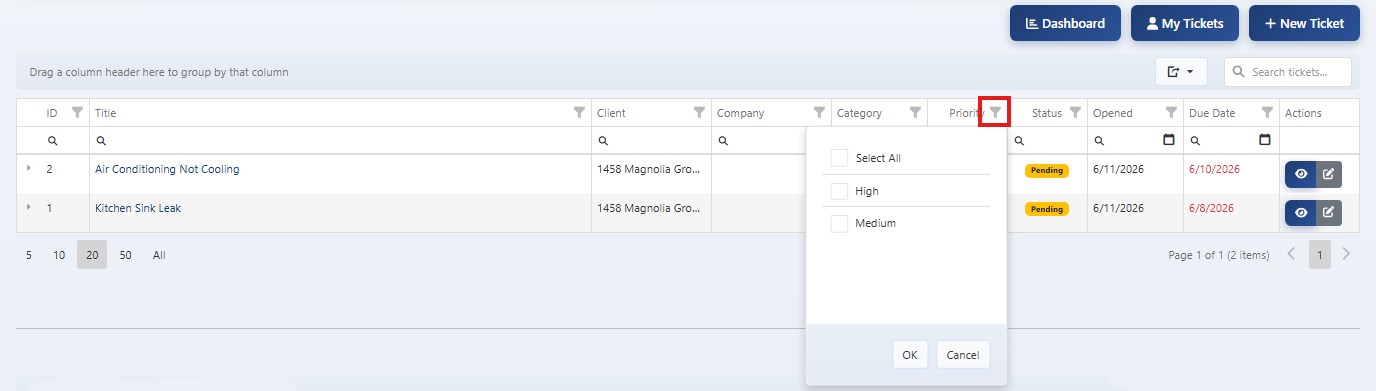
Filtering tickets (status, priority, asset, date)
Steps: (1) On the Maintenance list, use Status (Open, In progress, Closed), Priority, Asset/property, or Date filters. (2) Apply one or more filters to narrow the list. (3) Clear filters to see all tickets again. Filtering helps you focus on urgent items or a specific property.
Tip: Combine “Open” + “Urgent” to see what needs immediate attention.

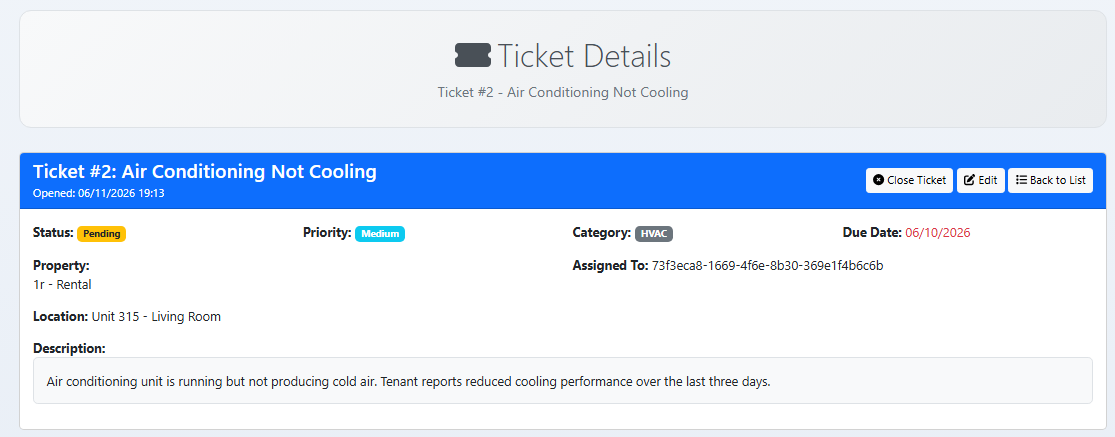
Viewing ticket detail (description, status, assignee, vendor, notes)
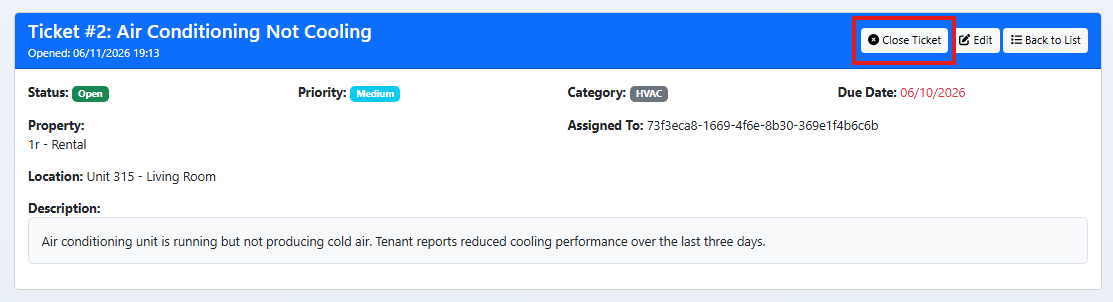
Steps: (1) Click a ticket from the list. (2) The detail page shows description, status, assignee, vendor (if assigned), notes, and tenant-submitted photos if linked. (3) Use this to understand the issue, who’s handling it, and what’s been done. (4) Edit status, assignee, or add notes from this page.
Why it matters: One place for full context before updating or closing the ticket.

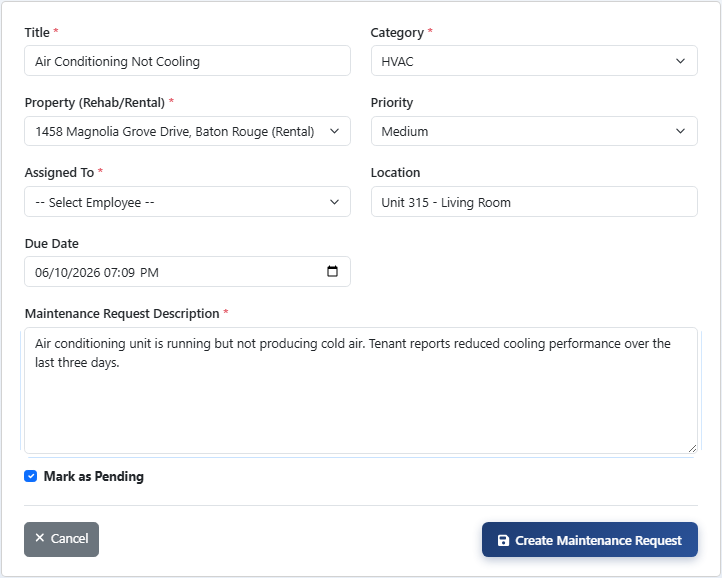
Creating a new maintenance ticket (property, description, priority, category)
Steps: (1) On the Maintenance page, click Create ticket (or New ticket). (2) Select the property/asset (and unit if applicable). (3) Enter a clear description of the issue. (4) Set priority (e.g. Normal, Urgent) and category (e.g. Plumbing, HVAC). (5) Optionally set assignee or due date. (6) Save. The ticket appears in the list and can be linked to a tenant request if it came from the portal.
Tip: For tenant-submitted issues, create from the request or link the ticket to the request so the thread is in one place.

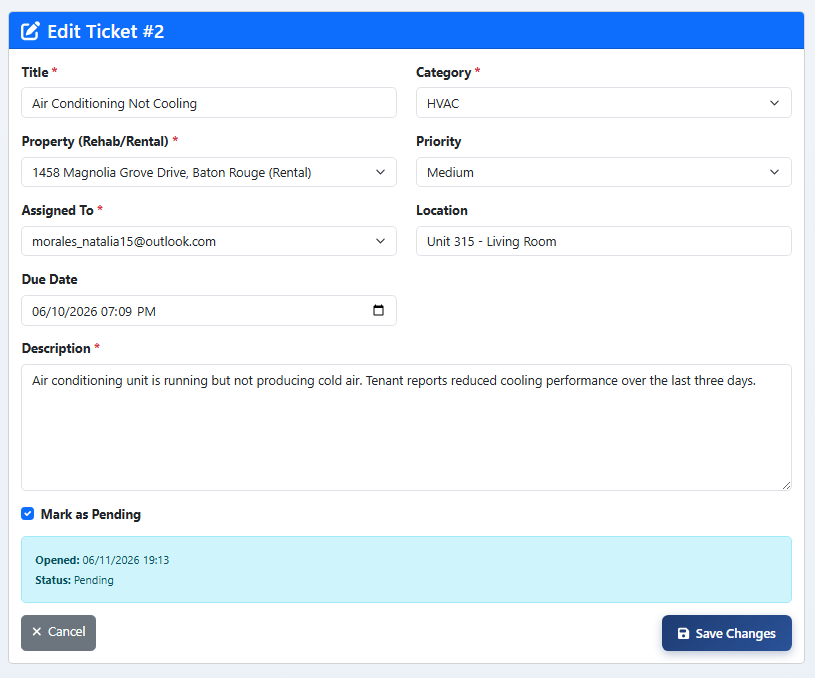
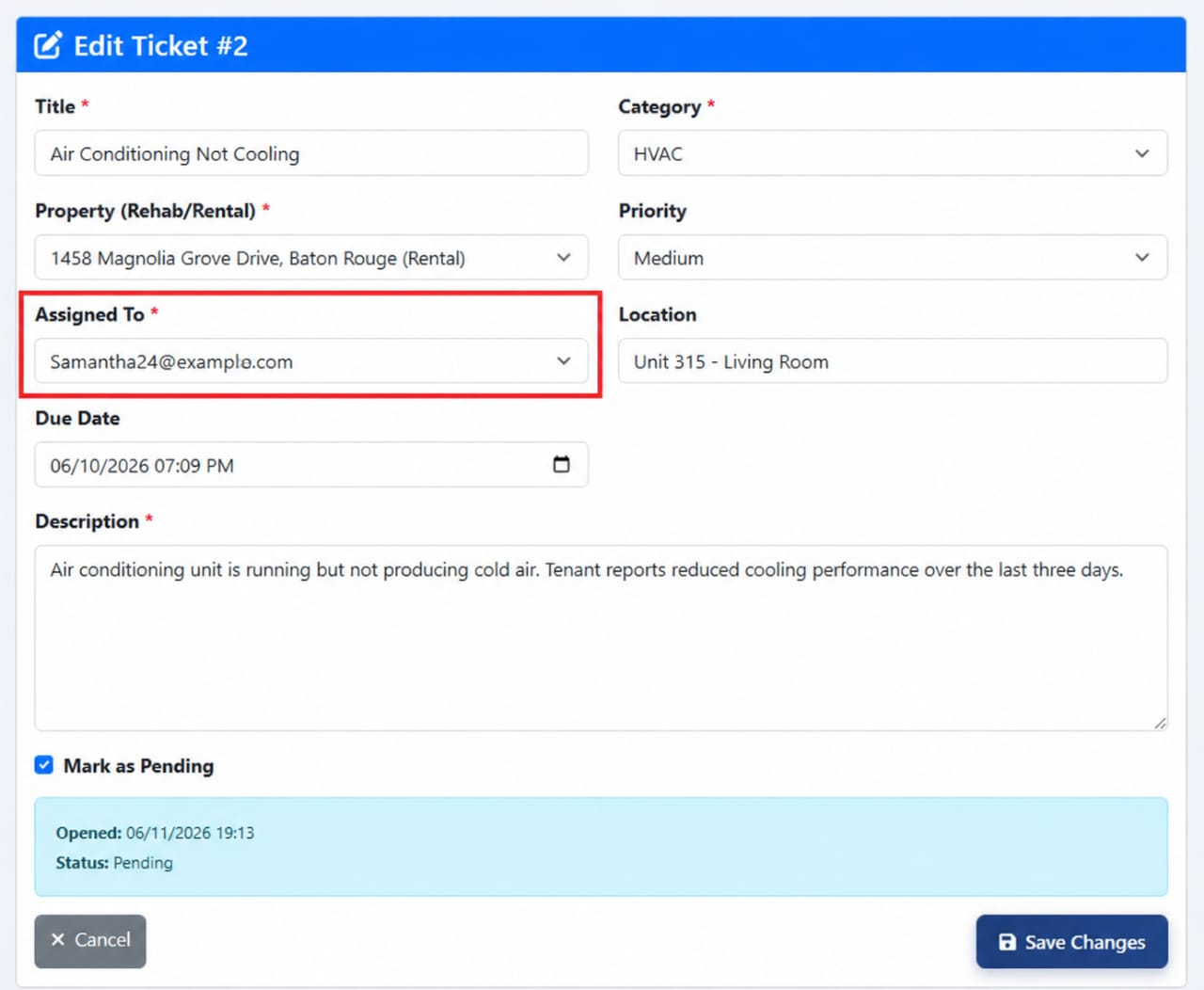
Editing a ticket (status, assignee, vendor, due date)
Steps: (1) Open the ticket. (2) Update status (e.g. Open → In progress → Closed), assignee, vendor, or due date as work progresses. (3) Save. (4) Use status and assignee to move the ticket through your workflow and keep the tenant informed (if they can see status). Progressing the ticket keeps the list and reports accurate.
Tip: Assign a vendor when you’ve scheduled the work so the team knows who’s responsible.

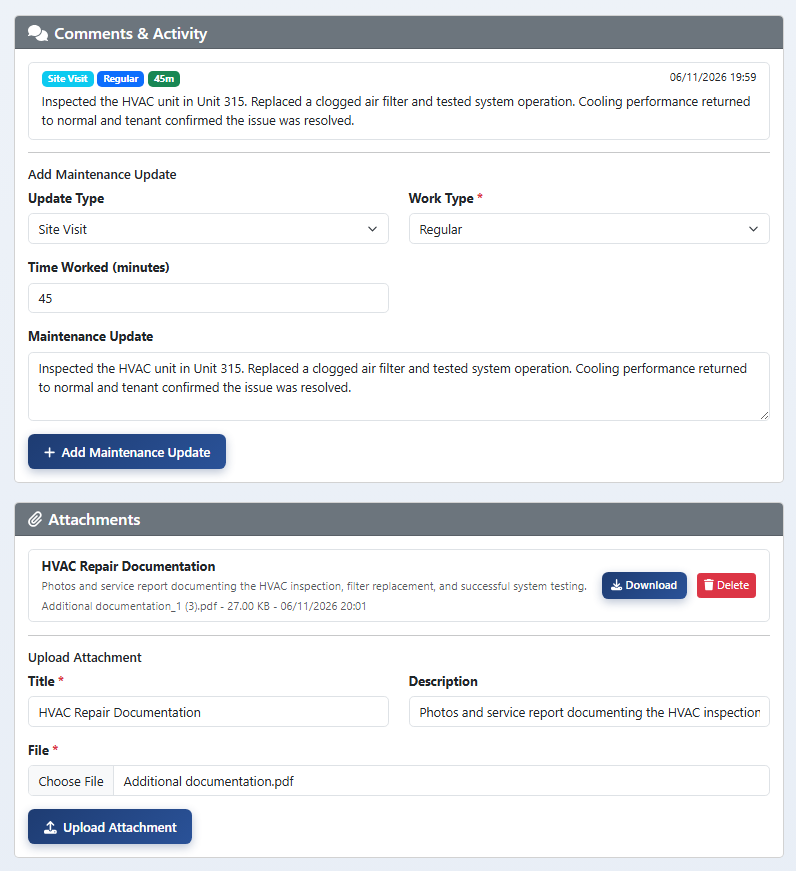
Adding notes and attachments to a ticket
Steps: (1) Open the ticket. (2) In the notes area, add a note—e.g. “Vendor scheduled for Tuesday,” “Part ordered.” (3) If the app supports it, mark the note as internal or tenant-visible. (4) Use Attach or Upload to add photos or documents (e.g. invoice, before/after). (5) Save. Notes and attachments keep a clear record for your team and for the tenant.
Why it matters: A good paper trail helps with disputes and vendor follow-up.

Linking tickets to tenants or requests
Steps: (1) When a tenant submits a maintenance request, it may create a ticket automatically or you create a ticket and link it. (2) In the ticket detail, use Link to request or select the tenant/request so the ticket is tied to that submission. (3) Then you have one thread: tenant request → your ticket → notes → resolution. (4) The tenant can see status updates when linked. Linking keeps communication and history in one place.
Tip: If you create the ticket manually, link it to the tenant request as soon as possible.

Closing or resolving a ticket
Steps: (1) When the work is complete, open the ticket. (2) Set status to Closed or Resolved. (3) Add a short closing note (e.g. “Repair completed, tenant confirmed”) if helpful. (4) Save. The ticket moves to closed lists and the tenant may see the status update in their portal. (5) Closed tickets remain in history for reporting and reference.
Note: If the tenant disagrees that the issue is fixed, they can add a note or you can reopen depending on app behavior.

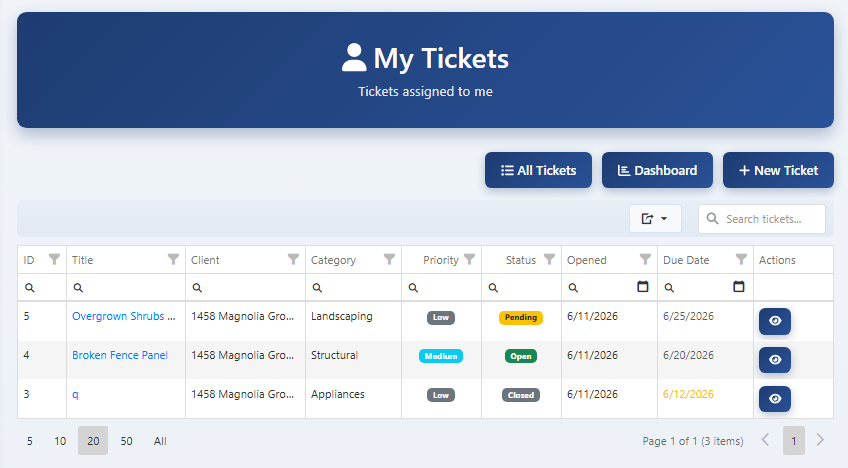
My Tickets view (if applicable) and dashboard metrics
Steps: (1) If the app has My Tickets, use it to see only tickets assigned to you—helpful for daily workload. (2) Use dashboard metrics (e.g. open count, aging, by priority) to see overall maintenance health: how many open, how long they’ve been open, and which are urgent. (3) Use these views to prioritize and to report to owners or management. Metrics help spot bottlenecks and overdue items.
Tip: Review metrics weekly to keep maintenance under control.