Loans
Manage loans and financing linked to properties.
Showing Web screenshots
Switch between web app and mobile app screenshots. Step text is the same; mobile images can be uploaded separately.
Opening the Loans list
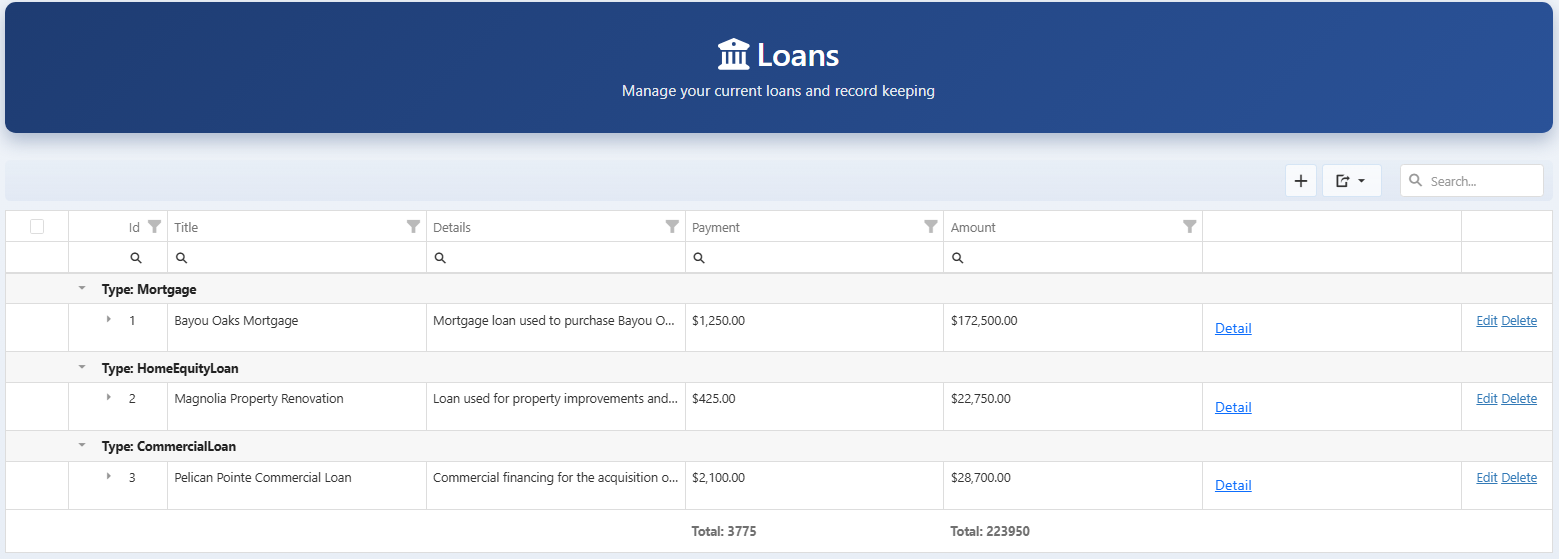
How to get there: In the Management app, open Loans from the menu (or go to /Loan/Index). The Loans list shows all loans linked to your organization.
What you see: Columns typically include lender/servicer, balance, linked asset, and status. Use the list to see all financing at a glance.

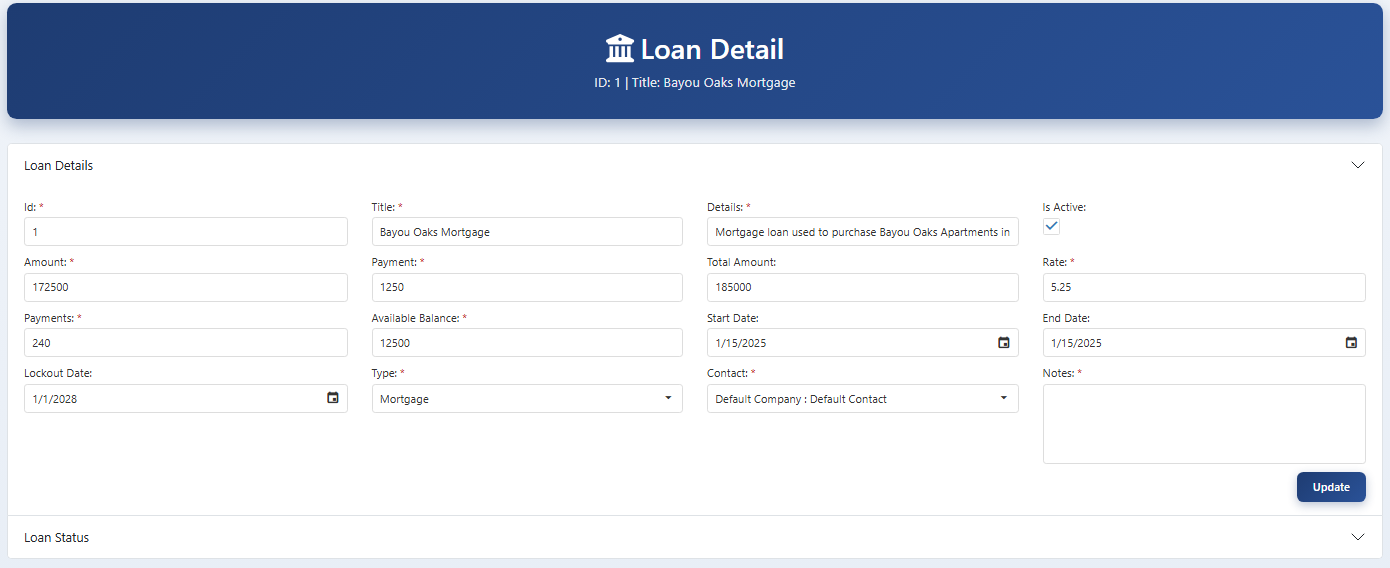
Viewing loan detail (balance, servicer, terms, payment history)
Steps: (1) From the Loans list, click a loan. (2) The detail page shows balance, servicer/lender, terms (rate, maturity, payment amount), and payment history (if you record payments as transactions linked to the loan). (3) Use this to track payoff progress and to confirm payment records.
Tip: Update the balance when you make or record payments so reports stay accurate.

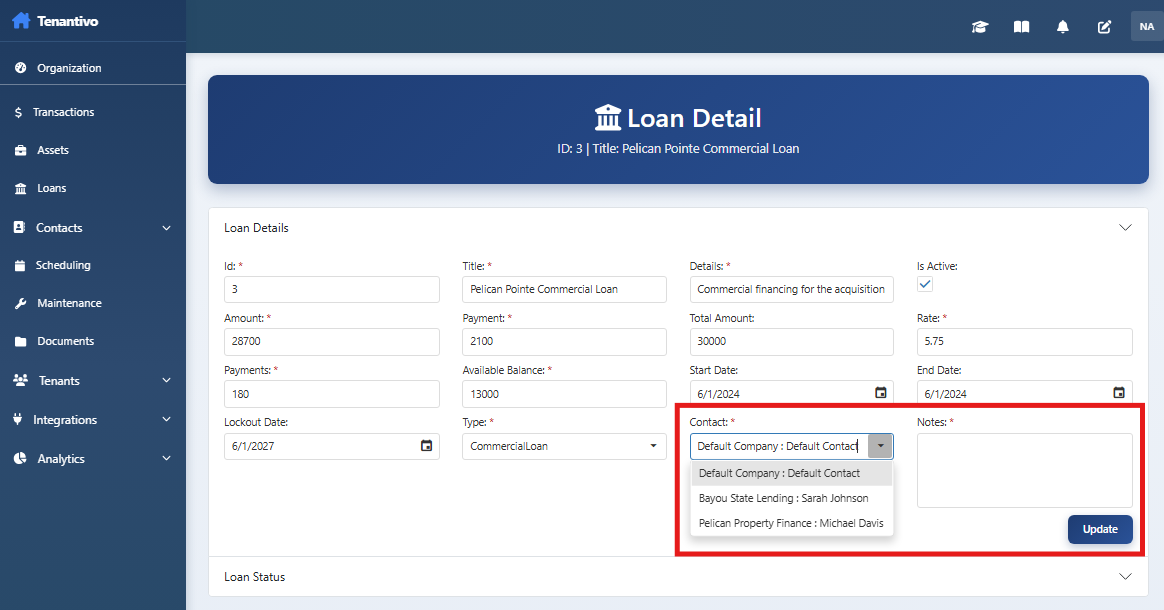
Adding a new loan (lender/servicer, balance, terms)
Steps: (1) On the Loans list, click Add loan. (2) Enter lender/servicer name, current balance, and terms (e.g. rate, monthly payment, maturity date). (3) Link the loan to an asset if applicable. (4) Save. The loan appears in the list and you can link transactions (payments, interest) to it.
Note: You can create a contact of type Lender/Servicer first and then select them when adding the loan.
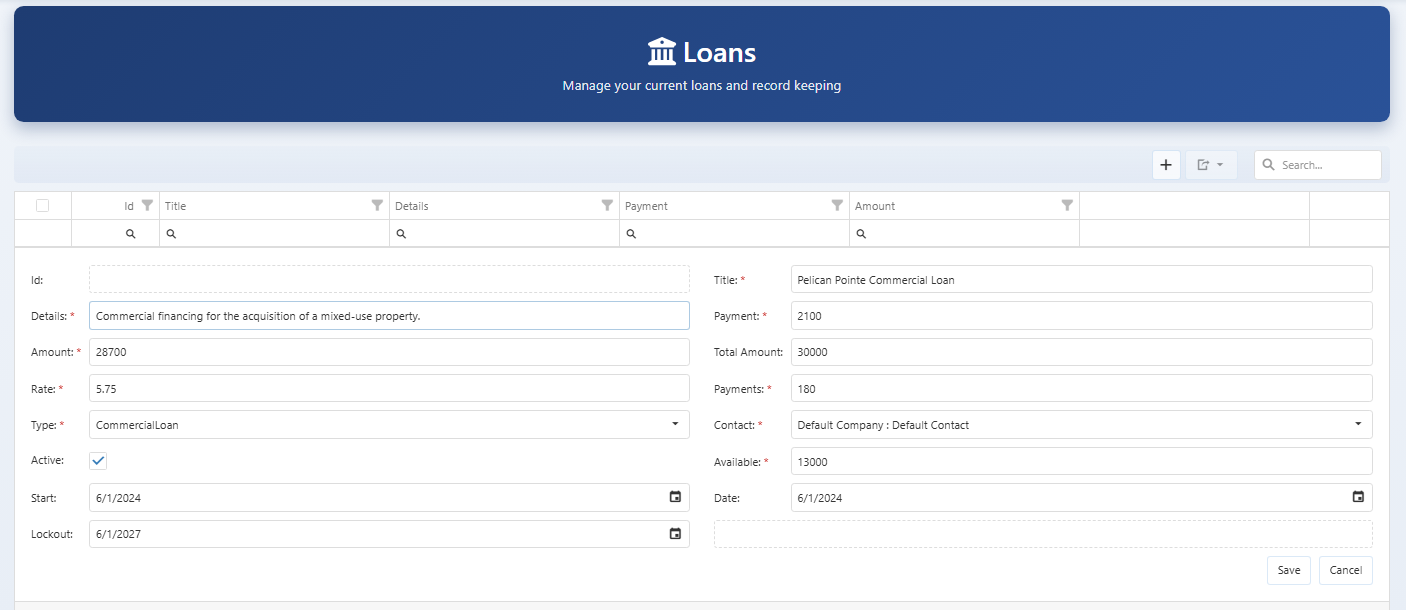

Editing a loan
Steps: (1) Open the loan from the list. (2) Click Edit or edit fields in place. (3) Update balance, terms, servicer, or linked asset as needed. (4) Save. Use this when the balance changes (e.g. after a payment) or when terms are corrected.
Tip: Updating the balance regularly keeps loan reports and net equity calculations correct.
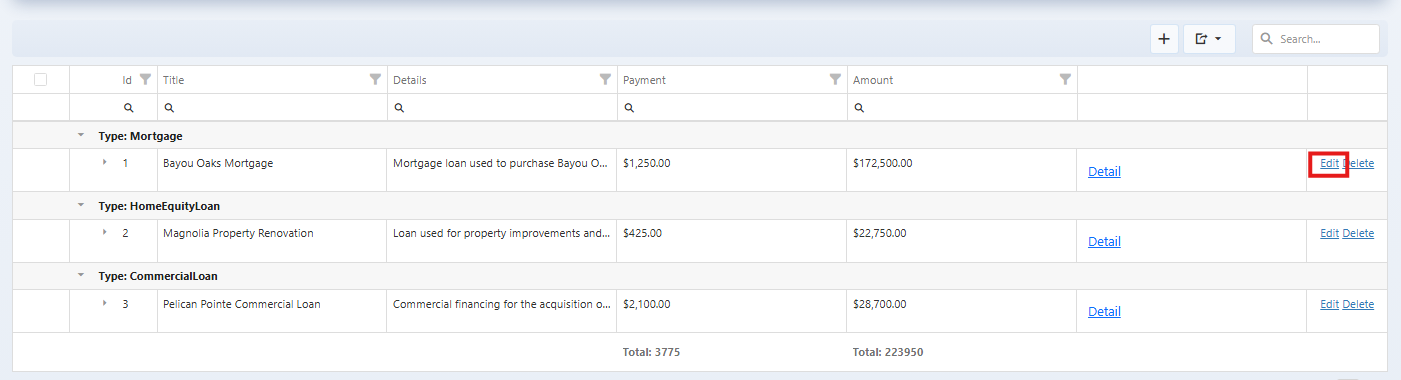

Deleting or closing a loan
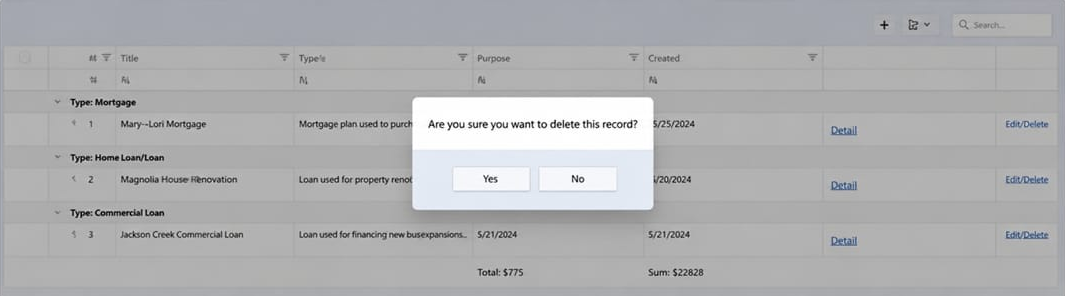
Steps: (1) Open the loan. (2) When the loan is paid off or no longer relevant, click Close loan or Delete. (3) Close usually keeps the loan in history with a “Closed” status and preserves linked transactions. Delete may remove it from lists—use only if you need to remove it entirely. (4) Confirm. Linked transactions may need to stay; check how your app handles them.
Best practice: Prefer closing over deleting so you retain payment history for the asset.

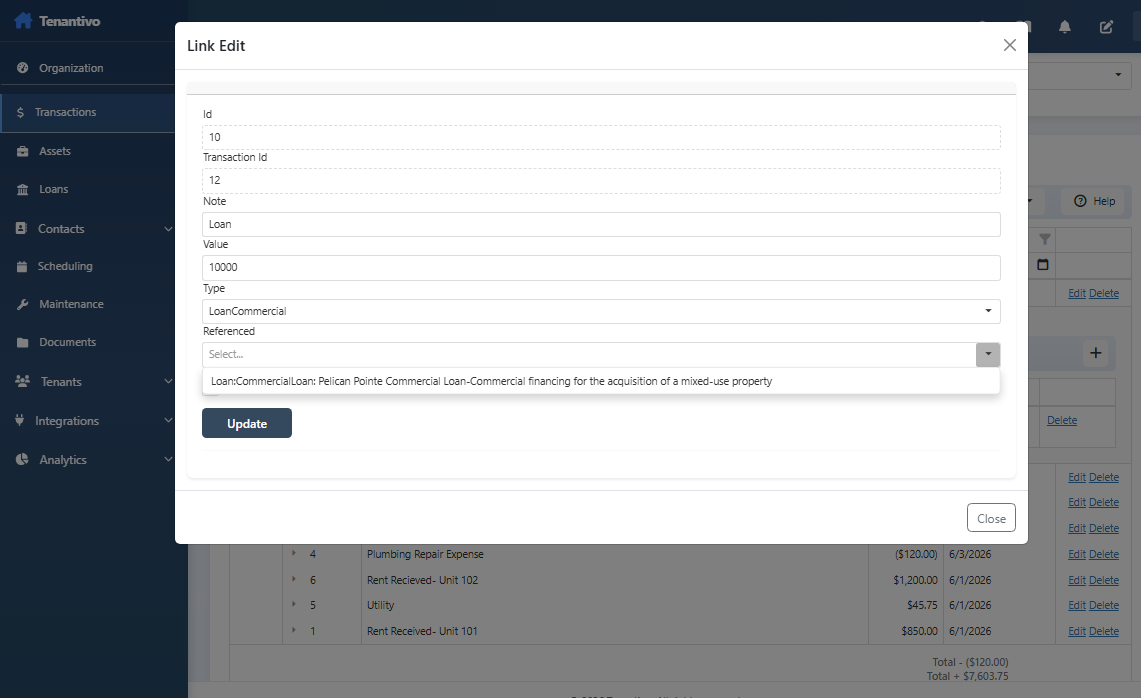
Linking transactions to a loan (payments, interest)
Steps: (1) When entering a transaction (e.g. mortgage payment, interest expense), select the loan in the transaction form if the app supports loan linking. (2) The transaction is then associated with that loan and may appear in the loan’s payment history and in loan reports. (3) This keeps debt service and payoff tracking accurate. (4) If your app doesn’t have a loan field on transactions, you may track payments in notes or a separate register and update the loan balance manually.
Why it matters: Linked transactions support debt schedules and property-level P&L.

Servicer contact and loan-specific notes
Steps: (1) On the loan detail page, store servicer contact (phone, website, account number) in the contact link or in a dedicated field. (2) Use the Notes area for loan-specific info (e.g. “Refinance in 2026,” “Autopay on 5th”). (3) When you need to make a payment or call the servicer, open the loan and use the contact and notes for quick reference.
Tip: If the servicer is a Contact (type Lender/Servicer), link them to the loan so their details appear in one place.