Documents

Upload and manage documents by entity (asset, tenant, etc.).

Platform

Showing Web screenshots

Switch between web app and mobile app screenshots. Step text is the same; mobile images can be uploaded separately.

Opening the Documents list and understanding entity filter (by asset, tenant, etc.)

Go to /Document/Index. The list can be filtered by entity type and entity (asset, tenant, application, etc.).
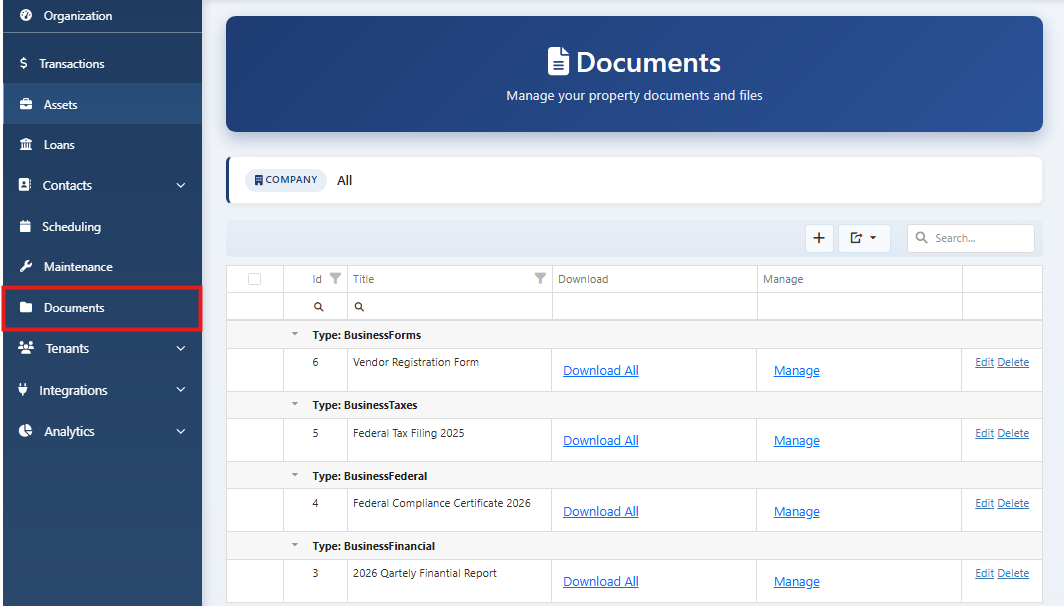
Web screenshot not available — upload Workspace-PointSeven-1.png to scgstorage03/resources

Mobile screenshot not available — upload Workspace-Mobile-PointSeven-1.png to scgstorage03/resources

Filtering documents by entity type and entity

Filter by entity type (e.g. Asset, Tenant) and then by a specific entity to see only related documents.
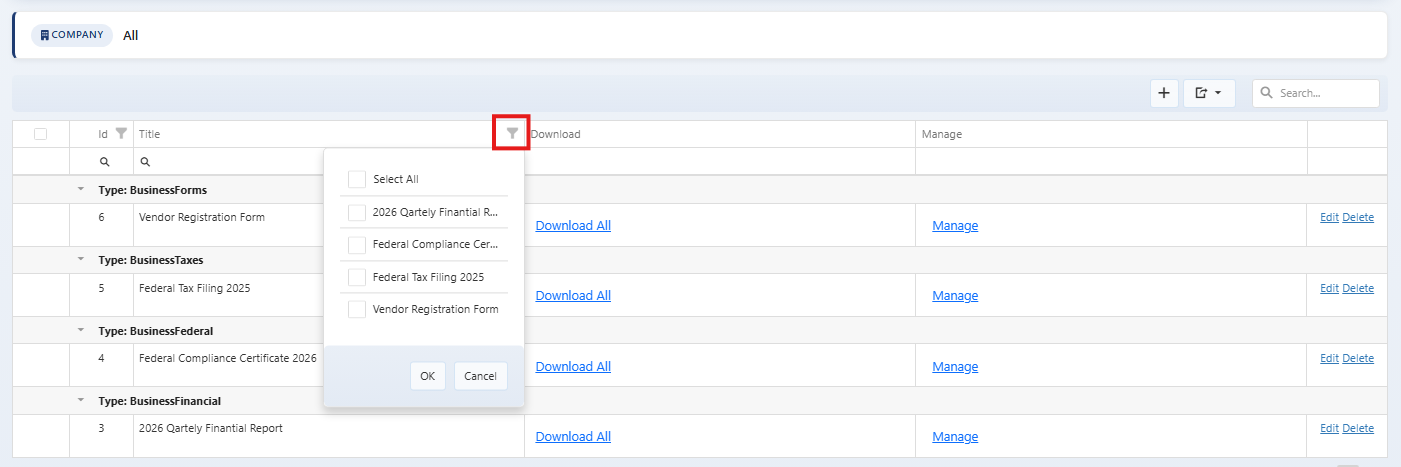
Web screenshot not available — upload Workspace-PointSeven-2.png to scgstorage03/resources

Mobile screenshot not available — upload Workspace-Mobile-PointSeven-2.png to scgstorage03/resources

Uploading a new document (file, name, entity, category if any)

Click Upload. Select file, give it a name, choose the entity to link to, and set category if used. Save to upload.
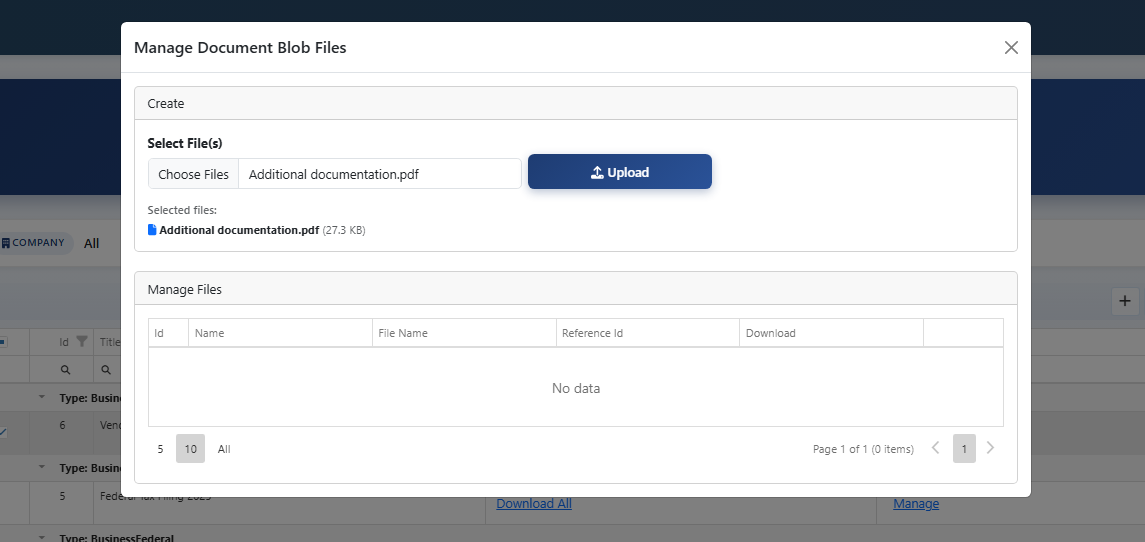
Web screenshot not available — upload Workspace-PointSeven-3.png to scgstorage03/resources

Mobile screenshot not available — upload Workspace-Mobile-PointSeven-3.png to scgstorage03/resources

Viewing and downloading a document

Open a document to view it in the browser or download. Use this to review leases, inspections, and other files.
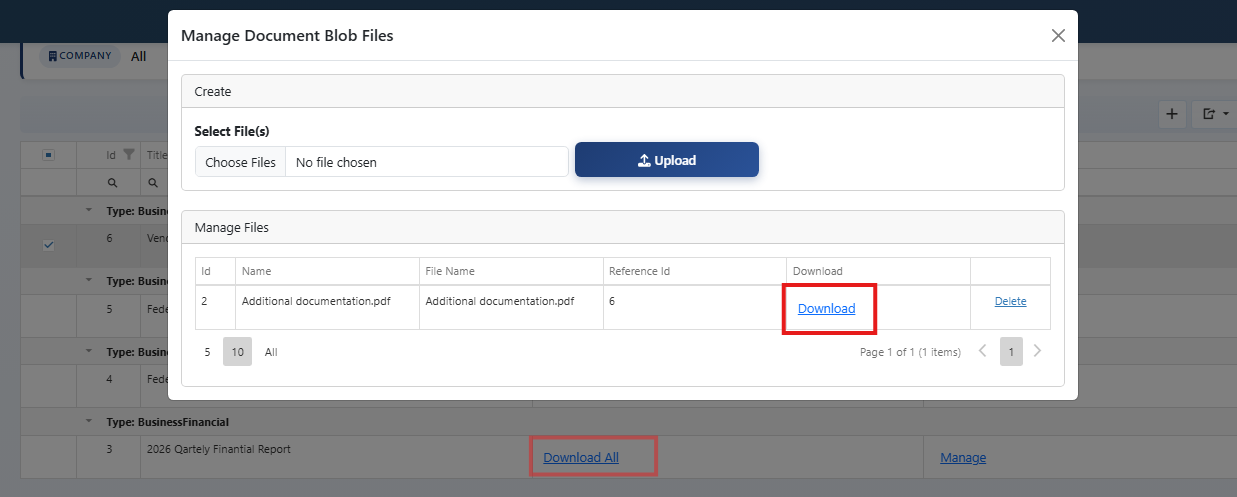
Web screenshot not available — upload Workspace-PointSeven-4.png to scgstorage03/resources

Mobile screenshot not available — upload Workspace-Mobile-PointSeven-4.png to scgstorage03/resources

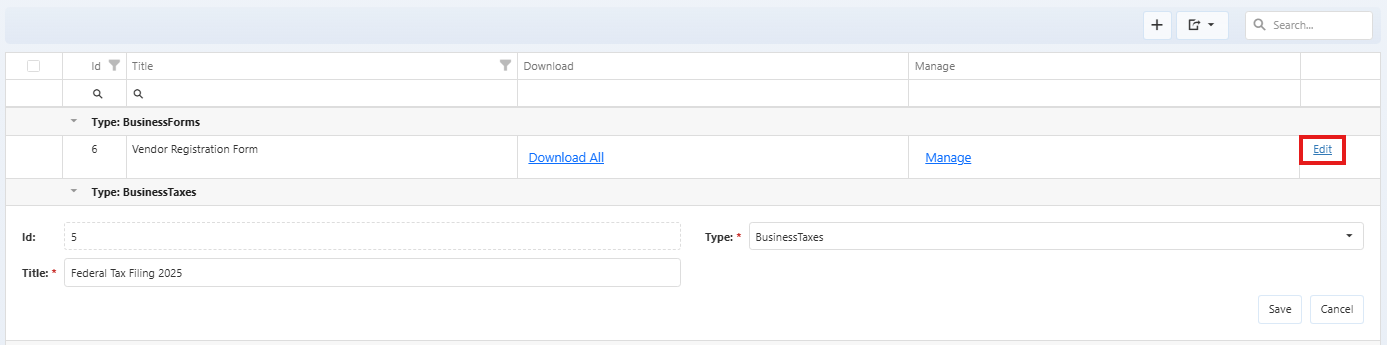
Editing document metadata (name, category, entity)

Edit the document's name, category, or linked entity. Save to update. The file itself may or may not be replaceable depending on the app.
Web screenshot not available — upload Workspace-PointSeven-5.png to scgstorage03/resources

Mobile screenshot not available — upload Workspace-Mobile-PointSeven-5.png to scgstorage03/resources

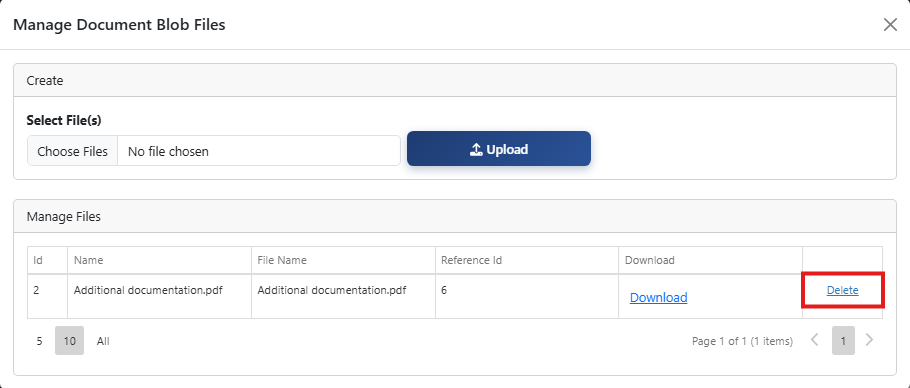
Deleting a document

Delete a document when it's no longer needed. Confirm; deletion may be permanent.
Web screenshot not available — upload Workspace-PointSeven-6.png to scgstorage03/resources

Mobile screenshot not available — upload Workspace-Mobile-PointSeven-6.png to scgstorage03/resources

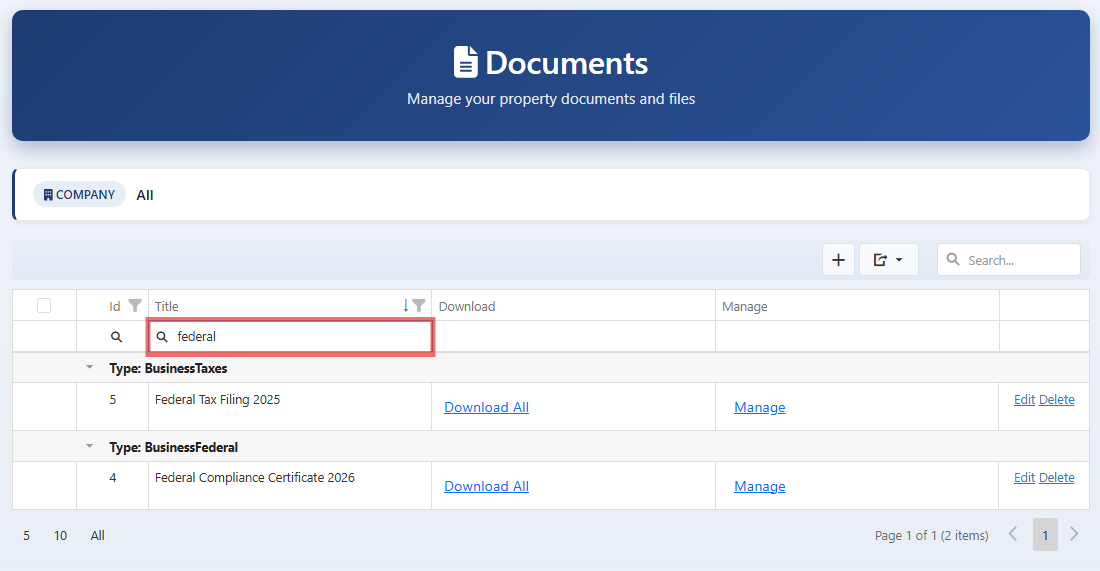
Organizing and searching documents

Use search and sort to find documents by name, date, or category. Keep naming consistent for easier search.
Web screenshot not available — upload Workspace-PointSeven-7.png to scgstorage03/resources

Mobile screenshot not available — upload Workspace-Mobile-PointSeven-7.png to scgstorage03/resources

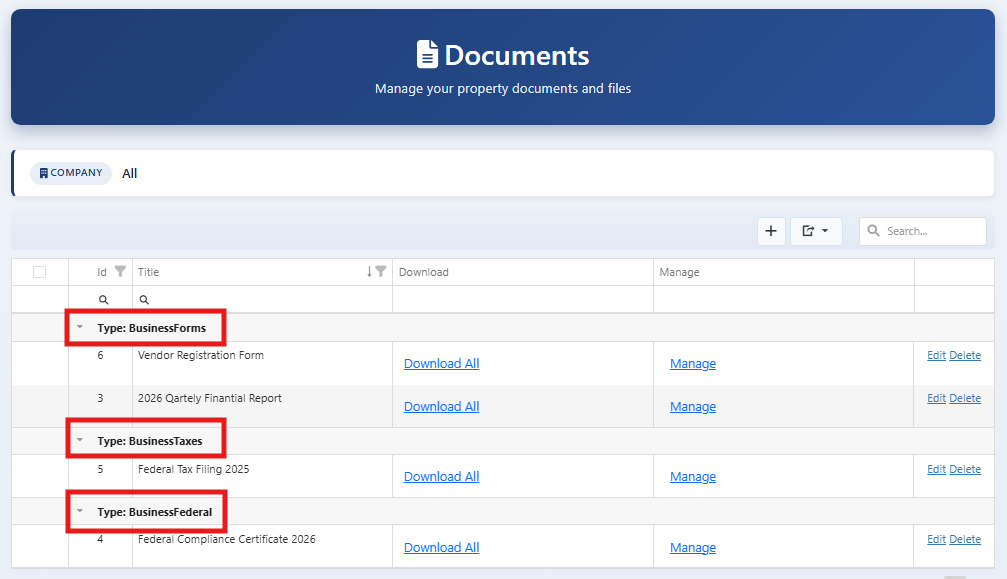
Folder or category structure (if used)

If the app uses folders or categories, use them to group documents (e.g. Leases, Inspections, Insurance).
Web screenshot not available — upload Workspace-PointSeven-8.png to scgstorage03/resources

Mobile screenshot not available — upload Workspace-Mobile-PointSeven-8.png to scgstorage03/resources