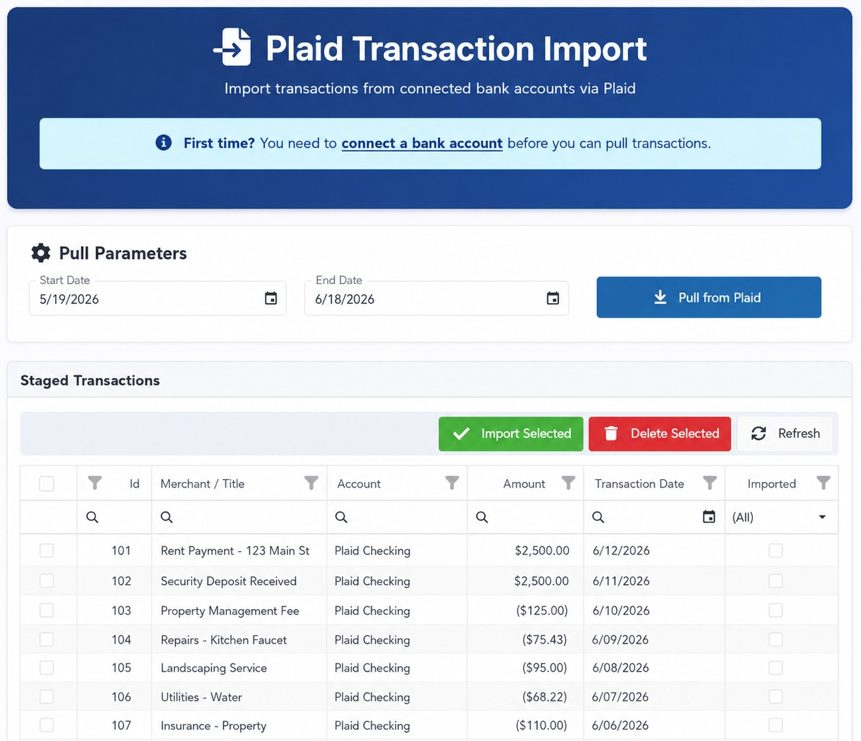
Data
Export, import, and manage data for your organization.
Showing Web screenshots
Switch between web app and mobile app screenshots. Step text is the same; mobile images can be uploaded separately.
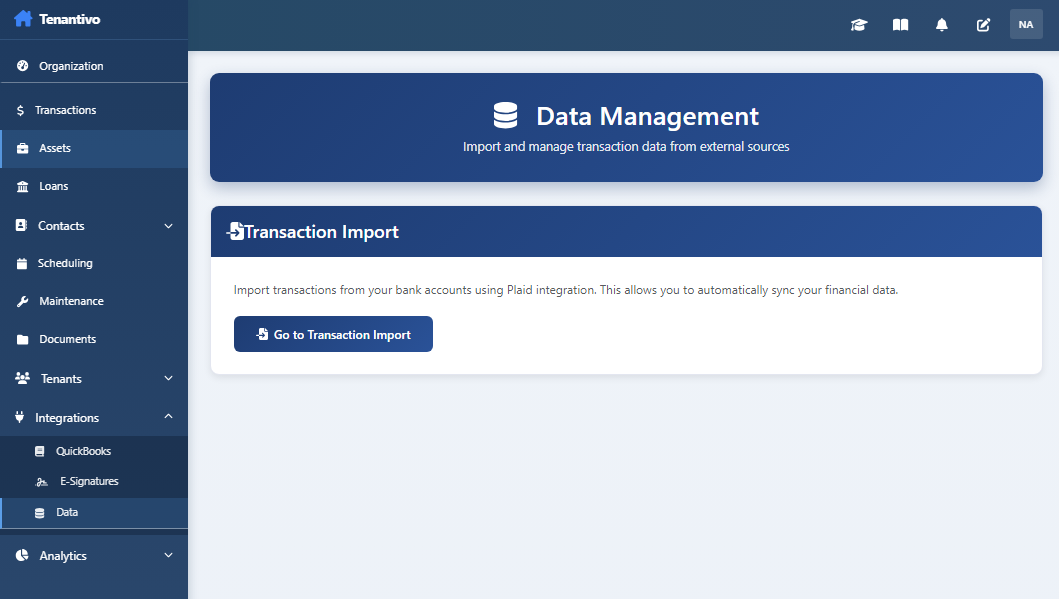
Opening Data management
Go to /ManagementAccount/DataManagement to open data management. Here you can export, import, and review data scope.

Exporting data (backup, format, scope)
Export data for backup or migration. Choose format (e.g. CSV, JSON) and scope (full org or selected entities). Run export and download when ready.
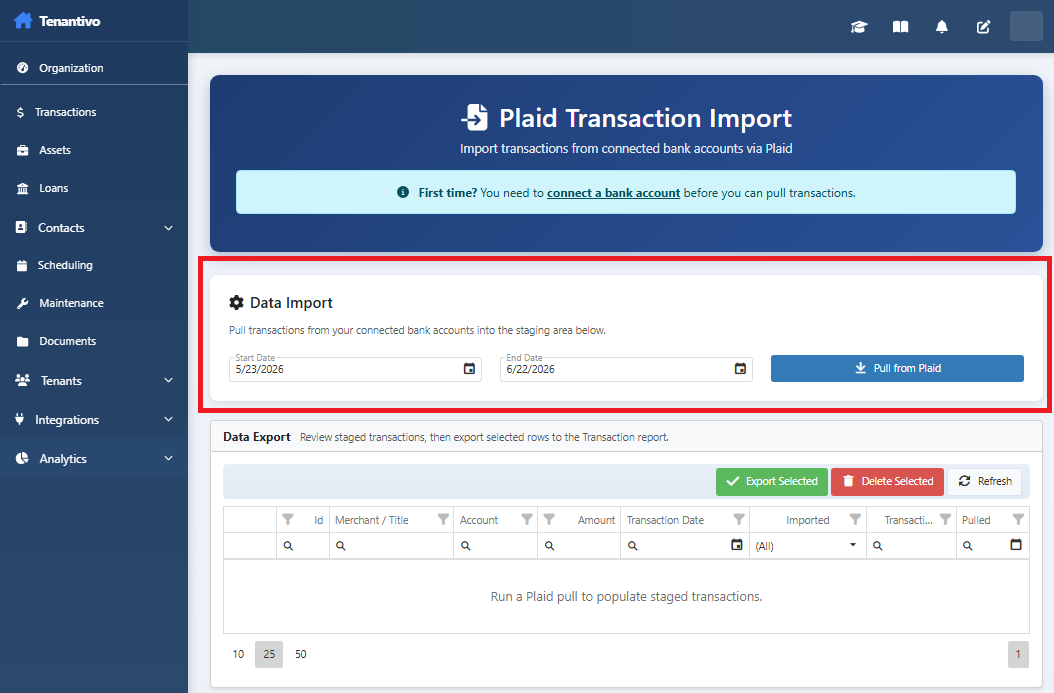

Importing data (if available)
If the app supports import, upload a file (CSV, Excel) and map columns to fields. Validate and import. Use for bulk loading tenants, assets, or transactions.
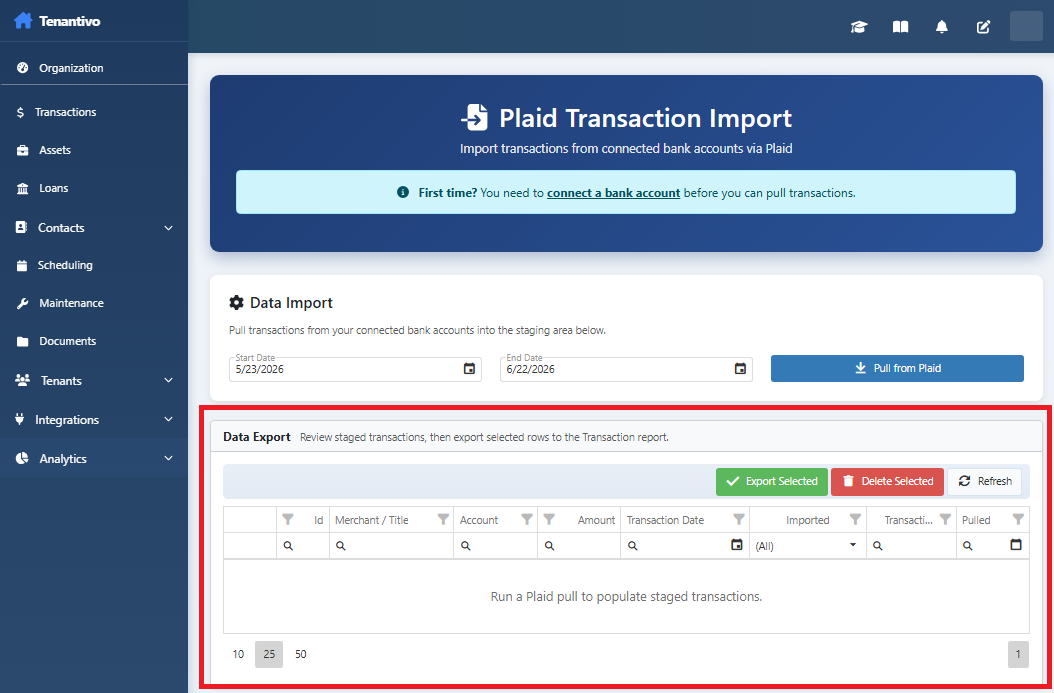

Understanding what data is included and org scope
Export and import are scoped to your organization. Understand which entities (assets, tenants, transactions, etc.) are included and any limits.