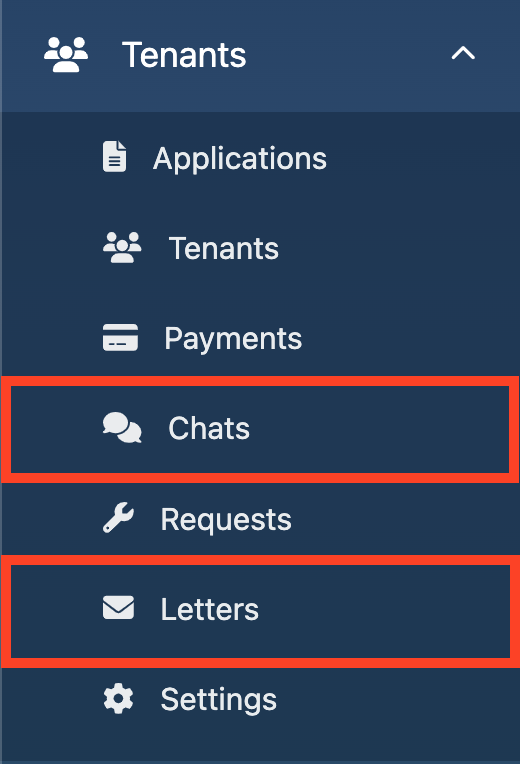
Tenants → Chats
Manage tenant and owner chats from the Manager area.
Showing Web screenshots
Switch between web app and mobile app screenshots. Step text is the same; mobile images can be uploaded separately.
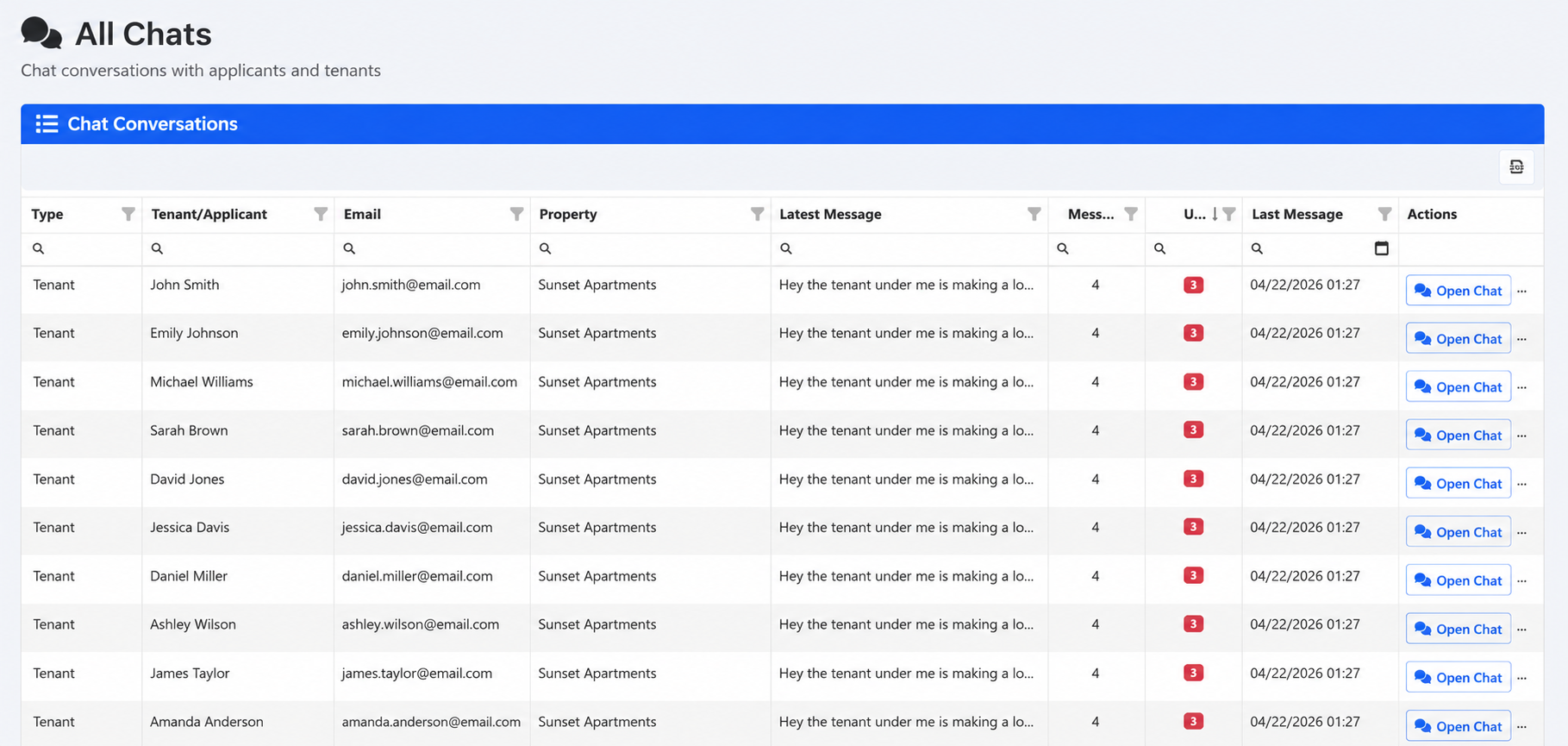
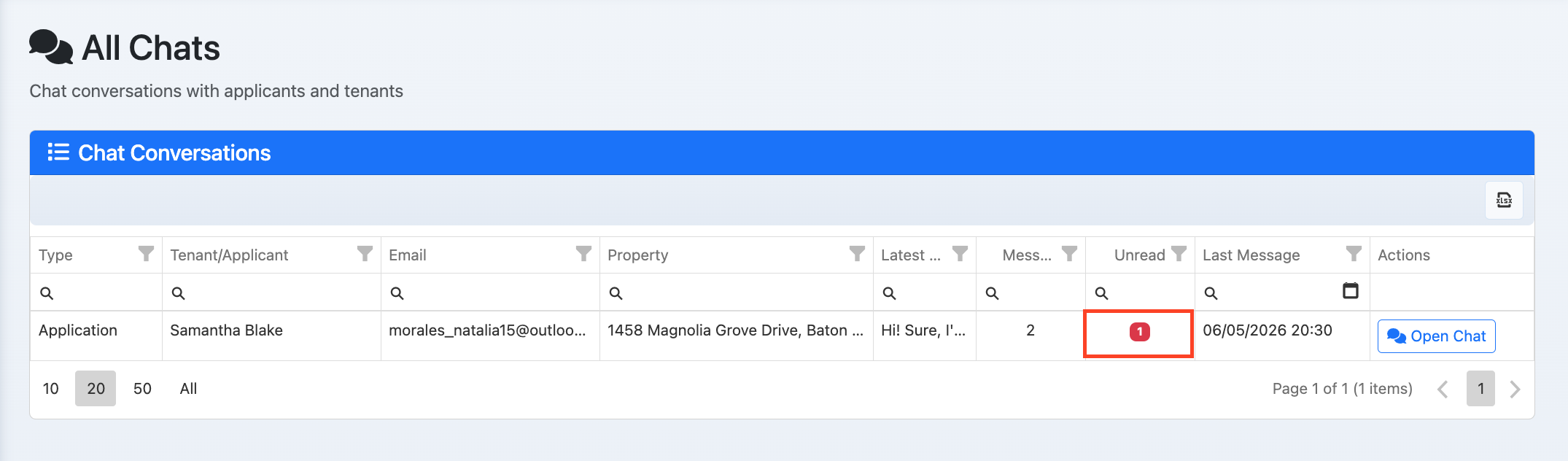
Opening the Chats list (all tenant chats/threads)
Go to /Manager/AllChats to see all chat threads with tenants (and owners if applicable). Use this as the inbox for tenant communication.

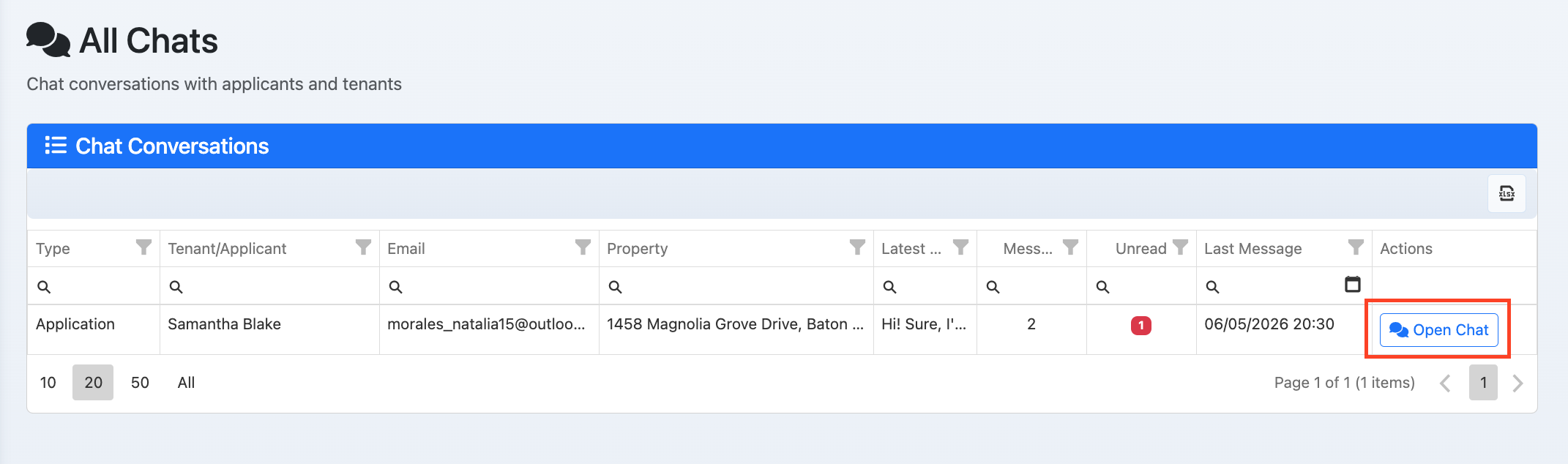
Viewing a conversation thread with a tenant
Open a thread to see the full conversation with that tenant. Scroll to see history and recent messages.

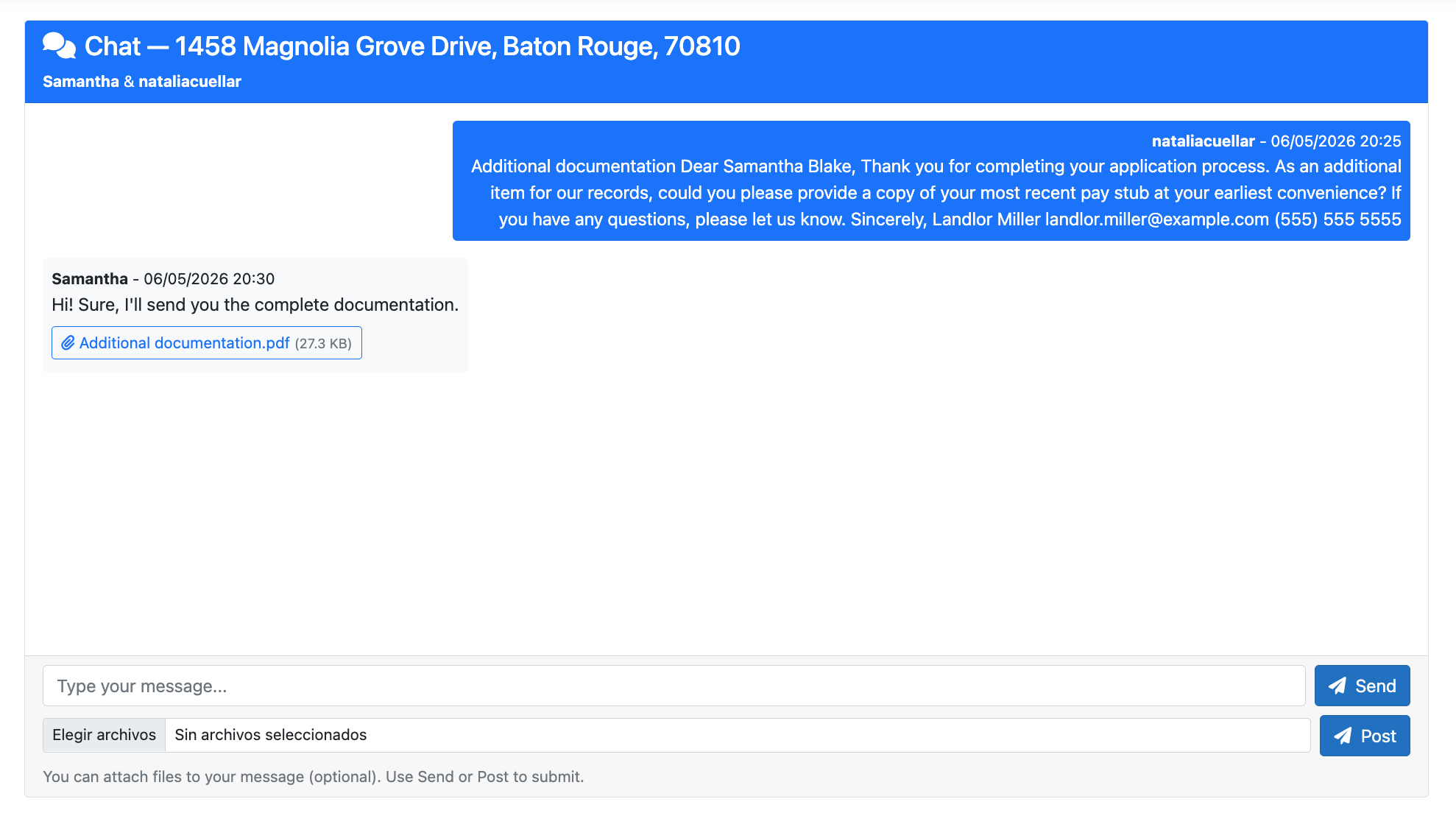
Sending a message
Type your message and send. The tenant will see it in their portal. Use for quick answers and follow-ups.

Notifications and unread indicators
Unread chats may show a badge or highlight. Check notification settings so you don't miss tenant messages.

When to use Chat vs Letters vs Support
Use Chat for quick back-and-forth. Use Letters for formal notices (lease renewal, policy) that need a record. Use Support for product or billing issues.