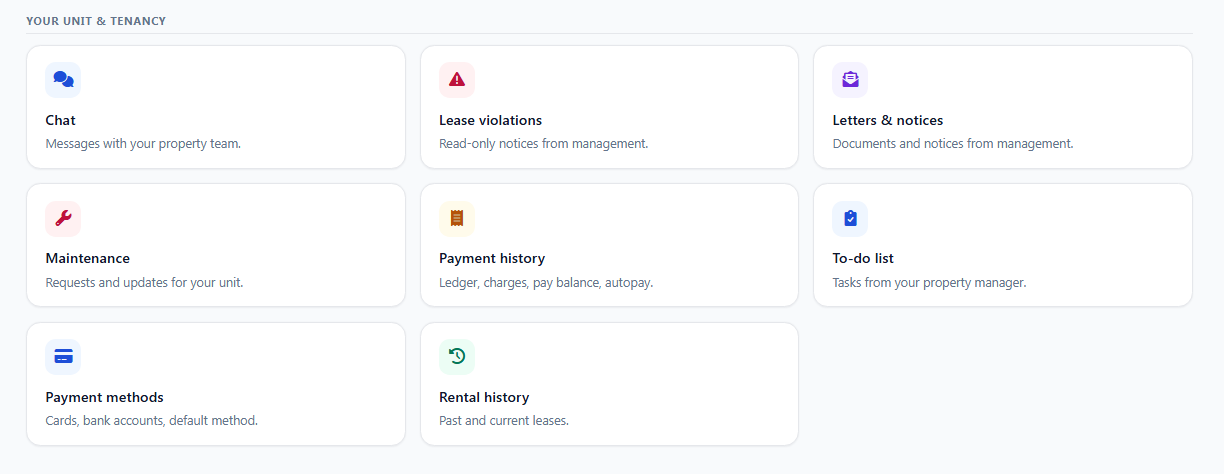
Tenant record / dashboard
Your central place for lease info, payments, and messages.
Showing Web screenshots
Switch between web app and mobile app screenshots. Step text is the same; mobile images can be uploaded separately.
Signing in and opening the tenant dashboard
- Go to the Tenantivo website and log in to your account.
- Click Dashboard from the main menu.
- The Dashboard is the main screen of the portal.
- Under Quick Links, you can access Payments, Maintenance, Chat, Letters, Profile, and more.
What you see: Your central place for lease info, balance, tasks, and shortcuts to other sections.
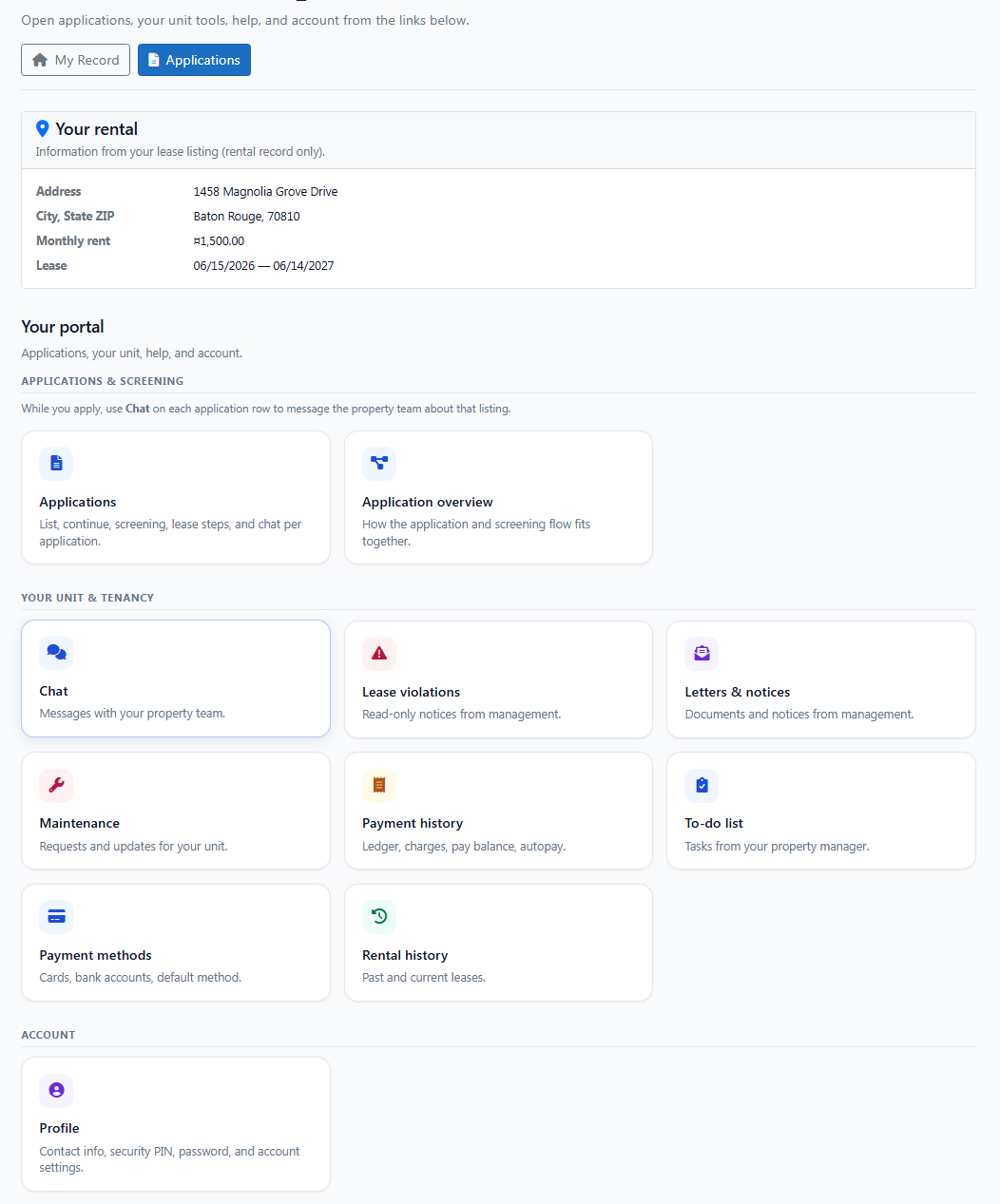

Profile summary and rental/lease information
On the Dashboard, you can view a summary of your profile and current rental/lease information. The lease summary includes the property address, monthly rent amount, lease start date, and lease end date.
Tip: If any information is incorrect, contact your landlord or property manager to request an update.
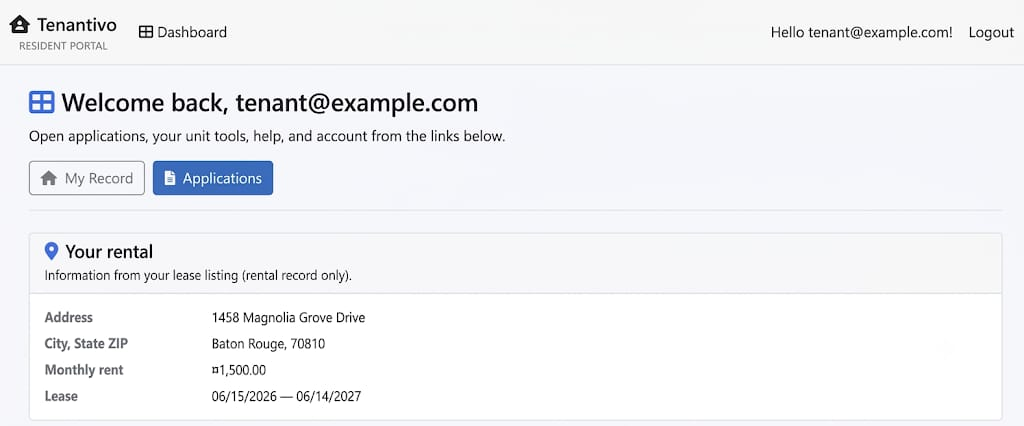

Rental history and current lease details
- From the Dashboard, scroll down and click Rental History.
- View your lease history and any attached documents, if available.
- Review property information, lease start and end dates, move-in date, and lease status.
Why it matters: Knowing your lease end date and terms helps you plan renewals and avoid surprises.
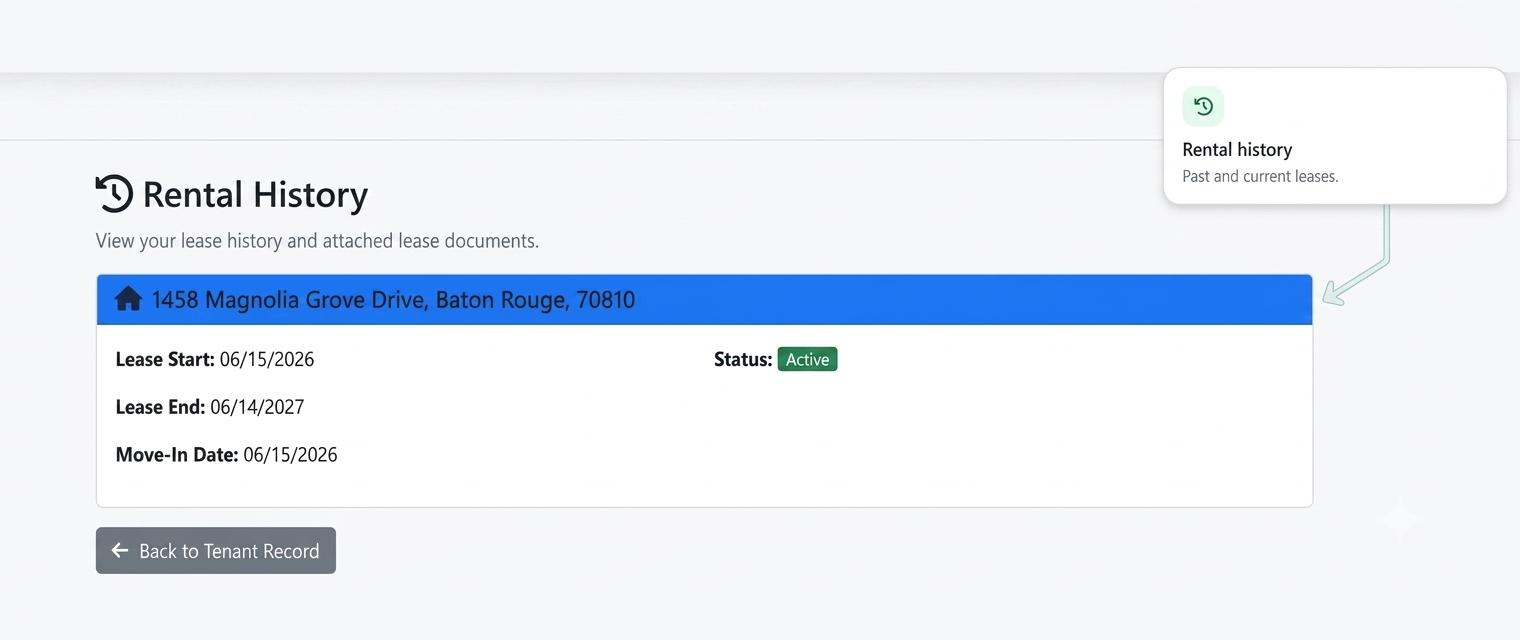

Payment history and balance
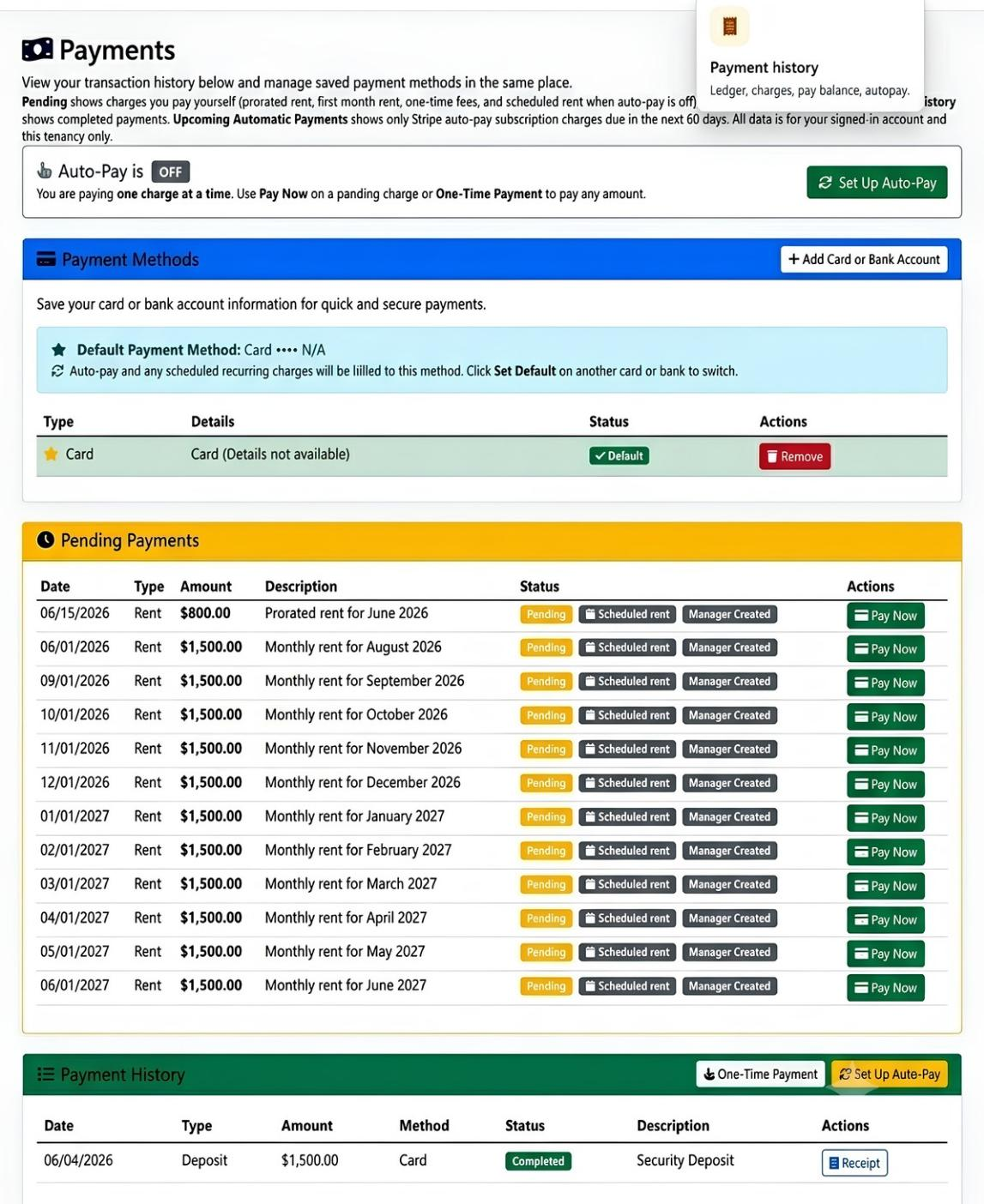
Click Payment History from the Dashboard. Review your current balance, pending payments, and payment history. To make a payment, select the charge you want to pay and follow the payment steps.
Tip: You can also set up AutoPay by adding a payment method, such as a bank account or debit/credit card. Check your balance regularly to stay current and avoid late fees.

To-Do list and tasks from the manager
- From the Dashboard, click To-Do List.
- Review your Pending Tasks.
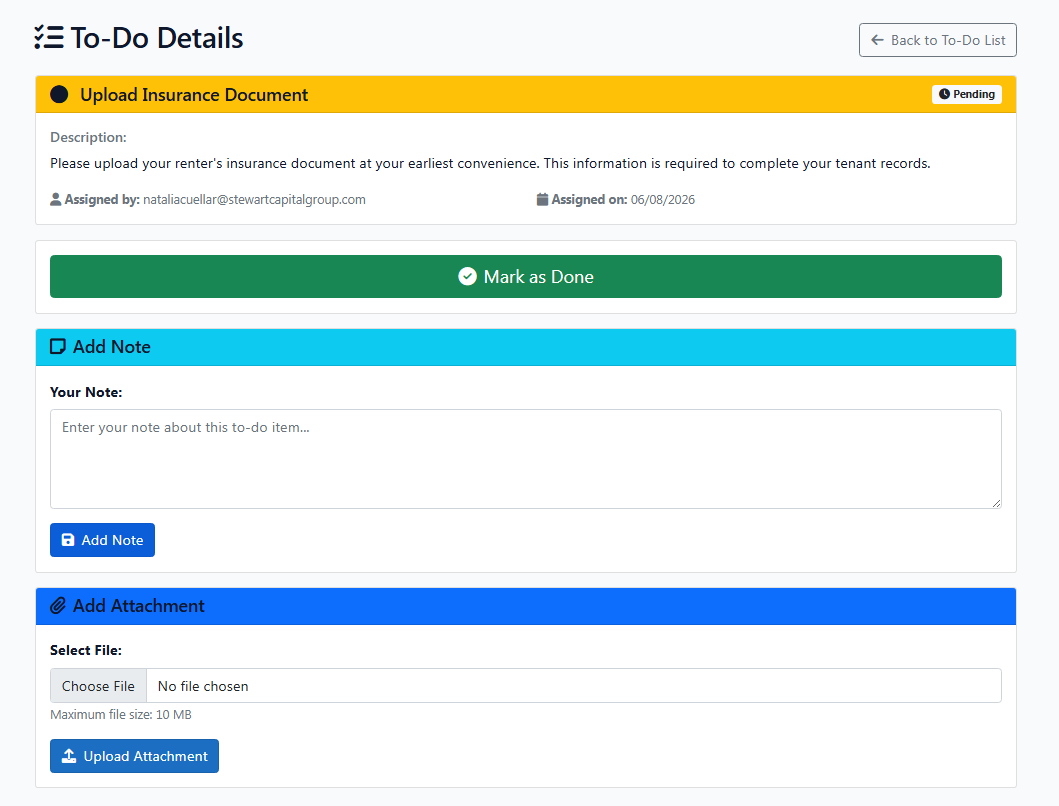
- Click View Details to see the task description and requirements.
- Complete the requested action and mark the task as completed.
- Add notes or upload documents if required.
Tip: Check your To-Do List regularly to make sure all required tasks are completed on time.

Quick links to payments, maintenance, chat, and letters
From the Dashboard, locate the Quick Links section. Click Payments, Maintenance Requests, Chat, or Letters to access the selected feature.
Why it matters: Quick Links provide fast access to the most commonly used features in the tenant portal.