Letters
View notices and letters sent by your manager.
Platform
Showing Web screenshots
Switch between web app and mobile app screenshots. Step text is the same; mobile images can be uploaded separately.
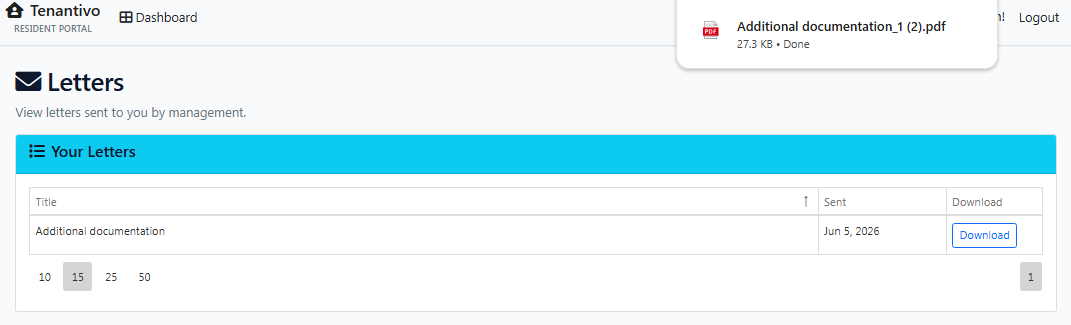
Viewing the letters and notices list
- Log in to the Tenant Portal.
- From the Dashboard, click Letters / Notices.
- View the list of letters or notices from your property manager.
- Each item shows the date and subject or title.
- Click Download to get the document.
Why it matters: Some letters or notices may include legal or lease-related deadlines. Check this section regularly so you do not miss important dates.

Opening and downloading a letter
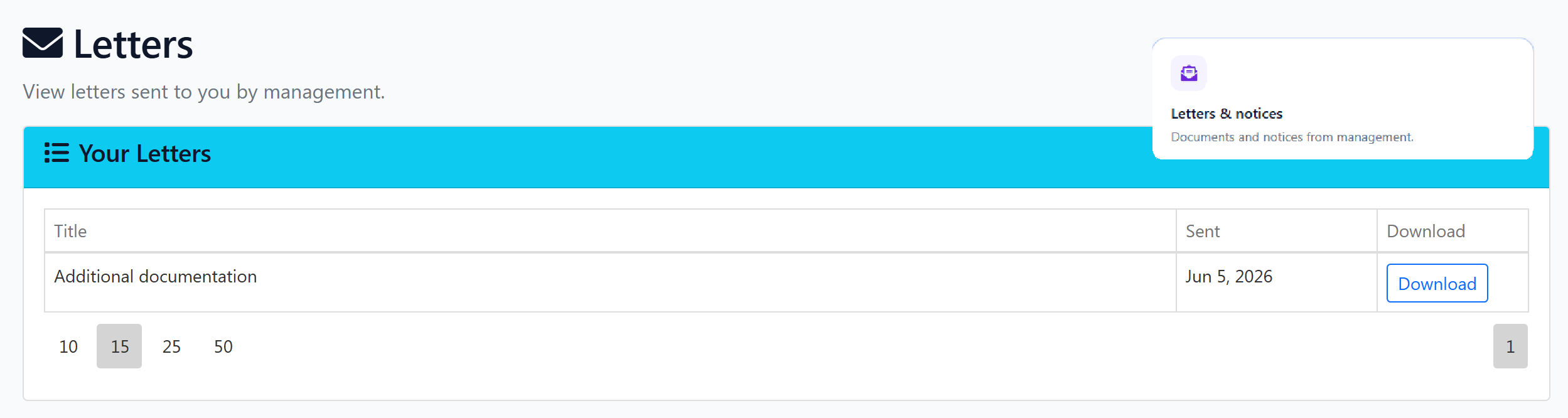
- From the Letters list, identify the letter you need.
- Click Download next to the selected letter.
- The document downloads to your device so you can review its contents.