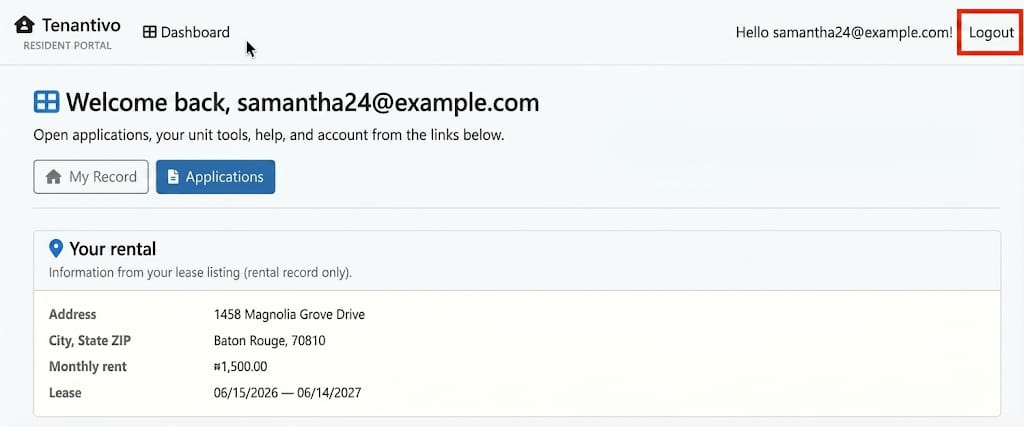
Profile & account
Manage your profile and account settings in the tenant portal.
Showing Web screenshots
Switch between web app and mobile app screenshots. Step text is the same; mobile images can be uploaded separately.
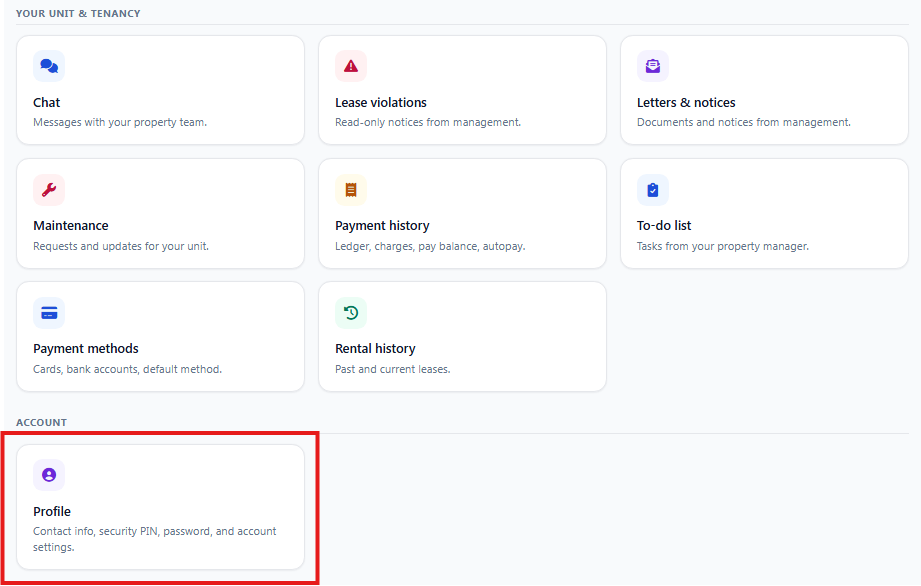
Opening Profile from the menu
- Sign in to the Tenant Portal.
- From the Dashboard, scroll down and select Profile.
- In the Profile section, you can manage personal information, security settings, and your password.

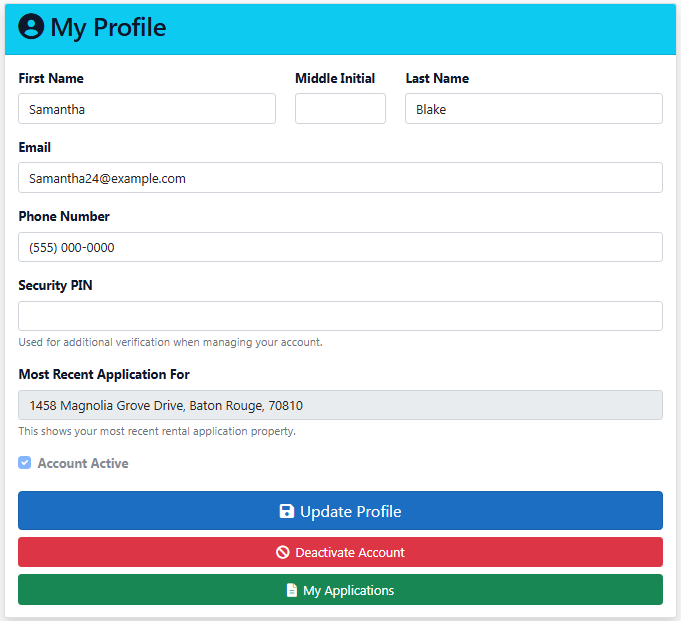
Updating personal information
- From the Dashboard, navigate to the Profile section.
- Open My Profile.
- Edit the information you want to change (name, phone, email, address).
- Click Update Profile to save your changes.

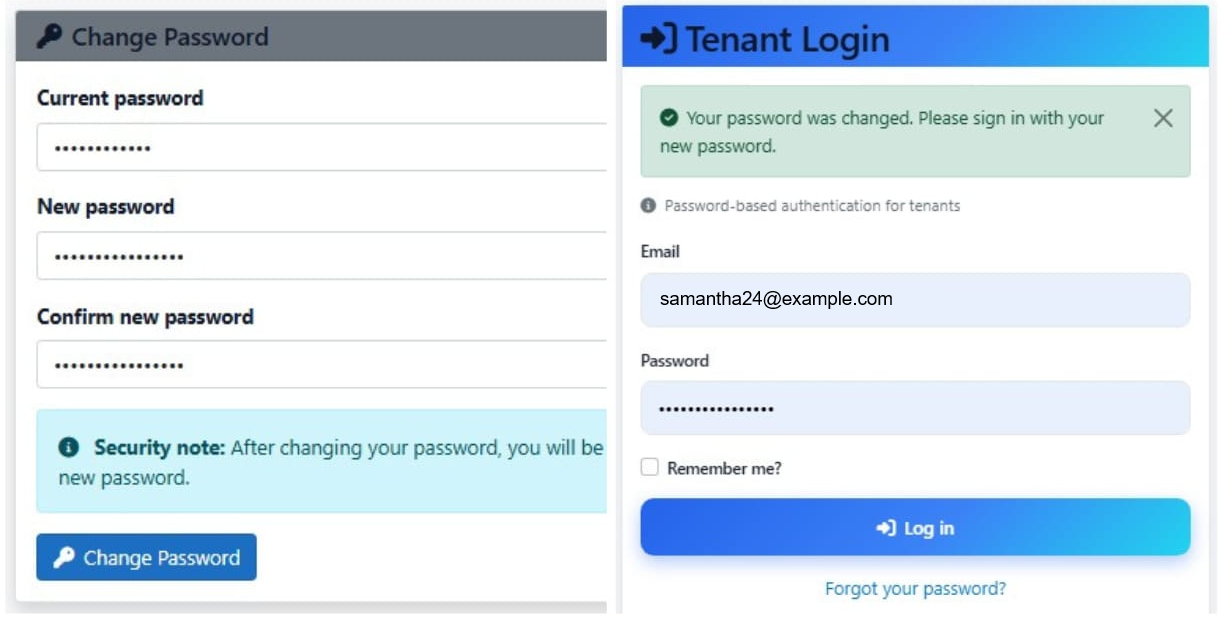
Changing password
- From the Profile section, click Change Password.
- Enter your current password.
- Enter and confirm your new password.
- Click Change Password to save.
Note: After changing your password, you will be required to sign in again with your new credentials.

Deactivating account
- Go to the Dashboard and open Profile.
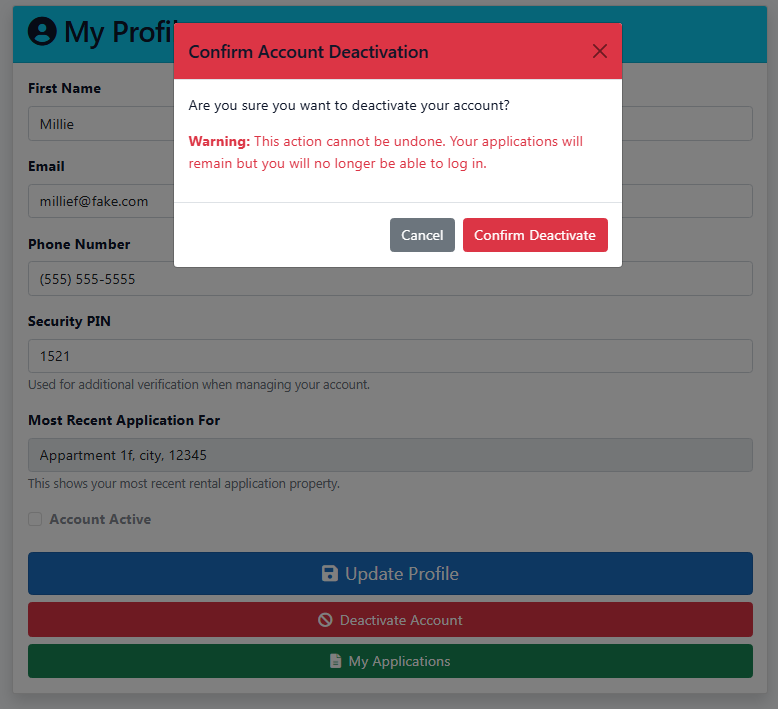
- In My Profile, click the red Deactivate Account button.
- Confirm in the pop-up when prompted.
Note: Once your account is deactivated, you may lose access to the tenant portal and its features. Download or print any records you need first.

Logging out
- From any page in the tenant portal, click Log Out in the upper-right corner next to your email address.
- You will be redirected to the Tenantivo home page.
Tip: Always log out when using a shared or public computer. If you forget to log out on a shared device, change your password as soon as possible.