Payments
Pay rent and manage payment methods from your tenant portal.
Showing Web screenshots
Switch between web app and mobile app screenshots. Step text is the same; mobile images can be uploaded separately.
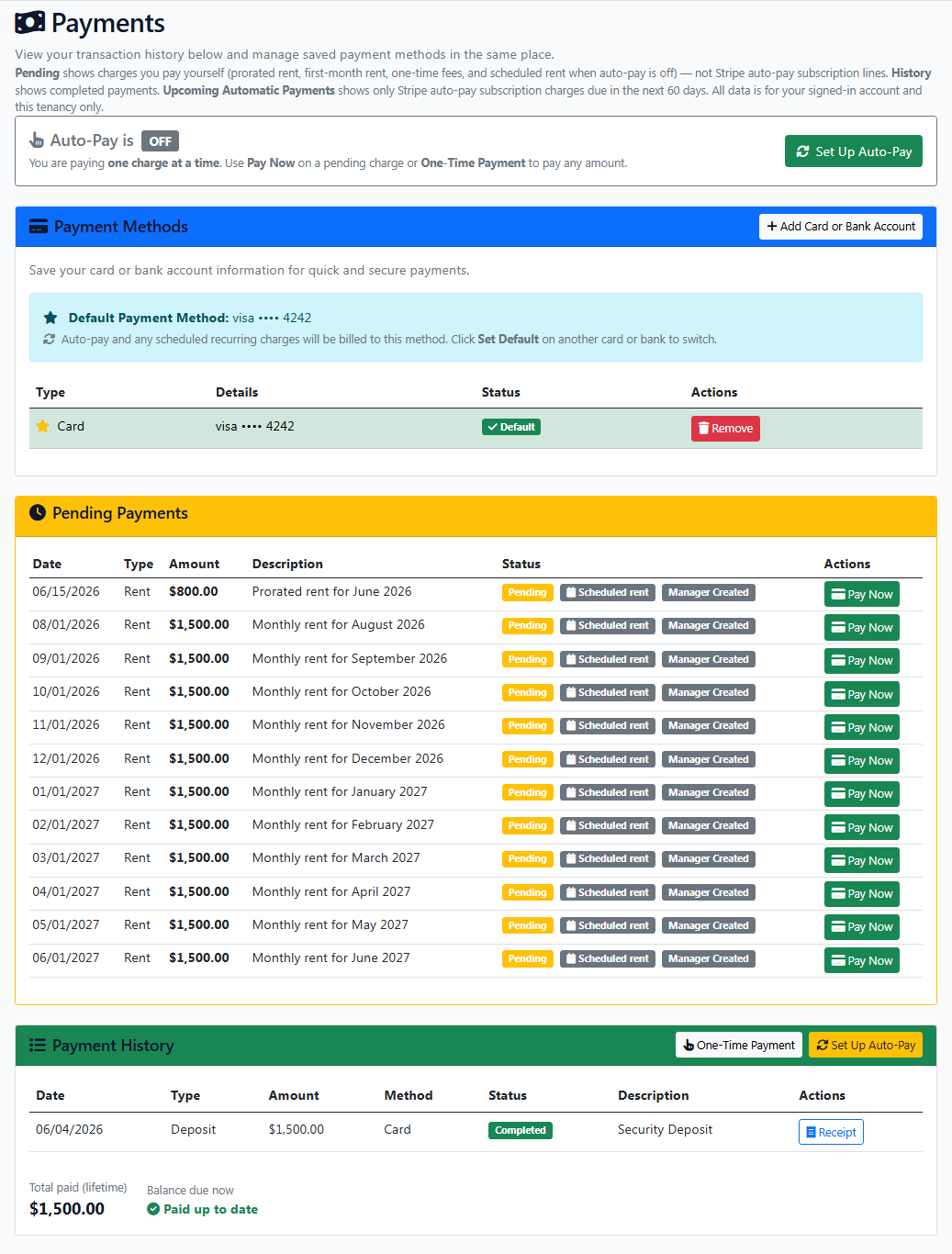
Viewing payment history and current balance
From the Dashboard, click Payments. Review your Current Balance. Below, you can view your Payment History, including transaction dates, amounts, and payment methods.
Tip: If the balance looks incorrect, contact your property manager before making a payment. They can review and adjust charges or late fees if needed.

Adding a payment method
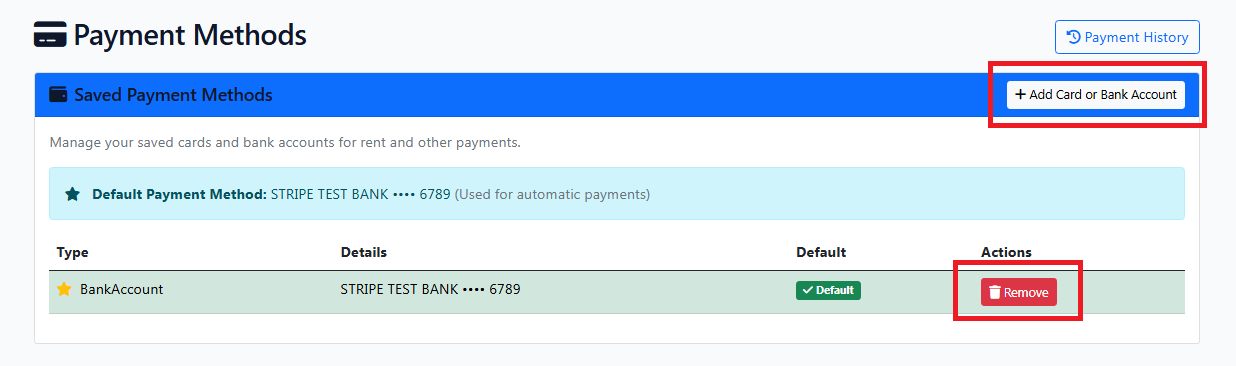
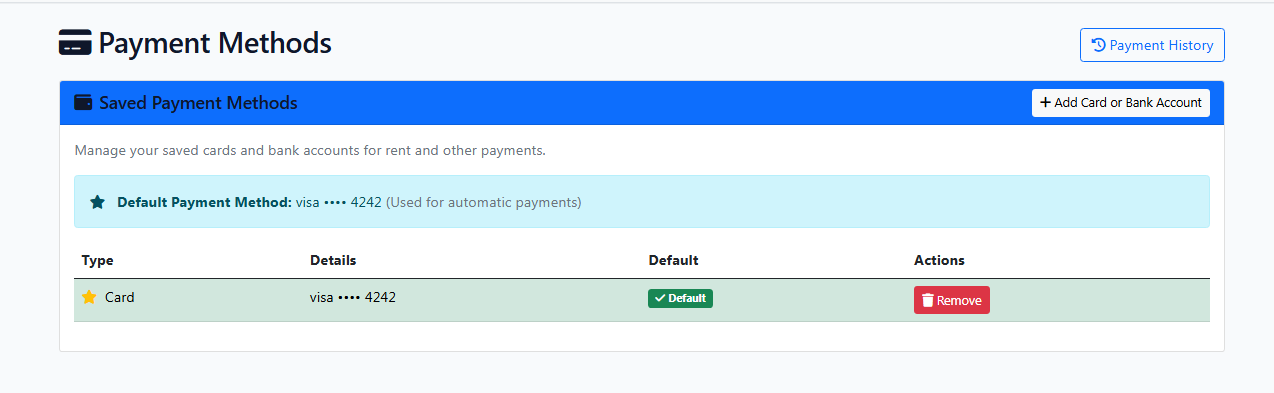
- From the Payments page, click Payment Method.
- Select Add Card or Bank Account.
- Enter the required information for the payment method you want to use.
- Complete any verification steps (e.g., a small card charge or bank micro-deposits).
- Once confirmed, the payment method will be saved for future payments.
Tip: For a bank account, the name on the account must match the name on your tenant record. A mismatch is rejected immediately — use a bank account in the same name, or a card.

Making a one-time rent payment
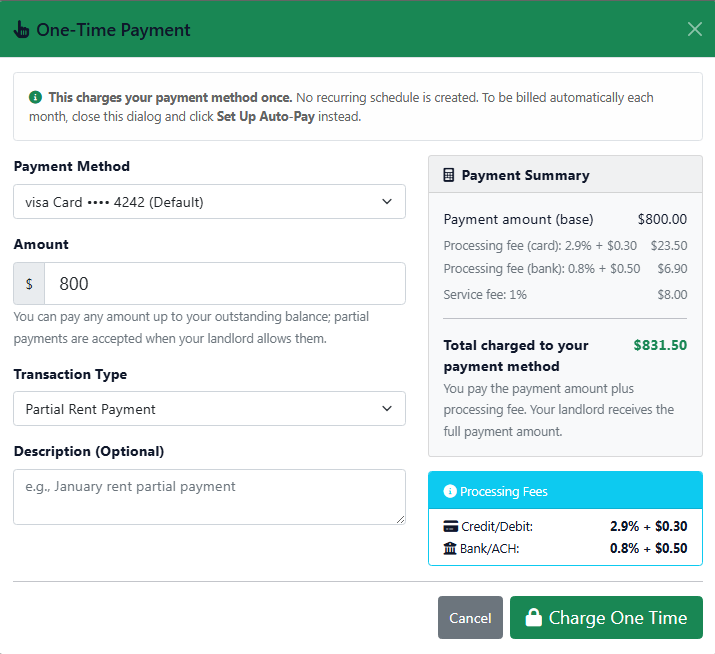
- From the Payments page, scroll to the Payment History section and click One-Time Payment.
- Enter the payment amount.
- Select the payment type, such as Rent, Partial Rent, Utility, or Late Fee.
- Add a description if needed.
- Review the payment details and any applicable fees on the right side of the page.
- Click Charge One Time to submit the payment.
Tip: Review the payment amount and fees before submitting the transaction.
Bank payments: On a new landlord account, a bank payment may show as in security review before it charges. Tenantivo does not keep the payment. If the review checks out, the charge goes through and the funds are released. Do not pay twice. A card under $500 usually completes immediately. If review expires (about 72 hours) or is declined, you can retry or ask your property manager.

Setting up auto-pay
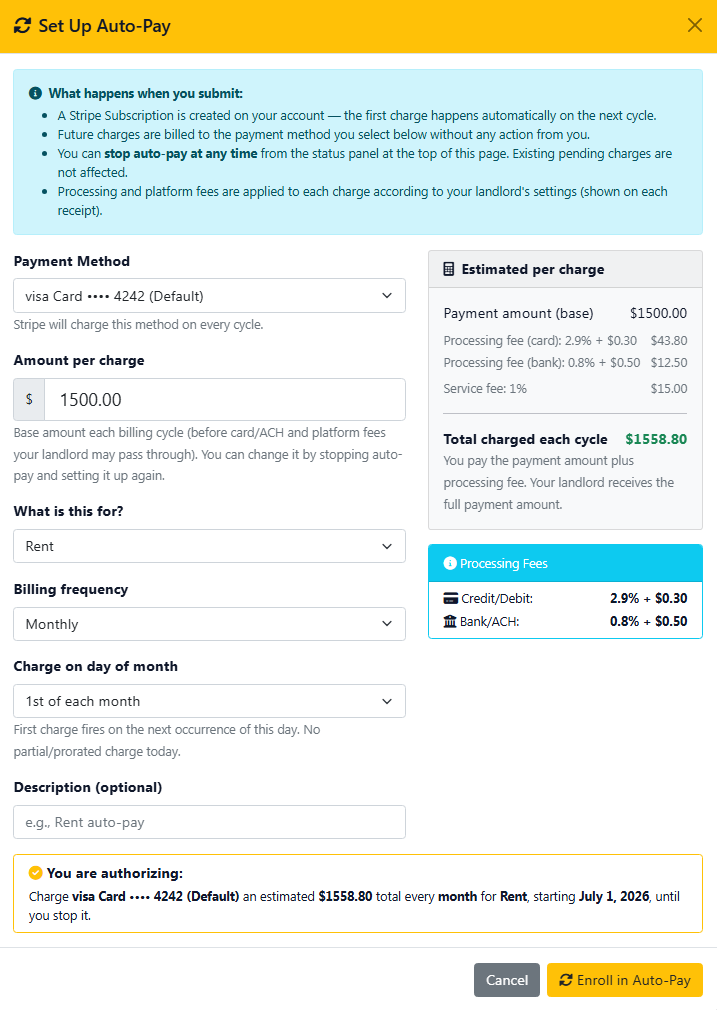
- From the Payments page, locate the AutoPay section and click Set Up AutoPay.
- Select the payment type, such as Rent or Utility, and enter the payment amount.
- Choose the payment date and how often the payment should run automatically.
- Add a description if needed.
- Review the payment details and any applicable fees on the right side of the page.
- Click Enroll in AutoPay to activate automatic payments.
Tip: Make sure your selected payment method remains active and has sufficient funds for scheduled payments. Bank auto-pay cannot enroll while your landlord’s account is still in its new-account review period — use a one-time payment (or a card, if offered) until they tell you auto-pay is available.

Viewing upcoming and past transactions
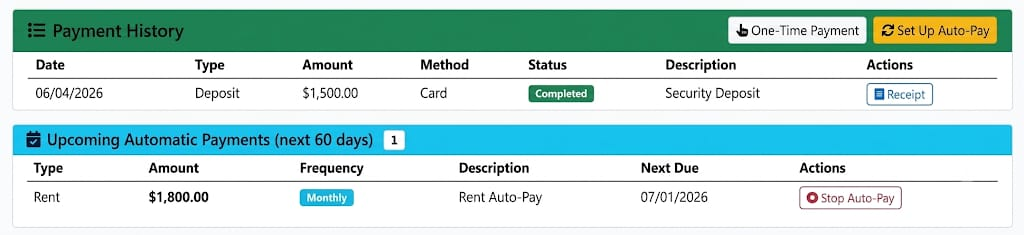
Scroll to the Upcoming Auto Payments section to review the date, amount, and payment type for your next scheduled automatic payment. Scroll to Payment History to view completed payments.
Note: Upcoming Auto Payments appears only if AutoPay has already been set up. If a payment does not appear within a few days, check for failed payment messages and update your payment method if necessary.

Late fees (if applicable)
What you see: If your property manager charges late fees, they appear on your current balance (for example: Rent $1,500 + Late Fee $50).
- From the Dashboard, open Payments or Payment History.
- Navigate to the Pending Payments section.
- Review the charge details, including rent, outstanding charges, and applicable late fees.
- Click Pay Now.
- In the Pay Transactions pop-up, review the payment breakdown and verify the total amount due.
- Click Process Secure Payment to complete the payment.


Refunds
Rent and deposit refunds are processed through Stripe back to the same card or bank account used for the original payment. Your property manager initiates the refund; Stripe forwards it to your bank or card issuer.
- Credit or debit card: usually 5–10 business days before the refund appears on your statement, depending on your bank. Some banks post it in 2–3 business days; others can take longer. If the refund was issued soon after you paid, it may appear as a reversal (the original charge is removed) rather than a separate credit.
- Bank account (ACH): typically at least 3 business days for Stripe to process, and often 3–5 or more business days before it shows in your account — timing varies by bank.
- While you wait: the portal may show Pending refund. You do not need to pay again; no action is required on your side.
- Still missing a card refund? If nothing appears after 10 business days, contact your bank. Processing fees charged on the original payment are generally not refunded.
Timing follows Stripe’s refund guidance and your financial institution’s posting schedule.


Updating or removing a payment method
In the Payment Methods section, you can view all saved payment methods, including bank accounts and cards.
To remove:
- From the Dashboard, click Payment Methods.
- Locate the payment method you want to remove.
- Click Remove and confirm in the pop-up.
To add a new payment method:
- Click Add Card or Add Bank Account.
- Enter the required payment information.
- Save the new payment method.