Maintenance requests
Submit and track maintenance requests for your rental.
Showing Web screenshots
Switch between web app and mobile app screenshots. Step text is the same; mobile images can be uploaded separately.
Opening the maintenance requests section
- Log in to the Tenant Portal.
- From the Dashboard, click Maintenance.
- Review existing requests or submit a new one.
Tip: For emergencies (e.g., no heat, major leak), call your manager or the number in your lease. Use the portal for non-emergency requests and tracking.
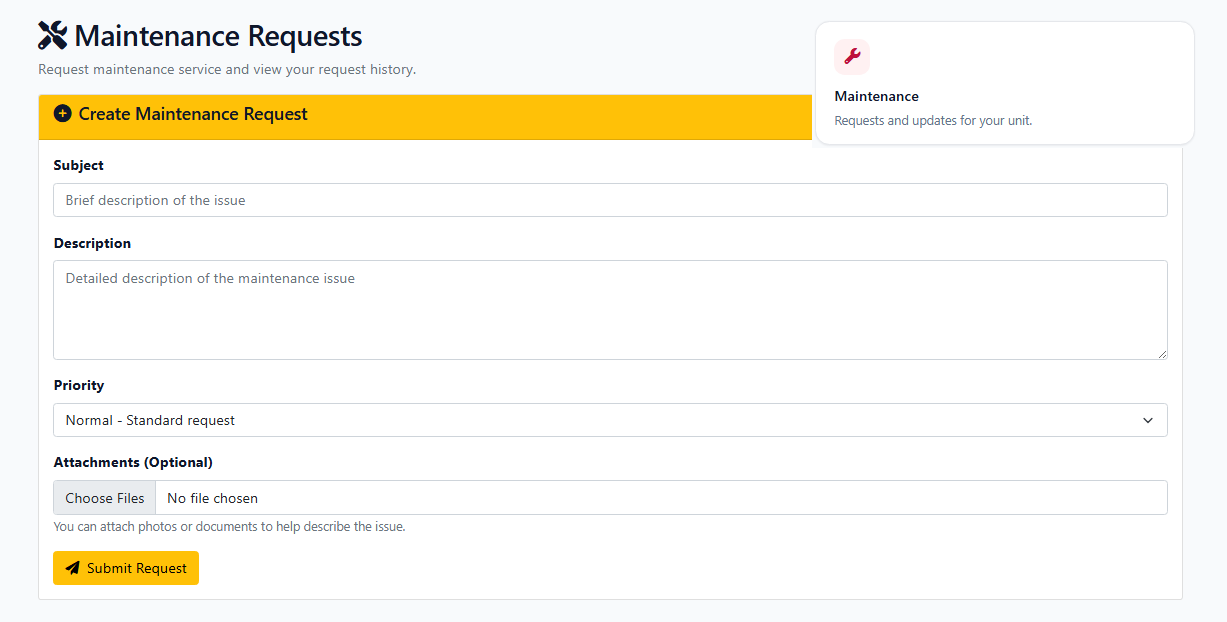

Creating a new request
- Click Maintenance (if not already on the page).
- Enter a Subject for your request.
- Provide a detailed Description of the issue.
- Select the appropriate Priority level.
- If needed, upload an Attachment such as a photo or document.
- Review the information entered and click Submit Request.
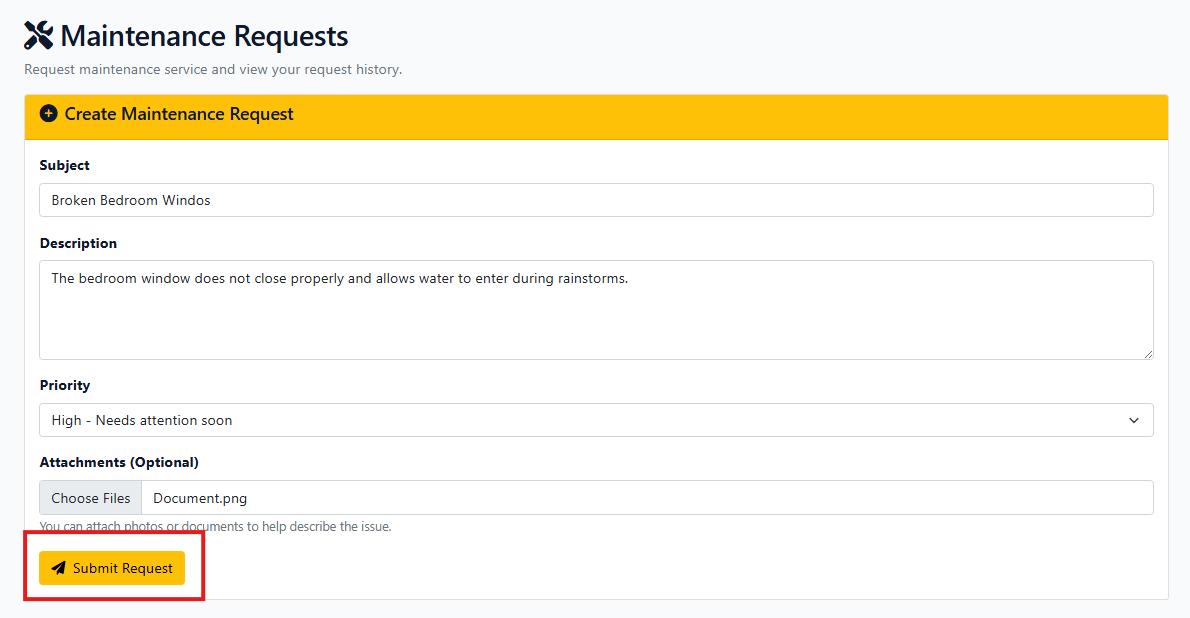

Viewing list of requests and status
- From the Dashboard, click Maintenance.
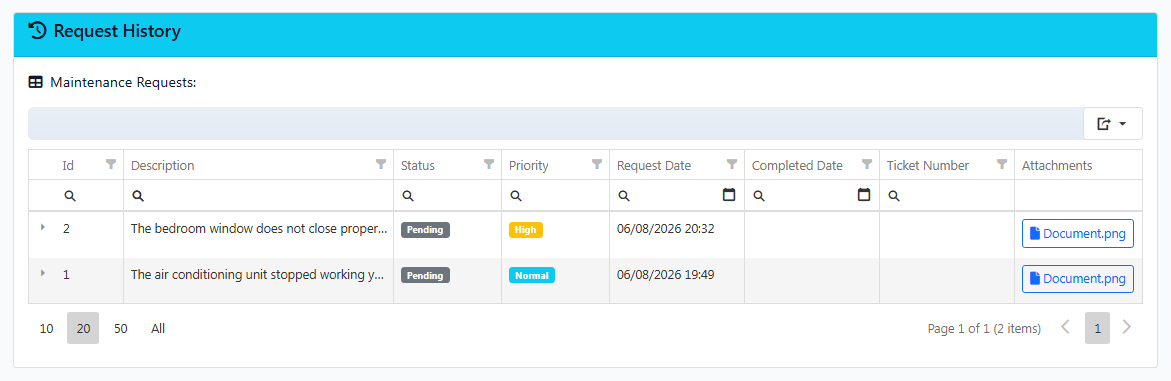
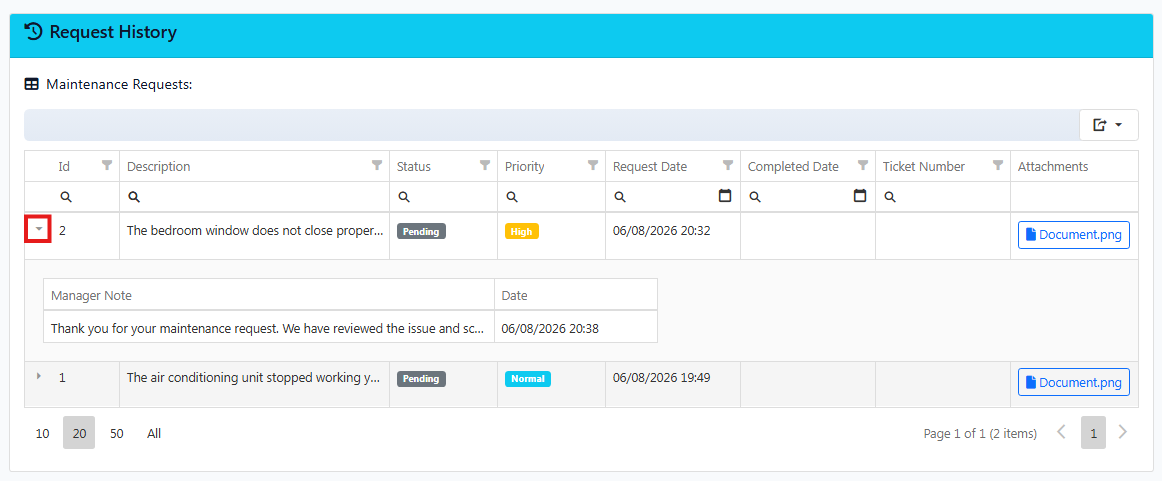
- Scroll down to the Request History section.
- Review the list of submitted requests and their status: Open, In Progress, or Closed.
- Use available filters to search by status if needed.
Select a request to view additional details, updates, or responses from your property manager.

Viewing request details and manager notes
- Go to the Request History section.
- Locate the maintenance request you want to review.
- Click the arrow next to the request to expand the details.
- Review the description, status, priority, and any attachments you submitted.
Note: Manager notes are visible only if the property manager has chosen to share them with residents.

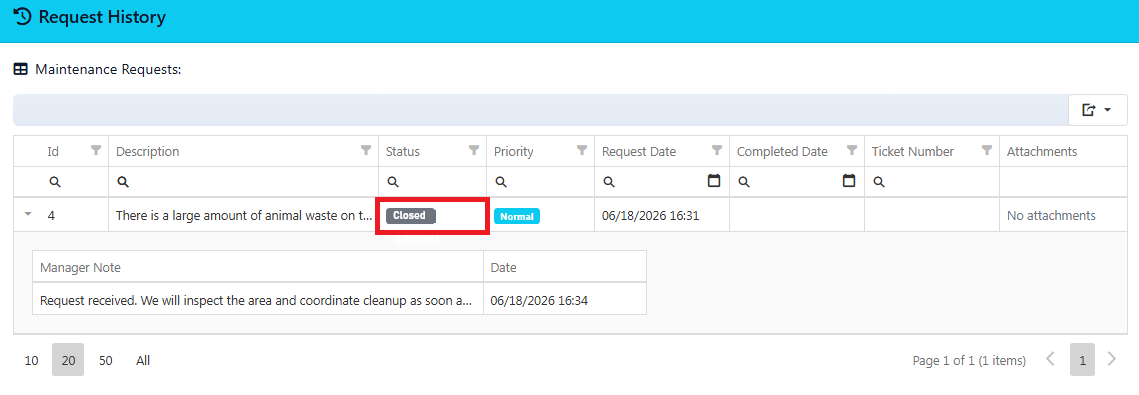
Understanding when a request is closed
- Click Maintenance and scroll to Request History.
- Locate the request and verify the status is marked as Closed.
- Click the arrow next to the request to view any notes left by the property manager.
Note: If the issue occurs again after a request has been closed, submit a new maintenance request. Contact your property manager directly if you disagree with the completed work.