Chat
Chat with your manager from the tenant portal.
Showing Web screenshots
Switch between web app and mobile app screenshots. Step text is the same; mobile images can be uploaded separately.
Opening chat from the tenant portal
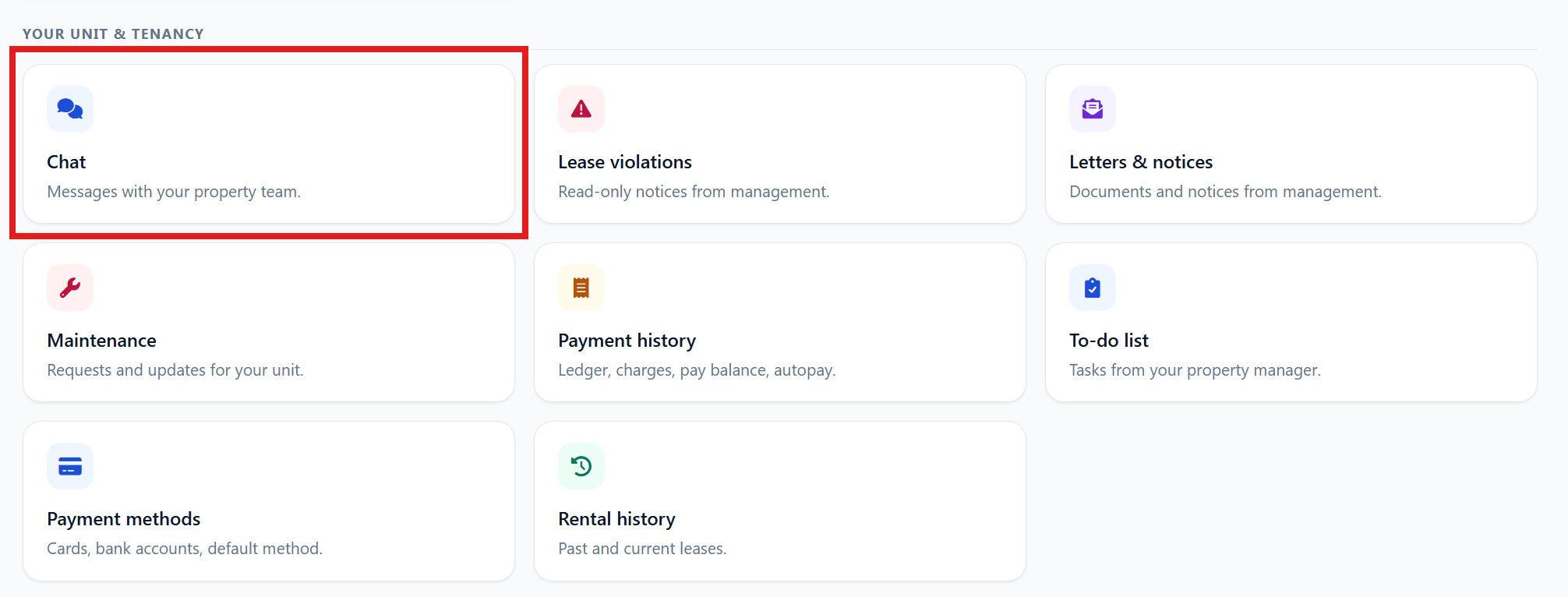
- Log in to the Tenant Portal.
- Click Chat from the main page, or open it from the Dashboard.
- The chat window opens with your conversation thread with the property manager.
Note: Use chat for questions, updates, and quick back-and-forth communication regarding your account or requests.

Viewing conversation history
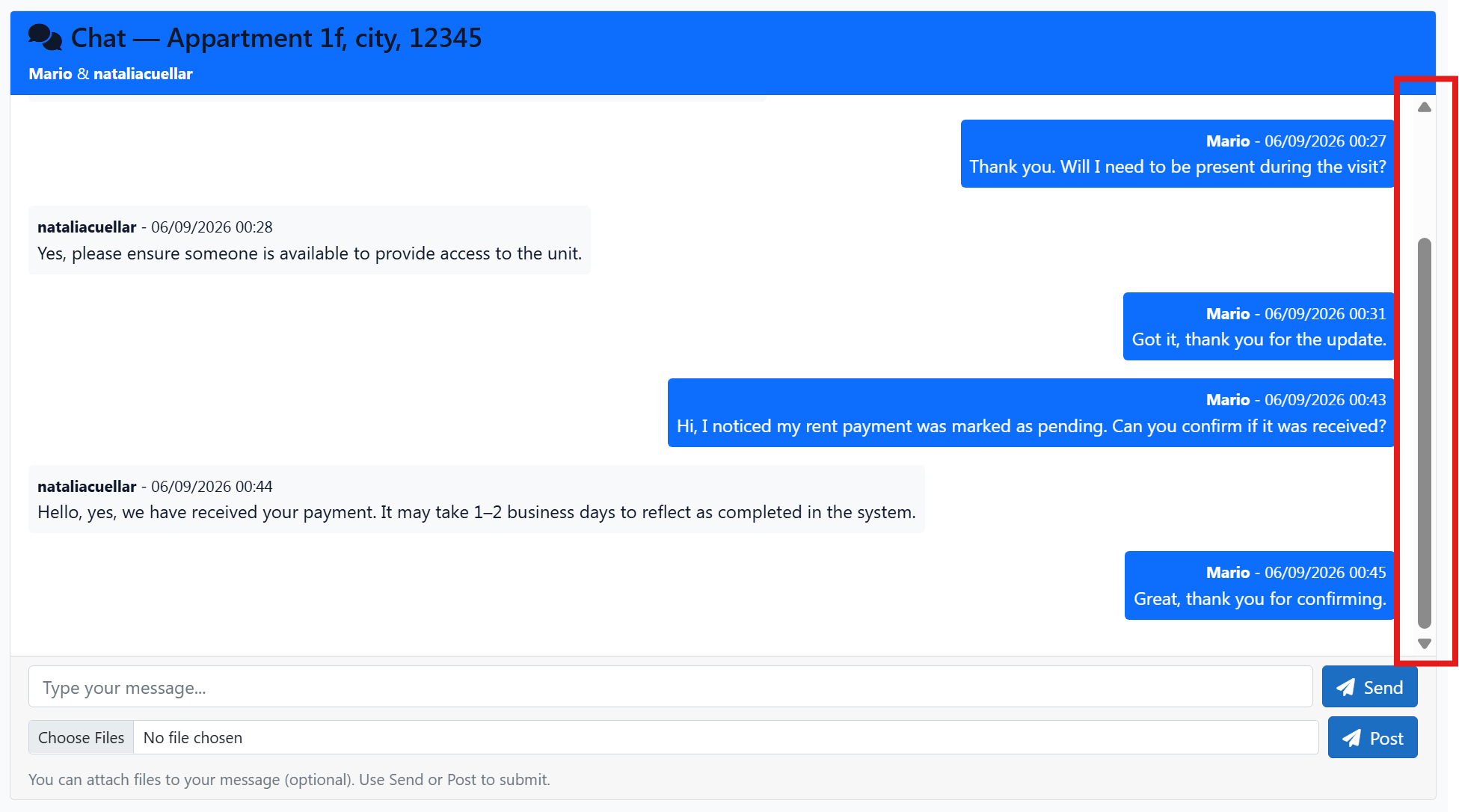
Within the chat, scroll up to see previous messages in chronological order. You can also use the scroll bar or arrows to navigate through the full conversation history.

Sending a message to the manager
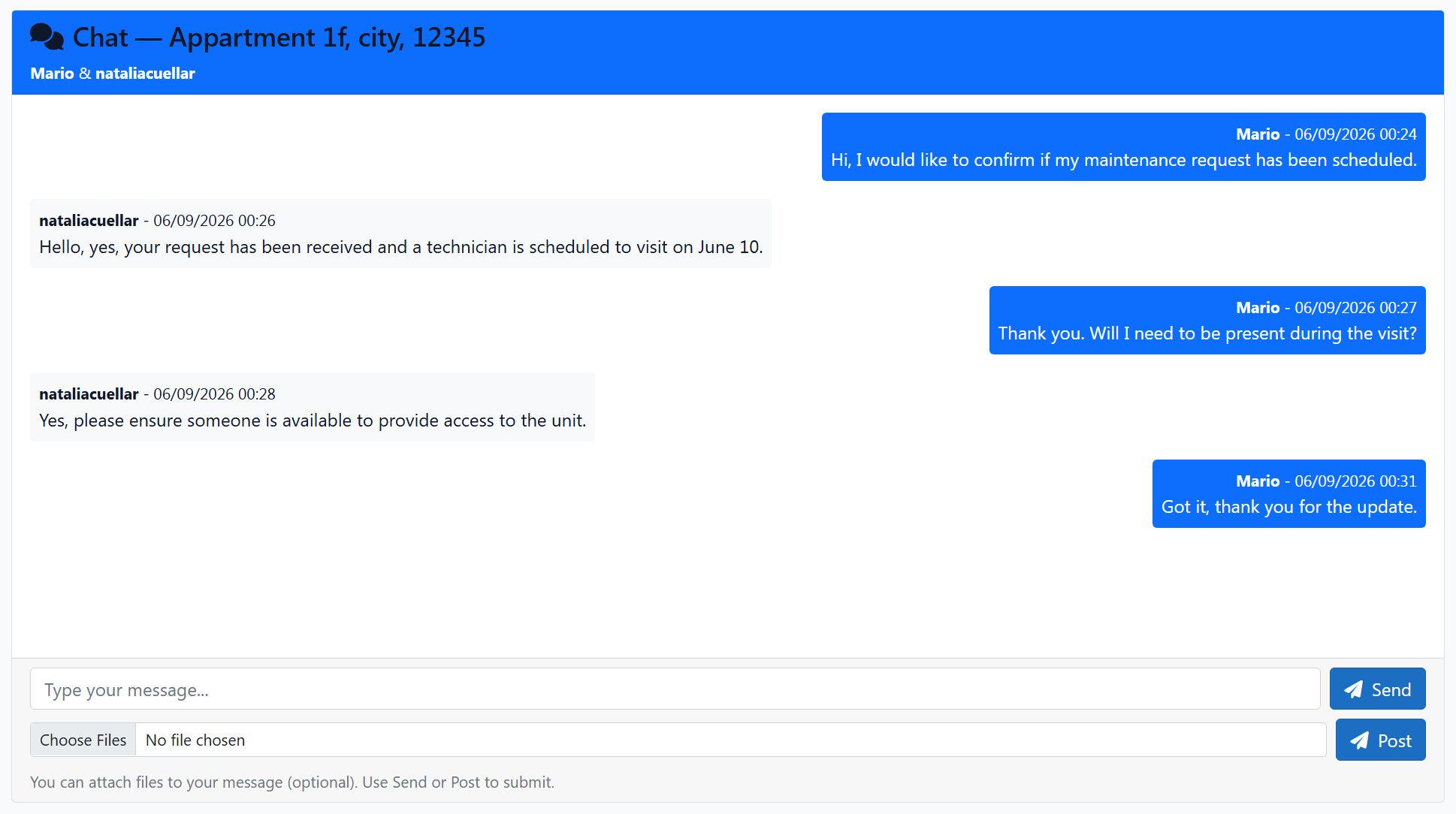
- In the chat thread, click the message box.
- Write your message and click Send or press Enter.
- Your message appears in the chat window and is visible to your property manager.
Tip: Keep your messages clear and concise so the manager can respond quickly.

Notifications and unread messages
The tenant portal does not send chat notifications, and there are no visual indicators such as message counters or unread badges. Check Chat periodically for new messages from your property manager.
When to use Chat vs maintenance requests
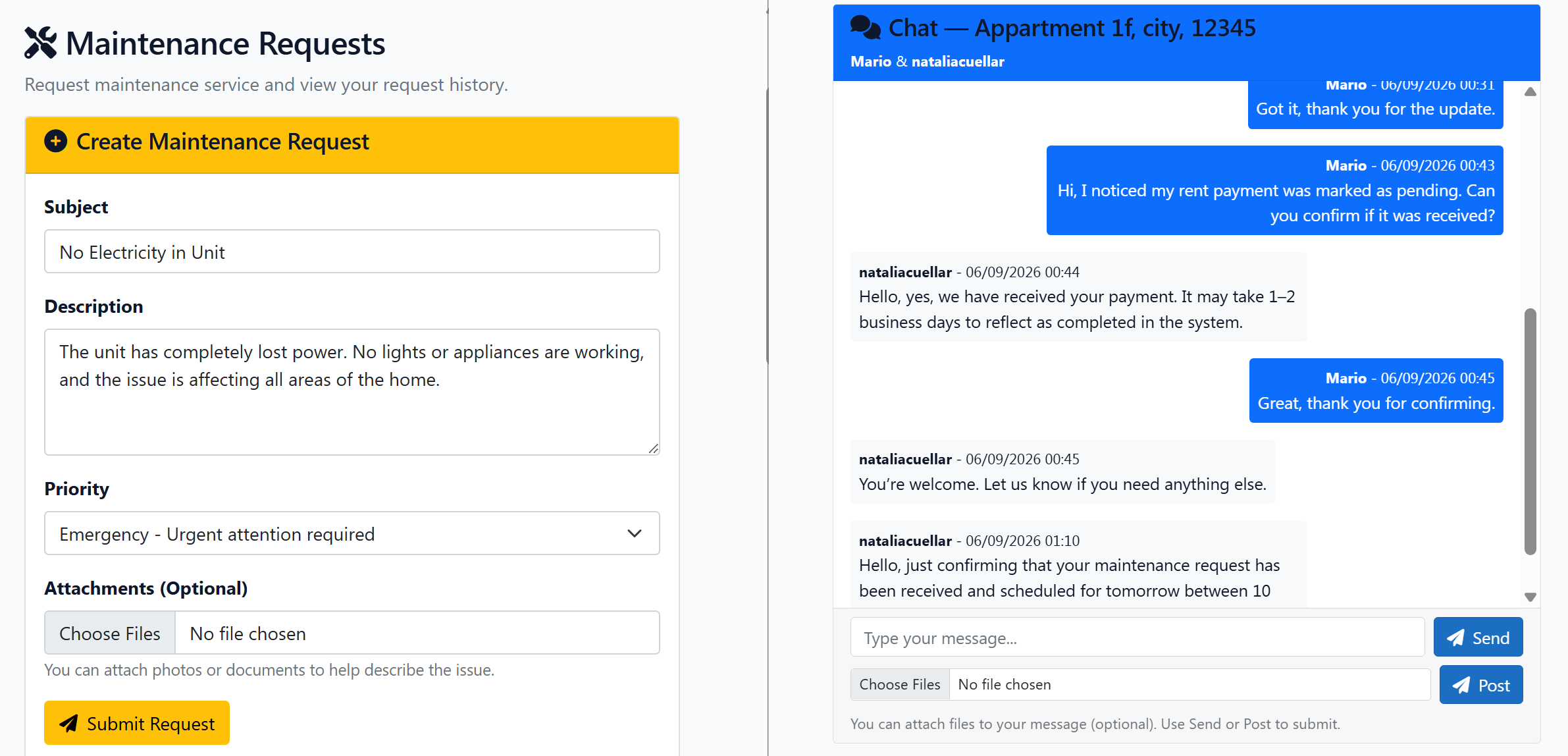
Use Chat for: General questions (e.g., pool hours, lease questions) and quick updates (e.g., “I’ll be away next week”).
Use Maintenance for: Repairs, leaks, broken appliances, or HVAC issues.
Tip: If it needs a repair or a visit, use Maintenance. For everything else, use Chat.